franksong2702/dsh-codex-connect
DeepSeek Harness 的 ChatGPT OAuth 与 Codex 模型支持。
项目介绍Project Overview
Codex Connect 是 DeepSeek Harness 的插件,通过 OAuth 把 ChatGPT 订阅接入 Harness,并把 openai-codex 模型加入选择器,可选用 GPT 图像生成、配额提示与 Fast Mode。模型仍走 Harness 自身的 LLM 服务,流式、工具调用、压缩、权限审批、会话恢复等能力由 Harness 统一管理。需要使用 ChatGPT 套餐内的 Codex 模型,并希望以原生 Harness 流程调用时使用。需注意:该插件不把 ChatGPT 订阅转为 OpenAI Platform API 凭据。
Codex Connect is a DeepSeek Harness plugin that links a ChatGPT subscription to Harness via OAuth, adding the openai-codex model catalog, optional GPT image generation, a weekly quota indicator, and a conversation-scoped Fast Mode toggle. Models flow through Harness's native LLM service, keeping streaming, tool calls, compaction, permissions, and session recovery Harness-owned. Use it when Codex models should run through familiar Harness workflows. Note: a ChatGPT subscription is not converted into an OpenAI Platform API credential.
请帮我了解并安装插件:【dsh-codex-connect】【https://github.com/franksong2702/dsh-codex-connect】把上面这条消息直接发给当前会话里的 DSH,让它帮你了解并安装。安装命令不一定准确,发给 DSH 更稳。Send this message to DSH in your current session. CLI install commands may not be accurate across systems — DSH will figure it out for you.
或使用命令行安装(适合开发者)Or use CLI install (for developers)
命令行安装CLI Install
dsh plugin --profile web add dsh-codex-connect@alpha把 franksong2702/dsh-codex-connect 加入你的 DSH 配置(web profile)即可启用。
READMEREADME
Codex Connect

English | 中文
Connect your ChatGPT subscription to DeepSeek Harness with OAuth, optional GPT Image generation, user-controlled defaults, Harness-native approvals, diagnostics, and reliable session recovery.
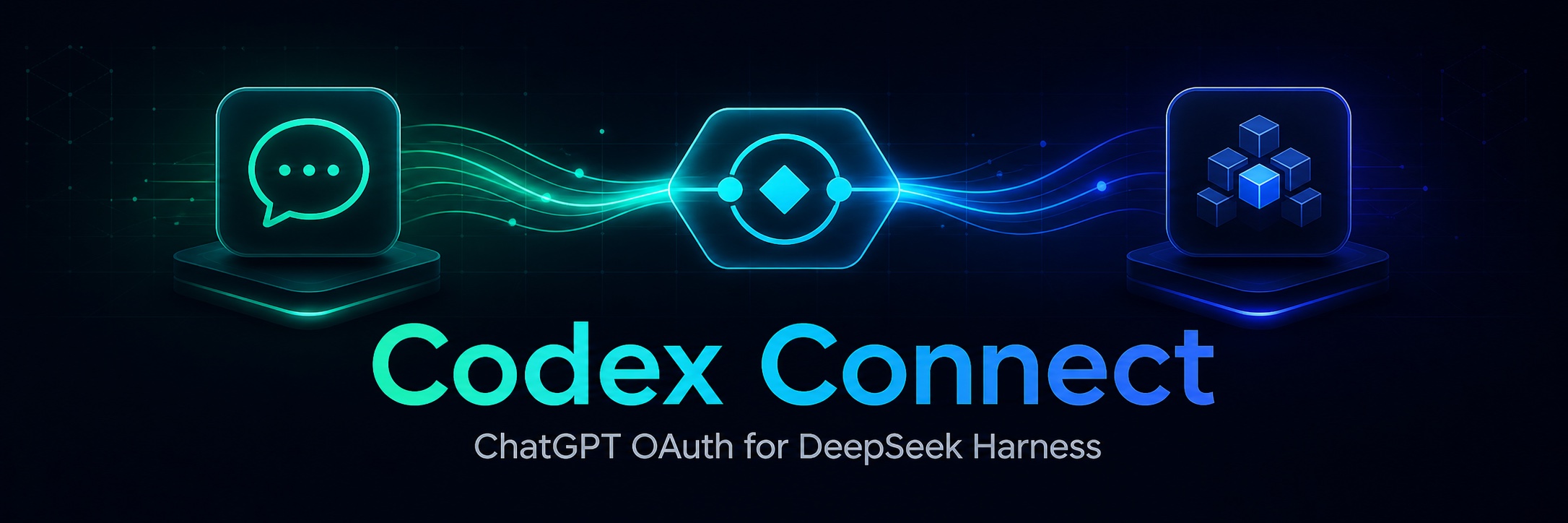
dsh-codex-connect adds the openai-codex model catalog and a separate ChatGPT OAuth login. Models run through Harness's normal LLM service, so streaming, tool calls, reasoning replay, compaction, filesystem controls, permission gates, and approval prompts remain Harness-owned. It does not turn a ChatGPT subscription into an OpenAI Platform API credential. When an eligible GPT Codex model is selected, the Composer also shows a conversation-scoped Fast Mode toggle and a compact weekly-quota indicator.
Installation is additive. The bundle does not replace the current default model or search route. Standalone search, view_image, and image generation remain disabled until explicitly enabled.
The setup and image-result screenshots in this English guide are captured from the English-localized Harness UI. The shared Composer crop is a language-neutral feature strip; the Chinese guide uses the same strip and Chinese captures for the other screens. Model and provider identifiers keep their canonical spelling in both languages.
Quick start (about five minutes)
This guide uses the web profile. Replace web with the name of the Harness profile you already use. You need a working dsh installation; from a DeepSeek Harness source checkout, prefix the commands with pnpm.
1. Install the plugin into one profile
dsh plugin --profile web add dsh-codex-connect@alpha
Expected result: the package is added to that profile. This does not change the profile's default model or global search route.
To reproduce this release exactly, use dsh plugin --profile web add dsh-codex-connect@0.1.0-alpha.4.20. If npm is unavailable after the matching GitHub prerelease exists, use dsh plugin --profile web add 'github:franksong2702/dsh-codex-connect#v0.1.0-alpha.4.20'. A local checkout can be installed as link:/absolute/path/to/dsh-codex-connect.
Version updates
Codex Connect checks public package metadata and this repository's verified-compatibility.json periodically through the DSH Web server. The same card reads the locally loaded DSH package version, shows it beside the latest DSH version recorded by this project, and evaluates the exact installed plugin and DSH version pair. Local version detection uses package metadata already available to the plugin and does not require a DSH Core change.
The compatibility record lists exact plugin and DSH versions rather than assuming every later release remains compatible. Maintainers can add a newly verified DSH version to the repository file without publishing another plugin release. A green result means the installed pair was verified; yellow means the latest plugin was verified with the installed DSH version and should be installed first; red means the installed DSH version is known but neither the installed plugin nor the latest published plugin has a matching record; gray means the installed DSH version is not recorded or the public record could not be checked. A red result includes a prefilled GitHub issue link for the installed DSH version so users can remind the maintainer without composing a report from scratch.
When a newer plugin version is available, a frame-wide DSH notice appears even if you switch conversations. It first shows the user-facing changes between your installed version and the newest version; technical release notes are available as a secondary detail, or from the release page. The plugin never runs an upgrade command by itself.
The notice first summarizes the user-facing changes between your installed version and the newest version. Technical release notes remain available as a secondary detail. To update, copy the short request shown in the notice to the Agent you use for this DSH project. The Agent can inspect the project instructions and choose the appropriate install or update method; the plugin does not execute anything on your behalf.
After the Agent reports completion, return to the notice or settings card and select Done — check again. If the running process still reports the old version, restart that profile's DSH Web process and check again.
For a manual terminal update, use the command documented for the profile you are running:
dsh plugin --profile web update dsh-codex-connect
Replace web with your own Harness profile name when needed. If the running process still reports the old version after the check, restart that profile's DSH Web process and check again. If public metadata is unavailable, no update notice is shown; the account and model features continue working normally.
2. Start Harness
dsh web
Expected result: the Harness web UI opens for the selected profile.
3. Find the Codex Connect card
Open Settings → Plugins → Plugin configuration → Codex Connect.
Expected result: a fresh installation shows Not signed in and a Sign in with ChatGPT button. The card is where you later manage optional capabilities too.

4. Sign in with ChatGPT
Click Sign in with ChatGPT and complete the browser approval yourself. If an embedded WebView blocks the sign-in window, use the displayed Open ChatGPT sign-in page link to continue in your system browser. Do not copy an authorization URL, code, token, or account identifier into an issue, log, or configuration file.
Expected result: the account area changes to Signed in. The screenshot below is the successful end state after this step; it is not the initial sign-in screen.

5. Choose a model and make one safe check
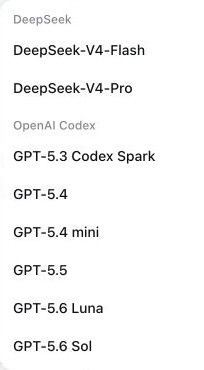
Open Harness's normal model picker and select an openai-codex model for the agent or session you are using. This selection is separate from writing the profile's default model or global search route.
The picker groups the available entries under OpenAI Codex. Model identifiers such as GPT-5.6 Luna are canonical names, so they intentionally remain un-translated.
To shorten that list, open Settings → Plugins → Plugin configuration → Codex Connect, uncheck the models you do not want to see, and select Save changes. This controls discovery only: a hidden model already stored in an existing conversation or supplied by its exact id remains usable. A fresh installation shows the complete catalog.
Profiles may also seed the visible subset with models; provider order is preserved regardless of the order written here:
- id: llm-openai-codex
  config:
    models:
      - gpt-5.6-luna
      - gpt-5.6-sol
      - gpt-5.6-terra
Omit models to show the full catalog. An empty list hides every Codex model from selectors without disabling exact-id routing.
To confirm the configured plugin row locally, run:
dsh --profile web --dump-config
Expected result: the configuration has exactly one llm-openai-codex row. Keep this configuration dump local; it may include unrelated profile settings.
For secret-free status and diagnostics that do not start OAuth, run:
dsh plugin --profile web exec dsh-codex-connect status --json
dsh plugin --profile web exec dsh-codex-connect doctor --json
Expected result: status --json reports signed-in and exits 0, while doctor --json prints one secret-free JSON document. A signed-out status --json exits 1; return to step 4 instead of treating that as a plugin failure.
Composer controls for GPT Codex conversations
The two small controls are shown only when the current conversation is using a GPT model from the openai-codex provider. They are session controls, not profile-wide settings:
- Fast Mode (lightning icon) is off by default for each conversation. Click it to request the faster
1.5×mode; click it again to return to Standard speed. The control is bound to that conversation and does not change the selected model or other conversations. Hover or focus the icon to see the current state and its quota-consumption warning. - Weekly quota bar is the short horizontal bar beside the model selector. Its color moves from green through yellow/orange to red as the remaining amount falls. Hover or focus it to see the exact remaining percentage and the server-provided reset time. It is hidden for non-GPT models or when usage data is unavailable.
- For the exact
gpt-5.3-codex-sparkmodel, the Composer reads the Spark weekly bucket. Other GPT Codex models read the standard Codex weekly bucket; these are separate limits.

Optional capabilities (off by default)
The installed bundle is intentionally inert beyond model-provider registration:
- id: llm-openai-codex
  config:
    enableProxy: false
    enableSearch: false
    enableImageTool: false
    enableImageGeneration: false
Open Settings → Plugins → Plugin configuration → Codex Connect to manage the account and these options in one card. Save changes affects only this plugin's capability section and applies live. It never selects a default model or a global search route.
Network connection and proxy detection
Codex Connect uses a Direct connection by default. A proxy is optional and applies only to this plugin's Codex requests: model streaming, OAuth login and token refresh, usage, standalone search, and image generation. Other providers and unscoped network requests keep the process's original dispatcher.
Select Detect proxy to test only the standard proxy environment variables and the documented loopback candidates 127.0.0.1:7890, 127.0.0.1:7897, and 127.0.0.1:10809. Detection makes no model call, consumes no quota, and does not write settings. A response from the canonical Codex endpoint proves network reachability; 401/403, proxy 407, DNS, refused connection, timeout, TLS, and CONNECT failures remain separate diagnostics.
Choose Use this proxy only after reviewing a candidate, then click Save changes. Configure manually lets you test a credential-free HTTP(S) proxy origin before activation. Disable proxy is always available. A failed probe leaves the previous mode unchanged, and an enabled proxy failure is shown as an actionable error; Codex Connect never silently retries the request through a direct connection.
Enable only the capability you intend to use
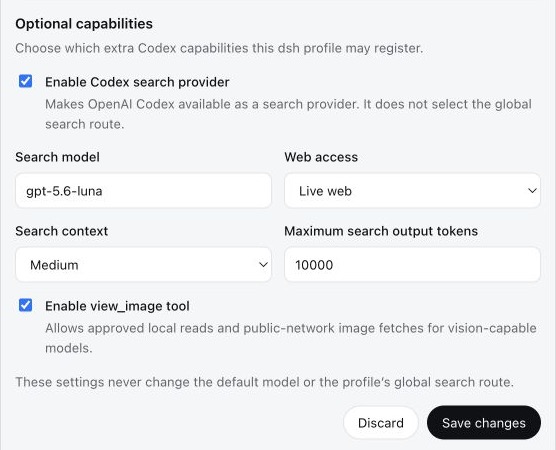
enableSearch: trueregisters Codex as an available search provider. It does not select the profile's global search route.enableImageTool: trueenablesview_imagefor approved local reads and public-network image fetches on vision-capable models.enableImageGeneration: trueenables the prompt-only image generation tool. Use the image generation capability included with your current GPT subscription. Generated images are saved as DSH attachments and shown in the Codex Connect result gallery.
The screenshot below is an example after someone has explicitly enabled capabilities. It does not show the fresh-install default. This English guide uses the English-localized capture; the Chinese guide shows the matching Chinese-localized state.
Generate images with GPT Image
- Turn on Enable GPT Image generation in the Codex Connect card and select Save changes.
- Choose an
openai-codexGPT model for the conversation. - Describe the image you want in ordinary language. The agent can expand that request into the prompt sent to GPT Image.
- The completed image is stored as a DSH attachment and rendered directly in the conversation. The result card lets you review and copy the full prompt, download the image, and inspect image details.
This capability uses the image generation access included with your current GPT subscription; it does not require an OpenAI Platform API key. Availability remains subject to the GPT plan and model selected for the conversation.
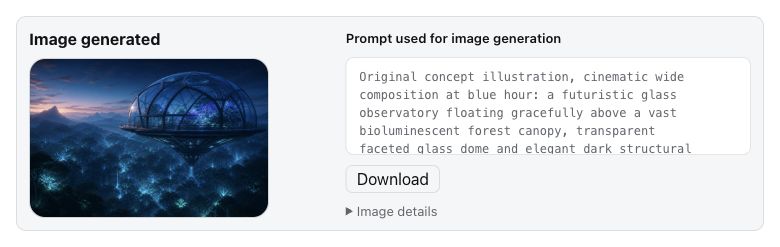
The detailed image prompt is authored by the selected GPT model. Codex Connect does not silently add image parameters: it validates the prompt-only request, forwards it through the ChatGPT subscription capability, and stores the returned image as a DSH attachment. On the result card you can scroll through and copy the complete prompt. Try again and Generate another send that card's own prompt again, so an older card is not accidentally regenerated from a newer conversation message. Modify this image first asks what you want to change, then continues from that card's prompt.
Usage limits in Plugin configuration
After sign-in, the Codex Connect settings card can show several server-reported windows. They are separate buckets, not three views of one number:
- Codex · Weekly is the standard Codex weekly bucket used by ordinary GPT Codex models.
- GPT-5.3-Codex-Spark · 5-hour and GPT-5.3-Codex-Spark · Weekly are the two Spark windows returned for the Spark model.
Each bar shows the remaining percentage and its local reset time. OpenAI controls the returned windows, eligibility, and reset values; missing usage data is treated as unavailable rather than guessed.
Change a default model or global search route separately
To make a Codex model the default for new agents, add or update the separate Harness row yourself:
- id: agent-default-model
  config:
    provider: openai-codex
    model: gpt-5.6-sol
Selecting Codex as the profile's global search route is another explicit change:
- id: llm-openai-codex
  config:
    enableSearch: true
    searchMode: live
    searchContextSize: medium

- id: web
  config:
    searchProvider: openai-codex
| Field | Default | Values |
|---|---|---|
models |
full catalog | Codex model id array; empty hides all entries |
enableProxy |
false |
boolean; direct connection unless explicitly enabled |
proxyUrl |
http://127.0.0.1:7890 (inactive placeholder) |
Credential-free HTTP(S) proxy origin |
enableSearch |
false |
boolean |
enableImageTool |
false |
boolean |
enableImageGeneration |
false |
boolean |
searchModel |
gpt-5.6-sol |
Codex model id |
searchMode |
cached |
cached, indexed, live |
searchContextSize |
medium |
low, medium, high |
searchMaxOutputTokens |
10000 |
positive integer |
Reauthentication, diagnostics, and conflicts
If the card says Sign in again or the server asks for reauthentication, click that action and complete the same safe browser flow. It preserves this plugin's capability settings and does not silently change your default model or global search route. Do not run
logoutjust to renew a session.doctorreads process and filesystem metadata only.doctor --jsonemits exactly one secret-free JSON document with schema version 1, package/version/Node metadata, credential-file state and safe mode, capabilities, conflict status, and hints. It omits the absolute credential path and OAuth, account, and expiry data.status --jsonemits only signed-in or signed-out state with package metadata.status --jsonreads the credential only to determine sign-in state, but never prints credential contents or starts OAuth.Alpha 4.10 users whose search histories fail with an unknown
web/openai-codex-search-llm-requestevent can rundsh-codex-connect migrate-history --json, stop DSH, then apply the reported repair withmigrate-history --apply --confirm-stopped --json. The command is dry-run by default, backs up every changed compressed JSONL artifact, and is dry-run only on Windows; see MIGRATION.md.OAuth is stored separately at
$DSH_HOME/.openai-codex-auth.json(~/.dshby default).~/.codex/auth.jsonis never copied or modified. The parent directory and file use owner-only permissions where supported, writes are atomic, and refresh writes use a cross-process file lock.By default, the OAuth routes accept loopback browser requests only. When DSH runs on one device and you open it from another device on a trusted network, approve the browser address-bar origin explicitly on the device that runs DSH:
dsh plugin --profile web exec dsh-codex-connect trust-origin http://192.168.1.20:3080
dsh plugin --profile web exec dsh-codex-connect trusted-origins
dsh plugin --profile web exec dsh-codex-connect untrust-origin http://192.168.1.20:3080
Replace the example with the exact origin from the browser address bar, including scheme and port; do not enter the accessing device's IP, a bare host, a path, a query, or a fragment. Trust only a network you control, never expose this route to the public Internet, and use an SSH tunnel as the fallback when explicit network trust is not appropriate. The browser page only displays and copies this command; it never changes the allowlist itself.
If startup reports an
openai-codexcollision, an olddsh-codexbundle or manual provider row may already own the adapter. Inspect the effective configuration and remove only the confirmed conflicting owner. Do not delete auth files or unrelated providers.Removing the package does not delete OAuth state. Run
logoutonly when credential removal is intended.
Compatibility and security boundary
- The only verified compatibility combination is DSH plugin API packages
0.1.1-rc.2,@earendil-works/pi-ai0.82.1, and Node.js^22.19.0 || >=24.0.0; see compatibility.json. Alpha 4.20 uses the rc.2 keyed Plugin configuration slot; users of older DSH API packages should upgrade to the rc.2 API packages. - Upgrade the DSH plugin API packages and
@earendil-works/pi-aias one group, then rundsh-codex-connect doctor --jsonand the compatibility check again. This contract does not make claims about future versions. - When the daily upstream check finds a new
latestornextDSH candidate, it installs Codex Connect into an isolated profile, boots the installed model runtime without OAuth credentials, verifies model and reasoning-effort discovery, and confirms provider disposal. Live sign-in, quota, and model requests still require manual validation in the test profile. - ChatGPT plan eligibility, model access, quotas, and backend behavior are controlled by OpenAI and may change.
- The Codex endpoint does not enforce the ordinary Responses
max_output_tokensfield. Harness compaction still works, but that summary cap cannot be imposed server-side on this route. - Shell, filesystem, skills, MCP, subagents, approvals, permissions, attachments, session persistence, compaction, and recovery continue to come from the active Harness profile.
- Remote
view_imageURLs are limited to public HTTP(S) destinations. Every DNS result and redirect is checked, and the connection is pinned to the validated address so localhost, private networks, link-local services, and cloud metadata endpoints remain unreachable. - No real OAuth operation is required for installation, build, tests, doctor, or package validation.
See INSTALL.md for the idempotent agent runbook, RELEASING.md for the Alpha release checklist, MIGRATION.md for migration from dsh-codex, and docs/design.md for architecture details.
Development
pnpm install --frozen-lockfile
pnpm run check
Releases
Maintainers publish alpha versions through the manual OIDC release workflow; see the alpha release runbook for the separate, short-lived latest promotion step.
Legal / Acknowledgements
Copyright 2026 Frank Song for the modifications and additional work in Codex Connect. This project includes software derived from Yan-Zero/dsh-codex; Copyright 2026 Yan-Zero is retained for the upstream material. Both are distributed under Apache-2.0, with details in NOTICE. This project is not affiliated with or endorsed by OpenAI, ChatGPT, Codex, DeepSeek, or DeepSeek Harness.
License
Apache-2.0
相关推荐Related
-
 nexu-io/open-design
🎨 Best DeepSeek Harness Design Plugin. The open-source Claude Design alternative. 🖥️ Local-first desktop app. 🖼️ Your…
nexu-io/open-design
🎨 Best DeepSeek Harness Design Plugin. The open-source Claude Design alternative. 🖥️ Local-first desktop app. 🖼️ Your…
-
 ruvnet/ruflo
🌊 The original agent meta-harness. Deploy intelligent multi-player swarms, coordinate autonomous workflows, and build c…
ruvnet/ruflo
🌊 The original agent meta-harness. Deploy intelligent multi-player swarms, coordinate autonomous workflows, and build c…
-
 amruthpillai/reactive-resume
A one-of-a-kind resume builder that keeps your privacy in mind. Completely secure, customizable, portable, open-source a…
amruthpillai/reactive-resume
A one-of-a-kind resume builder that keeps your privacy in mind. Completely secure, customizable, portable, open-source a…
-
 esengine/DeepSeek-Reasonix
DeepSeek-native AI coding agent for your terminal. Engineered around prefix-cache stability — leave it running.
esengine/DeepSeek-Reasonix
DeepSeek-native AI coding agent for your terminal. Engineered around prefix-cache stability — leave it running.
-
 volcengine/OpenViking
Self-evolving Context Database for AI Agents. Unify Agent Memory, Knowledge RAG and Skills.
volcengine/OpenViking
Self-evolving Context Database for AI Agents. Unify Agent Memory, Knowledge RAG and Skills.
-
 Molunerfinn/PicGo
:rocket: The Ultimate Image Uploader for Efficient Creators. Supports Obsidian, Typora, VS Code etc. and 60+ image hosti…
Molunerfinn/PicGo
:rocket: The Ultimate Image Uploader for Efficient Creators. Supports Obsidian, Typora, VS Code etc. and 60+ image hosti…
-
 titanwings/distilly
Distilly — Distill how they think into reusable Skills for any Agent or Bot. Formerly Colleague Skill(原同事 Skill).
titanwings/distilly
Distilly — Distill how they think into reusable Skills for any Agent or Bot. Formerly Colleague Skill(原同事 Skill).
-
 titanwings/colleague-skill