heartmove/dsh-side-chat
An enhanced version of a Codex-style side chat for DSH: a dedicated, agentic chat in a right-side panel, scoped to the conversation it was started from and aware of its workspace. Select part of a conversation and ask about it in the side chat; the side chat inherits the main conversation's toolset, model, and permission
catalog 简介 / catalog descriptioncatalog description:一个 DSH 网页插件,Codex 式侧边聊天的强化版本: 在右侧面板提供按主会话隔离的独立聊天,具备 Codex 式的智能体能力——继承主会话的 工具集、模型、思考难度与权限预设,能感知所在工作目录;选中对话内容即可提问,AI 回复 也能带回主会话(直接带回或摘要后带回,写入草稿或注入为折叠提示行)。 在 Codex 式能力之上,它额外支持:当主会话的智能体弹出问题弹框向你提问时,可以 把问题与各个选项带入侧边聊天、让 AI 帮你分析,不必打断当前流程——想清楚后把答案 带回,再回答弹框即可。
项目介绍Project Overview
DSH 侧边聊天是一款客户端插件,在主对话右侧提供 Codex 风格的代理式侧栏聊天。每个对话独享一个隐藏的 DSH 会话,自动继承主对话的工具集、模型、思考强度与权限预设,并感知其工作目录。选中文本即可弹出“Ask in side chat”发起提问;回复可整段或选段带回主对话,支持直接插入或摘要插入,落点可设为草稿或折叠上下文行。当主代理弹出问题对话框时,侧栏会自动列出问题与选项(无需手动选中文本),可继续现有或新建侧聊,研究完成再回填答案,流程不被打断。侧栏宽度 280–720px 可拖拽,跨刷新记忆。注意:每个主对话的侧聊独立归档,不会出现在主会话列表中。
DSH side chat is a client plugin that adds a Codex-style agentic panel to the right of the main conversation. Each main conversation owns one hidden DSH session that inherits the main chat's toolset, model, thinking effort, permission preset, and working directory. Selecting text shows a floating "Ask in side chat" button to launch a query with the snippet preloaded. Replies can be brought back whole or partially, verbatim or summarized, into the composer draft or as a collapsed context row. When the main agent shows a question dialog, the panel auto-lists the question and each option (no manual selection), letting the user consult the AI first and answer later without breaking the flow. The panel resizes 280–720px, persists across reloads, and follows DSH's language setting. Note: side chats are archived per conversation and never appear in the main session list.
请帮我了解并安装插件:【dsh-side-chat】【https://github.com/heartmove/dsh-side-chat】把上面这条消息直接发给当前会话里的 DSH,让它帮你了解并安装。安装命令不一定准确,发给 DSH 更稳。Send this message to DSH in your current session. CLI install commands may not be accurate across systems — DSH will figure it out for you.
或使用命令行安装(适合开发者)Or use CLI install (for developers)
命令行安装CLI Install
dsh plugin --profile web add github:heartmove/dsh-side-chat把 heartmove/dsh-side-chat 加入你的 DSH 配置(web profile)即可启用。
READMEREADME
dsh-side-chat — 侧边聊天 (Side chat)
An enhanced version of a Codex-style side chat for DSH: a dedicated, agentic chat in a right-side panel, scoped to the conversation it was started from and aware of its workspace. Select part of a conversation and ask about it in the side chat; the side chat inherits the main conversation's toolset, model, and permission preset, and its AI replies can be brought back to the main conversation (directly or as a summary, into the composer draft or as a collapsed context row).
On top of the Codex-style base, it adds one extra capability: when the main agent asks you a question dialog, you can side-chat about the question and its options without interrupting the flow — let the AI help you think it through first, then bring the answer back and answer the dialog.
中文文档见 README.zh.md.
What it does
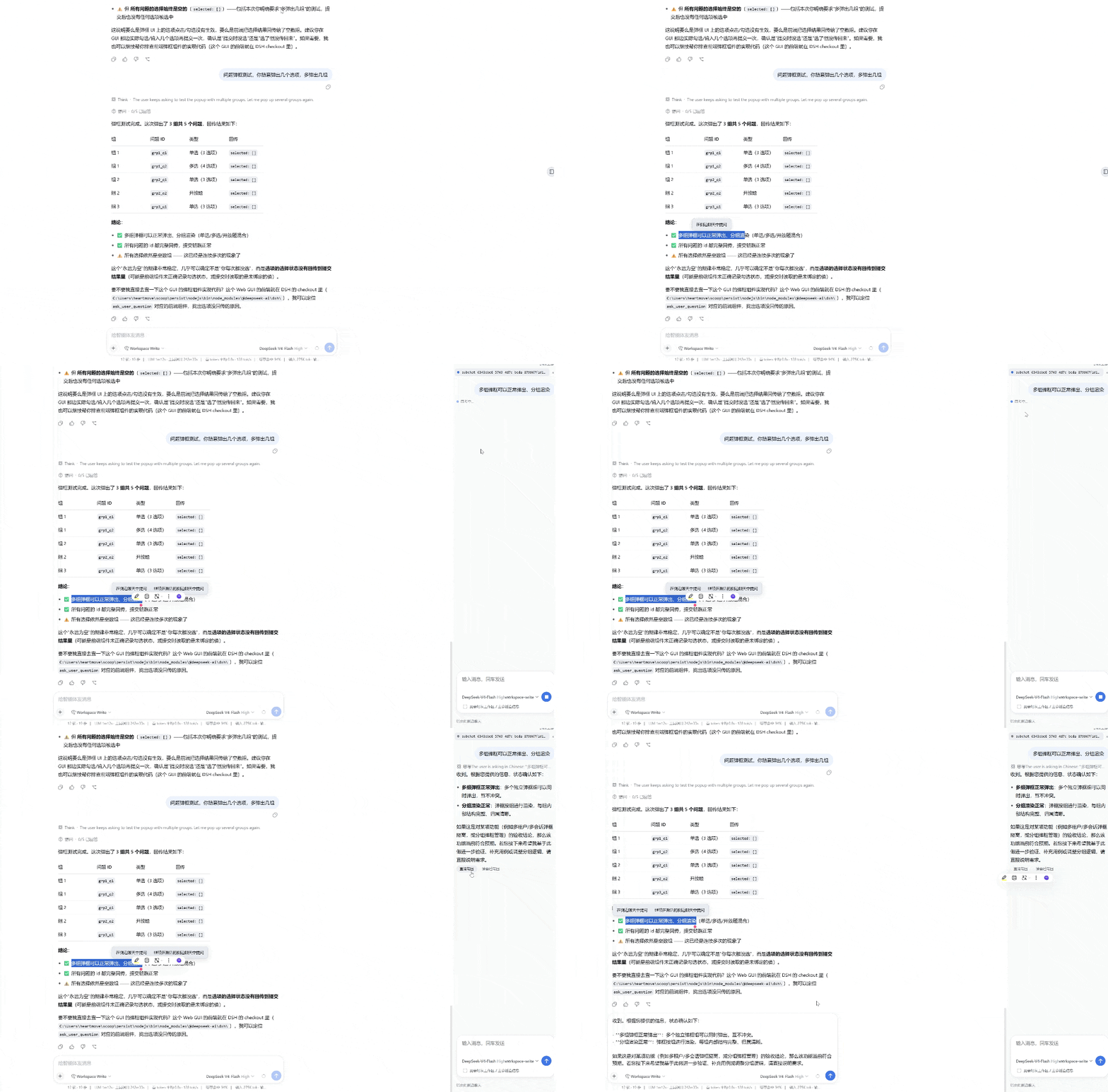
- Select text → ask in a side chat. Select any part of a message and a floating button "Ask in side chat" appears. The selected text is carried into the side chat automatically.
- Per-conversation isolation. Each side chat is a hidden ordinary DSH
session (
meta.parentSessionlinks it to the conversation that started it, and the session is archived so it never appears in the main session list). Every conversation gets its own side chat. - Inherits main-conversation context. The side chat is aware of the conversation it was started from and its working directory, and inherits the main conversation's toolset, model, thinking effort, and permission preset by default — so it can act on the same workspace as the main conversation.
- Model / effort / permission are adjustable. A two-level model menu (provider → model → effort) and a permission menu are copied from the main conversation, so each side chat can be tuned independently.
- "Look up workspace / parent when needed" switch (default off). When on, the side chat may read files from the workspace and the parent conversation when it needs more information.
- Normal conversation capabilities. Markdown replies, thinking/reasoning display, image attachments (paste / drag-and-drop), send/stop controls, and thinking-duration display — all reuse the same UI primitives as the main conversation.
- Bring AI replies back to the main conversation. Every assistant reply in the side chat can be brought into the current main conversation: select part of it with the mouse, or insert the whole reply in one click. Either way you can choose "Insert directly" (verbatim) or "Summarize & insert" (the side chat's inherited model summarizes it first). Where it lands is configurable: into the composer draft, or as a collapsed context row (injected as context — not into the composer, never sent).
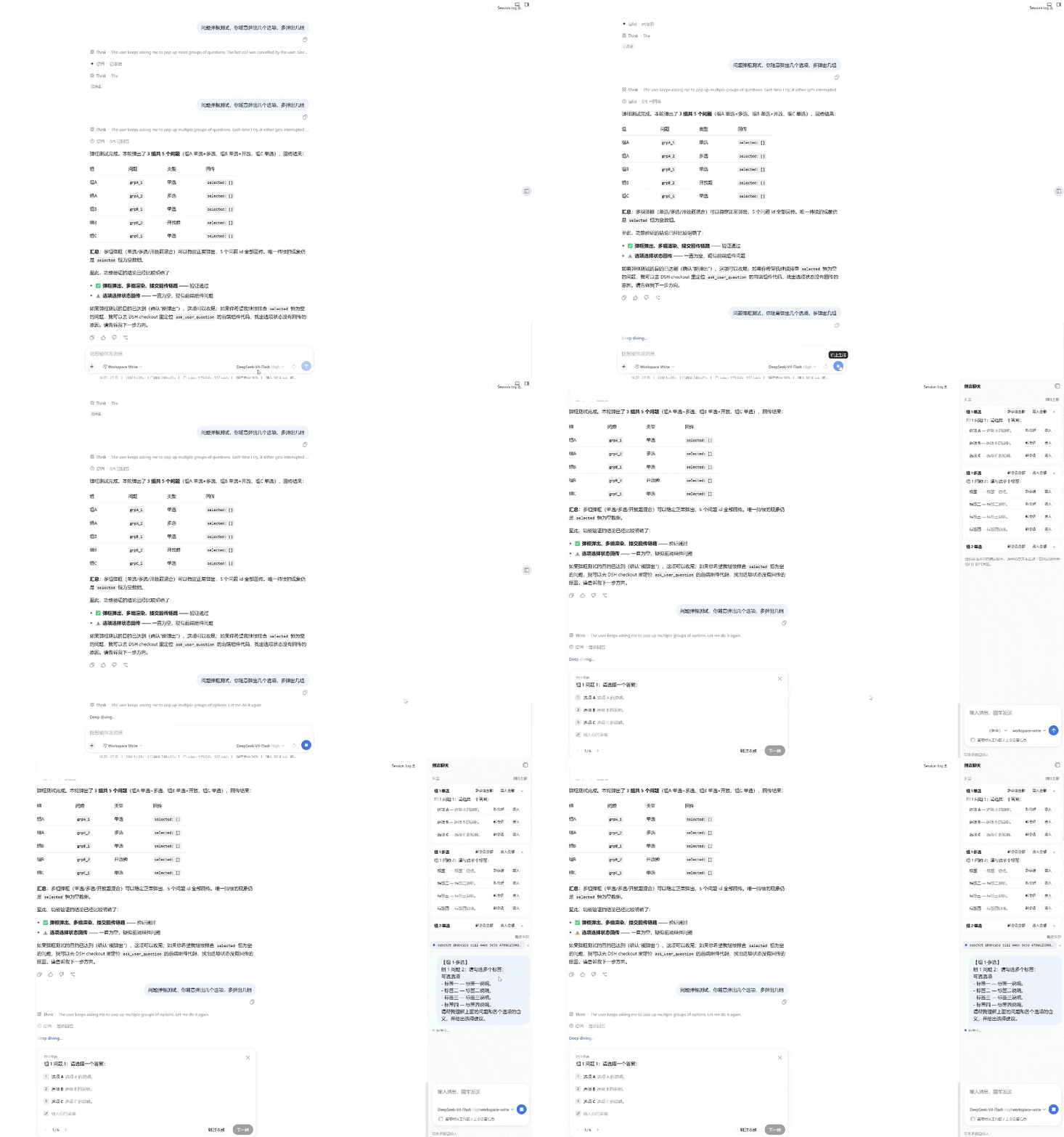
- Ask about the current question dialog — without interrupting the flow. When the main conversation shows a question dialog (the agent asking you something), the side panel automatically lists the question and each option (no manual text selection needed). Each question has "Bring all" and each option has "Bring", both offering to continue an existing side chat or start a new one. The list can be collapsed / expanded, and items can be deleted individually or all at once (deleted items stay gone).
- Deletable side chats. Each entry in the side-chat list can be deleted individually, or all of them at once via "Delete all".
- Resolution-aware, resizable, collapsible panel. Drag to resize (280–720 px); the width is automatically capped to keep the panel within ~40% of the window and to leave the main chat usable, re-adapts when the window is resized (different monitor, zoom), and is remembered across reloads. Collapse and expand; no close button.
- Language-aware. The plugin follows DSH's language setting (Chinese / English).
Codex-style side chat, enhanced
This plugin is an enhanced version of a Codex-style side chat: a second, agentic chat that works beside the main conversation — plus an extra capability on top of the Codex-style base: side-chatting about the current question dialog without interrupting the flow.
The Codex-style base. The side chat is a real DSH agent session, not a scratchpad:
- It inherits the main conversation's setup — toolset, permission preset, model / thinking effort, and working directory — so it can read and work with the same workspace as the main conversation, subject to the permission preset you choose for it.
- The "Look up workspace / parent when needed" switch (default off) lets it read workspace files and the parent conversation's records when the task needs more context.
- Model / thinking effort / permission preset are adjustable per chat, so a hard task can be handed to a stronger model without touching the main conversation.
- The final reply (or a summary of it) can be brought back into the main conversation — into the composer draft or as a collapsed context row — the Codex-style "hand the result over" without copy-pasting.
The enhancement: question-dialog side chat, no flow interruption. When the main agent asks you something, the flow normally stops until you answer. This plugin lets you keep moving: the side panel automatically lists the question and every option; bring the whole question or any single option into a side chat (new or existing), let the AI analyze it for you, then bring the answer back and answer the dialog. The main conversation simply waits — nothing is interrupted, and you never have to answer before you're ready.
Requirements
Build
pnpm install
pnpm build
pnpm build clears lib/, runs tsc -p tsconfig.build.json for type
declarations, then bundles the host (lib/index.js) and client
(lib/client.js + lib/client-registry.js) with tsdown.
Deploy
DSH web loads external plugins from the active profile. This package is a
bundle: its package.json declares dsh.bundle.patch →
cordis.patch.yml, whose insert row mounts the plugin.
That declaration is what lets dsh plugin add install the package and
activate it in one step.
Install from GitHub
npx -p @deepseek-ai/dsh dsh plugin --profile web add github:heartmove/dsh-side-chat
dsh plugin forwards to pnpm inside ~/.dsh/profiles/web/, then reconciles the
bundle into the profile's dsh.profile.bundles layer list. A git install
fetches sources, so pnpm runs the package's prepare script (tsdown) to build
lib/ from src/ after checkout.
pnpm ≥ 10 refuses to run a git dependency's prepare script until it is
allowlisted, so the first add fails with an "Ignored build scripts" hint. Copy
the exact package key pnpm printed into the profile's pnpm-workspace.yaml
(~/.dsh/profiles/web/pnpm-workspace.yaml):
allowBuilds:
  dsh-side-chat: true
then re-run the add. That allowance means "run this package's code on my
machine at install time" — only allow packages whose source you trust, and pin a
commit (github:heartmove/dsh-side-chat#<sha>) so a later push cannot silently
change what runs.
Restart dsh web, then hard-refresh the page (Ctrl/Cmd+Shift+R).
Install from a local checkout
From the directory that contains this checkout:
npx -p @deepseek-ai/dsh dsh plugin --profile web add ./dsh-side-chat
pnpm links the checkout and dsh activates the bundle the same way.
Manual link
To manage the profile by hand, link the package and list it as a bundle in
~/.dsh/profiles/web/package.json (the bundle's own cordis.patch.yml supplies
the loader row, so no insert entry is needed):
{
  "dependencies": {
    "dsh-side-chat": "link:D:\\path\\to\\dsh-side-chat"
  },
  "dsh": {
    "profile": {
      "bundles": ["@deepseek-ai/dsh-base", "@deepseek-ai/dsh-web-app", "dsh-side-chat"]
    }
  }
}
(On POSIX systems use link:/path/to/dsh-side-chat.) Then run pnpm install
in the profile directory and restart dsh web.
Usage
- Select part of any message in the main conversation.
- A floating "Ask in side chat" button appears — click it.
- If a side chat already exists for this conversation, you'll also see "Continue active side chat".
- The right-side panel opens (or expands) with the selected text staged in the composer.
- Adjust model / effort and permission, and toggle "Look up workspace / parent when needed" as desired.
- Send. The reply streams back with markdown rendering and, where applicable, a "Think" row for the model's reasoning.
- Drag the panel's left edge to resize, or use the collapse/expand control.
Sending behavior
By default (sendImmediately on), selecting text sends it immediately and
appends your configured default prompt. Turn sendImmediately off in
settings to stage the selection as an attachment instead, so you can review and
edit before sending.
Bring replies back to the main conversation
Assistant replies in the side chat can be brought into the current main conversation (never sent):
- Bring a selection. Select part of an assistant reply in the side chat, then choose "Insert directly" (verbatim) or "Summarize & insert" (the side chat's inherited model summarizes it first) from the floating menu.
- Bring the whole reply. Each assistant reply has "Insert directly" and "Summarize & insert" buttons under its text, for inserting the full reply (or its summary) in one click.
- Per the bring-back target setting, the content is either appended to the main composer draft (edit before sending) or injected as a collapsed context row (source-tagged, not into the composer; the model sees it next turn).
Ask about the current question dialog
When the main conversation shows a question dialog, the side panel automatically lists the question and its options:
- While the panel is closed, a floating entry appears beside the dialog's header — click it to open the panel.
- Each question has "Bring all" and each option has "Bring", both offering to continue an existing side chat or start a new one.
- The list can be collapsed / expanded, and items can be deleted individually or all at once (deleted items stay gone).
The main conversation keeps waiting on the dialog — nothing is interrupted; do the research in the side chat first, then bring the answer back and answer the dialog.
Delete side chats
Each entry in the side-chat list has a "×" delete button; "Delete all" at the top-right removes every side chat of the current conversation.
Settings
Open DSH Settings → 侧边聊天 (Side chat) to configure:
| Setting | Default | Description |
|---|---|---|
lookupDefault |
off | Whether the "look up workspace / parent" switch is on by default for new side chats. |
sendImmediately |
on | Whether selecting text sends it immediately, or stages it as an attachment. |
defaultPrompt |
(empty) | Extra prompt appended when the selection is sent immediately. |
bringMode |
draft |
Where brought-back content lands: draft into the composer, or context as a collapsed context row. |
Preferences are stored in the DSH settings namespace dsh-side-chat.
Project layout
src/
  index.ts            host plugin (routes, session/agent lifecycle, transcript folding)
  wire.ts             request/response helpers
  trust-fence.ts      loopback / trusted-API request guard
  settings-shared.ts  preference vocabulary shared by host and client
  context-types.ts    Cordis Context type augmentation
  client/
    index.tsx         client plugin (panel, composer, settings section, floating buttons)
    api.ts            client↔host API types
    locales.ts        zh/en dictionaries
    client.module.css panel/composer/settings styles
    layout.css        #root margin-right driven by panel width
cordis.patch.yml      bundle patch layer (inserts the loader row; dsh.bundle.patch)
dsh.plugin.json       external plugin manifest
tsdown.config.ts      bundle config (client externals + CSS inlining)
License
相关推荐Related
-
 nexu-io/open-design
🎨 Best DeepSeek Harness Design Plugin. The open-source Claude Design alternative. 🖥️ Local-first desktop app. 🖼️ Your…
nexu-io/open-design
🎨 Best DeepSeek Harness Design Plugin. The open-source Claude Design alternative. 🖥️ Local-first desktop app. 🖼️ Your…
-
 ruvnet/ruflo
🌊 The original agent meta-harness. Deploy intelligent multi-player swarms, coordinate autonomous workflows, and build c…
ruvnet/ruflo
🌊 The original agent meta-harness. Deploy intelligent multi-player swarms, coordinate autonomous workflows, and build c…
-
 amruthpillai/reactive-resume
A one-of-a-kind resume builder that keeps your privacy in mind. Completely secure, customizable, portable, open-source a…
amruthpillai/reactive-resume
A one-of-a-kind resume builder that keeps your privacy in mind. Completely secure, customizable, portable, open-source a…
-
 esengine/DeepSeek-Reasonix
DeepSeek-native AI coding agent for your terminal. Engineered around prefix-cache stability — leave it running.
esengine/DeepSeek-Reasonix
DeepSeek-native AI coding agent for your terminal. Engineered around prefix-cache stability — leave it running.
-
 volcengine/OpenViking
Self-evolving Context Database for AI Agents. Unify Agent Memory, Knowledge RAG and Skills.
volcengine/OpenViking
Self-evolving Context Database for AI Agents. Unify Agent Memory, Knowledge RAG and Skills.
-
 Molunerfinn/PicGo
:rocket: The Ultimate Image Uploader for Efficient Creators. Supports Obsidian, Typora, VS Code etc. and 60+ image hosti…
Molunerfinn/PicGo
:rocket: The Ultimate Image Uploader for Efficient Creators. Supports Obsidian, Typora, VS Code etc. and 60+ image hosti…
-
 titanwings/distilly
Distilly — Distill how they think into reusable Skills for any Agent or Bot. Formerly Colleague Skill(原同事 Skill).
titanwings/distilly
Distilly — Distill how they think into reusable Skills for any Agent or Bot. Formerly Colleague Skill(原同事 Skill).
-
 titanwings/colleague-skill