helays/dsh-web-terminal
DSH插件:在DeepSeek Harness Web界面(对话/轨迹)顶部新增“终端”标签页,内置xterm.js与node-pty交互式终端,让你在编码完成后即刻于终端中执行指令进行调试。
项目介绍Project Overview
DSH 插件 dsh-web-terminal 为 DeepSeek Harness 网页端新增真实 PTY 终端标签页,基于 xterm.js 与 node-pty 实现,与模型会话完全解耦。适用于模型改完代码后立即编译、测试、提交、调试等场景,支持多终端、Shell 切换与滚动回放。需 DeepSeek Harness 0.1.0-rc.6 next 通道 web 配置,安装须加 -w 参数。
dsh-web-terminal is a DSH plugin that adds a real PTY terminal tab to the DeepSeek Harness web UI, built on xterm.js and node-pty, fully decoupled from model context. Use it to build, test, commit, and debug immediately after the model writes code, with multi-terminal, shell switching, and scrollback replay. It requires DeepSeek Harness 0.1.0-rc.6 next channel web profile, and installation must include the -w flag.
请帮我了解并安装插件:【dsh-web-terminal】【https://github.com/helays/dsh-web-terminal】把上面这条消息直接发给当前会话里的 DSH,让它帮你了解并安装。安装命令不一定准确,发给 DSH 更稳。Send this message to DSH in your current session. CLI install commands may not be accurate across systems — DSH will figure it out for you.
或使用命令行安装(适合开发者)Or use CLI install (for developers)
命令行安装CLI Install
dsh plugin --profile web add dsh-web-terminal@github:helays/dsh-web-terminal#main -w把 helays/dsh-web-terminal 加入你的 DSH 配置(web profile)即可启用。
READMEREADME
🖥️ dsh-web-terminal
Give your AI coding workbench a real terminal — right inside DeepSeek Harness.
An interactive PTY terminal powered by xterm.js + node-pty, mounted as a third tab (Chat · Trajectory · Terminal) at the top of the web UI. After the model writes code, stay in the conversation and open a shell of your own right next to it — build, commit, test, debug in one click.






English · 中文
Why you'll love it
| The pain 😤 | The fix with dsh-web-terminal ✅ |
|---|---|
| After the model edits code, you copy-paste it back into your own terminal and fumble | Open a real PTY right next to the chat — type a command, run it instantly |
| Everything has to squeeze into the conversation context, doubling tokens and noise | The terminal is fully decoupled from the model / agent — your private shell, zero context cost |
| Switching sessions or refreshing loses your commands and session state | Survives across sessions: switch away / come back / refresh — auto reconnect and replay scrollback |
| Spinning up a throwaway shell for a single command is slow | Persistent process: open once, run many commands on one resident shell (Ctrl+C interrupts, then keep going) |
In one line: put “writing code” and “running code” in the same place — without them interfering.
✨ Highlights
- 🗂️ A dedicated Terminal tab next to Chat & Trajectory — one click to switch.
- 🧯 A real PTY, not a toy:
- Windows uses ConPTY; POSIX uses an interactive shell;
- full
Ctrl+C/Ctrl+Dcontrol keys,resizeauto-fit, color + cursor blink; - persistent session (process stays resident, so you can chain commands without restarting).
- 🔄 Session survival + scrollback replay: tab away and back, even reload the page — it auto-reconnects and replays recent output (the pool lives plugin-side).
- 🚪 Zero conversation pollution: fully independent of the agent stream — no context tokens, no chat-log noise.
- ⚡ Zero config: PowerShell on Windows and bash on POSIX are auto-detected; run multiple terminals side by side and switch each one's shell type (
bash / zsh / pwsh / powershell / cmd / python, …) from a dropdown right in the Terminal tab. - 🗂️ Multi-terminal: open several terminals in one tab, switch with the tab cards, each with its own process.
- ⌨️ Type
/terminalin the composer to jump straight to the terminal (a single-step command, same source as the official/plan) — works even in an empty new session. - 🧩 A pure DSH bundle plugin: install, run, natively integrated with the official UI slots.
🚀 Quick Start
Requires: DeepSeek Harness
0.1.0-rc.6(next channel)webprofile.
Install
# Option 1 — GitHub (recommended, reproducible)
dsh plugin --profile web add dsh-web-terminal@github:helays/dsh-web-terminal#main -w

# Option 2 — from a local dev checkout
cd dsh-web-terminal && dsh plugin --profile web add . -w
⚠️
-wis required: the current dsh profile template is a pnpm workspace root (pnpm-workspace.yamlcontainspackages: [.]); omitting it triggersERR_PNPM_ADDING_TO_ROOT.dsh pluginforwards its remaining args to pnpm verbatim.After installing, restart
dsh web(a changed plugin set / host needs a restart), then refresh the browser.
Usage
- Open any session (once you're inside, you'll see Chat · Trajectory · Terminal at the top).
- Click the Terminal tab, or type
/terminalin the input box. - Run commands directly, for example:
npm run build   # build right after the model edits code
git status      # see what changed
pytest          # run tests
- The tab bar shows connection status; switch back to Chat whenever you like — your terminal and session are still there.
🧩 Tech Stack
| Layer | Choice | Notes |
|---|---|---|
| Front-end terminal | @xterm/xterm + @xterm/addon-fit |
Bundled into the client bundle (lib/client.js), registered via __ModuleLoader__.load |
| Back-end PTY | node-pty |
Native PTY (Windows ConPTY / POSIX pty), resident process |
| Transport | ws |
WebSocket bidirectional byte stream + resize via ctx.webServer |
| UI integration | ctx.slots.inject('conversation.view') |
Registers the id:'terminal' tab, mirroring dsh-client-ui-trajectory |
Why a “real” terminal — and how it differs from the built-in dsh-terminal
The built-in ctx.terminals is agent-owned, model-facing, line-oriented, with no browser transport and unavailable on Windows.
Here we instead spawn a shell that belongs entirely to you via node-pty, fully decoupled from the agent session — it is your own terminal.
🔧 Local Development
pnpm install     # install deps (types included)
pnpm build       # outputs lib/index.js + lib/client.js + lib/client.css
pnpm typecheck   # tsc --noEmit type check
- Changing the host half (
src/) requires adsh webrestart; - Changing the client half (
src/client/) just needs a reinstall + page refresh.
❓ FAQ
Q: Does this terminal consume my conversation context? No. It is fully decoupled from the model/agent conversation — nothing is written to context and nothing mixes into the chat log.
Q: Will my session survive a restart/refresh? Yes. The session pool lives plugin-side and survives across sessions and reloads; on reconnect it replays the latest output.
Q: I only want to run a single command — must I open a terminal? Once open the process stays resident, so you can keep operating inside it; switching away and back returns to the same shell.
Q: Can I swap shells?
Yes — per terminal. In the Terminal tab, use the “Terminal type” dropdown (top-right) to pick bash / zsh / pwsh / powershell / cmd / python (from the shells detected on your system); switching restarts that terminal with the new shell. It auto-detects PowerShell on Windows and bash on POSIX by default.
Q: Where do terminals open by default?
In the current conversation's workspace directory (falling back to the dsh web startup directory if unavailable). No configuration needed.
📝 License
相关推荐Related
-
 ruvnet/ruflo
🌊 The original agent meta-harness. Deploy intelligent multi-player swarms, coordinate autonomous workflows, and build c…
ruvnet/ruflo
🌊 The original agent meta-harness. Deploy intelligent multi-player swarms, coordinate autonomous workflows, and build c…
-
 amruthpillai/reactive-resume
A one-of-a-kind resume builder that keeps your privacy in mind. Completely secure, customizable, portable, open-source a…
amruthpillai/reactive-resume
A one-of-a-kind resume builder that keeps your privacy in mind. Completely secure, customizable, portable, open-source a…
-
 volcengine/OpenViking
Self-evolving Context Database for AI Agents. Unify Agent Memory, Knowledge RAG and Skills.
volcengine/OpenViking
Self-evolving Context Database for AI Agents. Unify Agent Memory, Knowledge RAG and Skills.
-
 Molunerfinn/PicGo
:rocket: The Ultimate Image Uploader for Efficient Creators. Supports Obsidian, Typora, VS Code etc. and 60+ image hosti…
Molunerfinn/PicGo
:rocket: The Ultimate Image Uploader for Efficient Creators. Supports Obsidian, Typora, VS Code etc. and 60+ image hosti…
-
 titanwings/colleague-skill
将冰冷的离别化为温暖的 Skill,欢迎加入数字生命1.0!Transforming cold farewells into warm skills? It's giving rebirth era. Welcome to Digital …
titanwings/colleague-skill
将冰冷的离别化为温暖的 Skill,欢迎加入数字生命1.0!Transforming cold farewells into warm skills? It's giving rebirth era. Welcome to Digital …
-
 nocobase/nocobase
NocoBase is an open-source AI + no-code platform for building business systems fast. Instead of generating everything fr…
nocobase/nocobase
NocoBase is an open-source AI + no-code platform for building business systems fast. Instead of generating everything fr…
-
 Tencent/WeKnora
Open-source LLM knowledge platform: turn raw documents into a queryable RAG, an autonomous reasoning agent, and a self-m…
Tencent/WeKnora
Open-source LLM knowledge platform: turn raw documents into a queryable RAG, an autonomous reasoning agent, and a self-m…
-
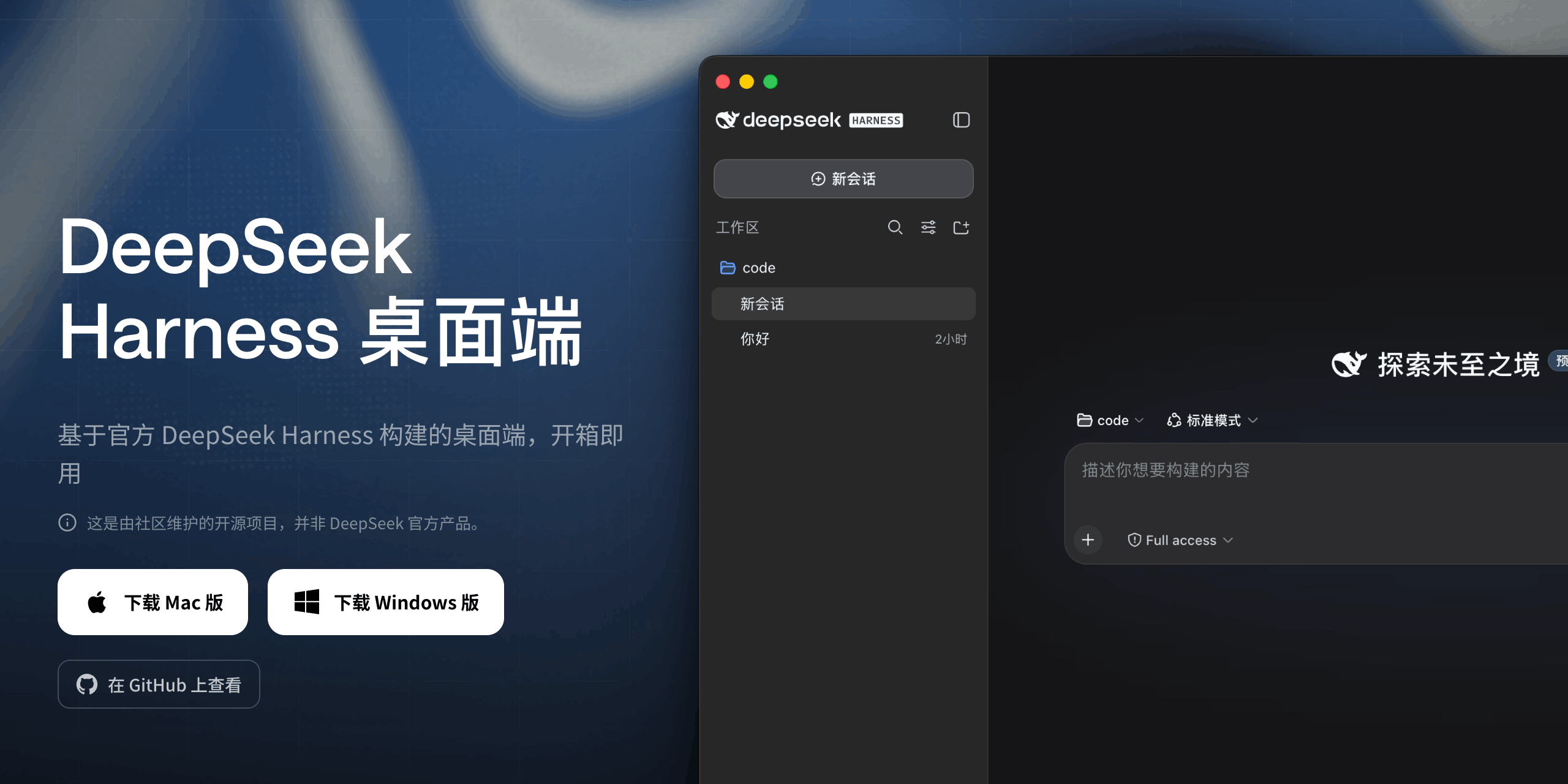 anywhere-labs/deepseek-harness-desktop
为 DeepSeek Harness (DSH) 插件生态打造的现代化桌面端解决方案。万物皆「插件」,桌面本身也是「插件」。
anywhere-labs/deepseek-harness-desktop
为 DeepSeek Harness (DSH) 插件生态打造的现代化桌面端解决方案。万物皆「插件」,桌面本身也是「插件」。