ivorytower1026/dsh-im-bot
dsh-plugin: Connect WeChat & Feishu to DeepSeek Harness (dsh) — scan-code bot login, project selection, and full agent tooling right in your IM chat. 手机扫码把微信/飞书接入 deepseek-harness,IM里直接选项目、对话智能体。
项目介绍Project Overview
dsh-im-bot 是 DSH 插件,含服务端与设置页两部分,把微信、飞书变成 DeepSeek Harness 入口。手机扫码绑定后,可在 IM 中选择项目、切换模型与思考级别、发送消息并调用 harness 智能体工具。适合需要在手机上远程驱动 DSH 会话时使用;需先安装并运行 dsh web,安装后要重启服务。
dsh-im-bot is a DSH plugin that turns WeChat and Feishu into entry points for DeepSeek Harness. It includes a server channel plugin and a settings UI plugin. After scanning a QR code and binding a chat, users can select projects, switch models or thinking levels, send messages, and invoke harness agent tools from mobile IM. Use it when you need mobile access to DSH sessions. It requires a running dsh web instance and a restart after installation.
请帮我了解并安装插件:【dsh-im-bot】【https://github.com/ivorytower1026/dsh-im-bot】把上面这条消息直接发给当前会话里的 DSH,让它帮你了解并安装。安装命令不一定准确,发给 DSH 更稳。Send this message to DSH in your current session. CLI install commands may not be accurate across systems — DSH will figure it out for you.
或使用命令行安装(适合开发者)Or use CLI install (for developers)
命令行安装CLI Install
dsh plugin --profile web add github:ivorytower1026/dsh-im-bot把 ivorytower1026/dsh-im-bot 加入你的 DSH 配置(web profile)即可启用。
READMEREADME
dsh-im-bot — 手机接入 DeepSeek Harness
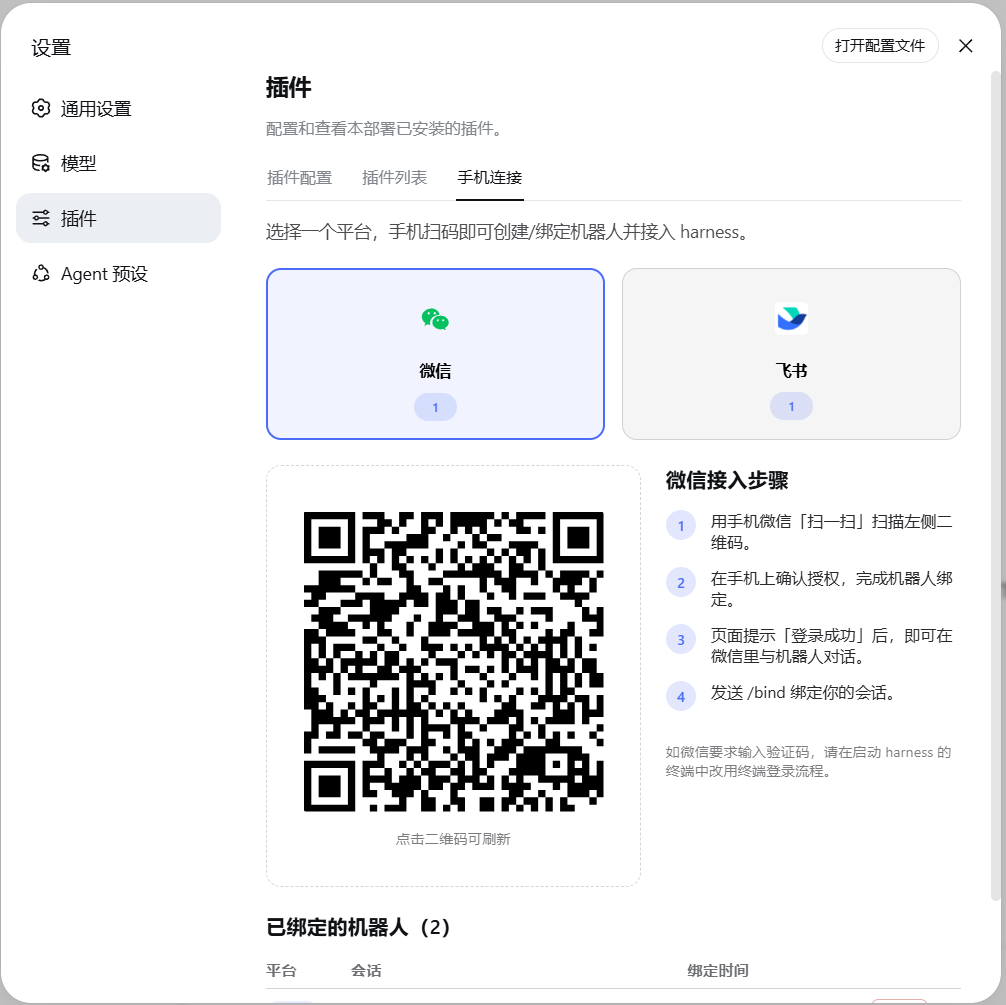
把你的 微信 / 飞书 变成 DeepSeek Harness(dsh)智能体的入口:手机扫码创建机器人, 在 IM 里直接选项目、发消息、调用 harness 智能体的全部工具能力。
包含两个包:
| 包 | 作用 |
|---|---|
@dsh-extra/im-channel |
服务端插件:扫码登录、消息路由到 agent 会话、命令系统 |
@dsh-extra/dsh-client-ui-settings-im |
客户端插件:设置页里的「手机连接」标签(二维码、绑定管理) |
安装
第一步:安装 DeepSeek Harness
需要 Node.js ≥ 22 与 pnpm ≥ 9:
npm install -g @deepseek-ai/dsh
dsh web
打开终端提示的地址(默认 http://127.0.0.1:8080),在设置里配置好模型即可开始使用。
第二步:一条命令安装本插件
curl -fsSL https://raw.githubusercontent.com/ivorytower1026/dsh-im-bot/main/install.mjs | node
(Windows PowerShell:irm https://raw.githubusercontent.com/ivorytower1026/dsh-im-bot/main/install.mjs | node -)
脚本会自动写入 web profile、安装两个包并注册 bundle,可重复执行(用于升级)。完成后重启 dsh web 即可。
重启后终端出现下面的日志,说明插件加载成功、两个渠道都已连接:
[info]: [ 'client ready' ]
[info]: [ 'event-dispatch is ready' ]
[im-channel] feishu 长连接已建立
[im-channel] wechat getupdates ret=undefined errcode=undefined msgs=0 bufLen=104
手动安装(等价步骤)
cd ~/.dsh/profiles/web && pnpm add \
  "git+https://github.com/ivorytower1026/dsh-im-bot.git#main&path:/im-channel" \
  "git+https://github.com/ivorytower1026/dsh-im-bot.git#main&path:/ui-settings-im"
然后把两个包名(@dsh-extra/im-channel、@dsh-extra/dsh-client-ui-settings-im)加入
~/.dsh/profiles/web/package.json 的 dsh.profile.bundles 列表,重启 dsh web。
使用
| 微信 | 飞书 |
 |
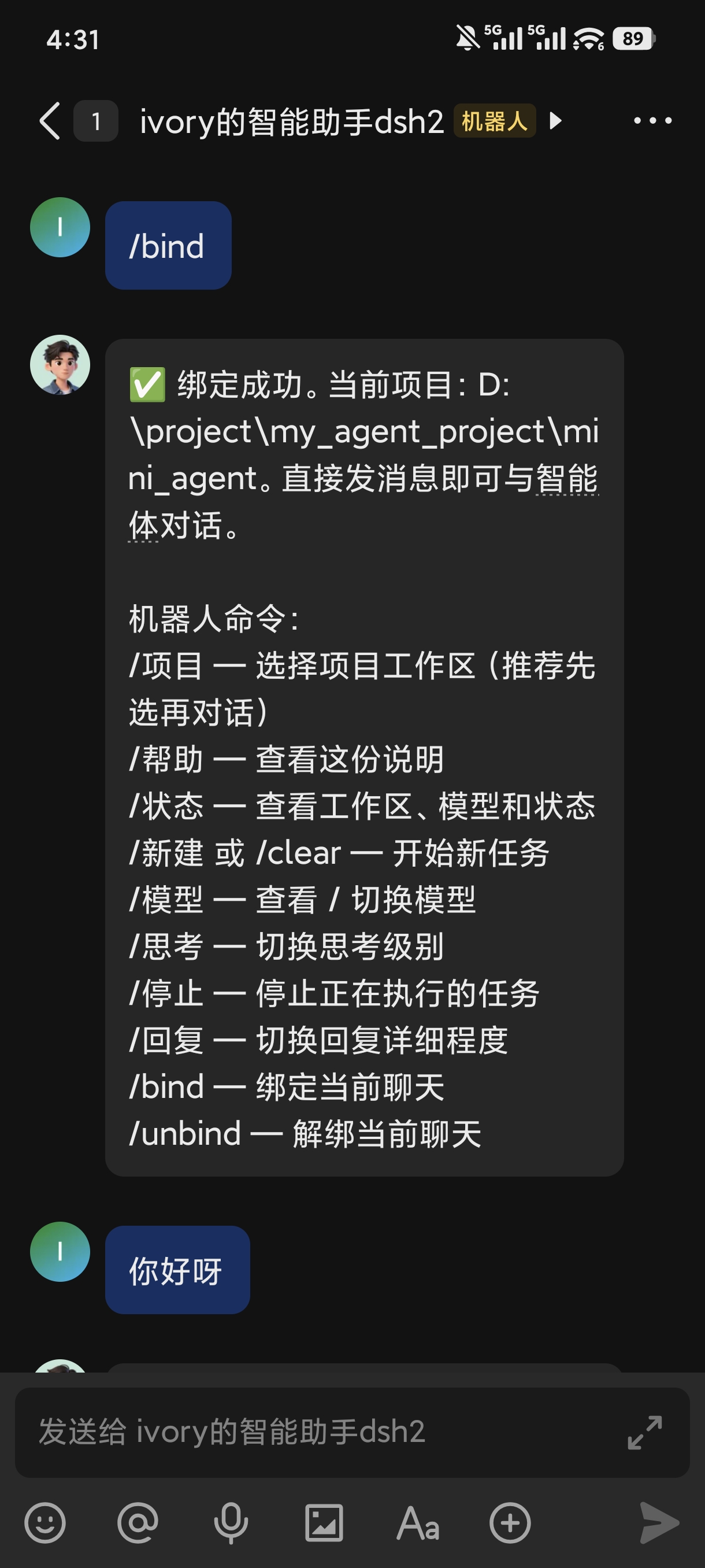 |
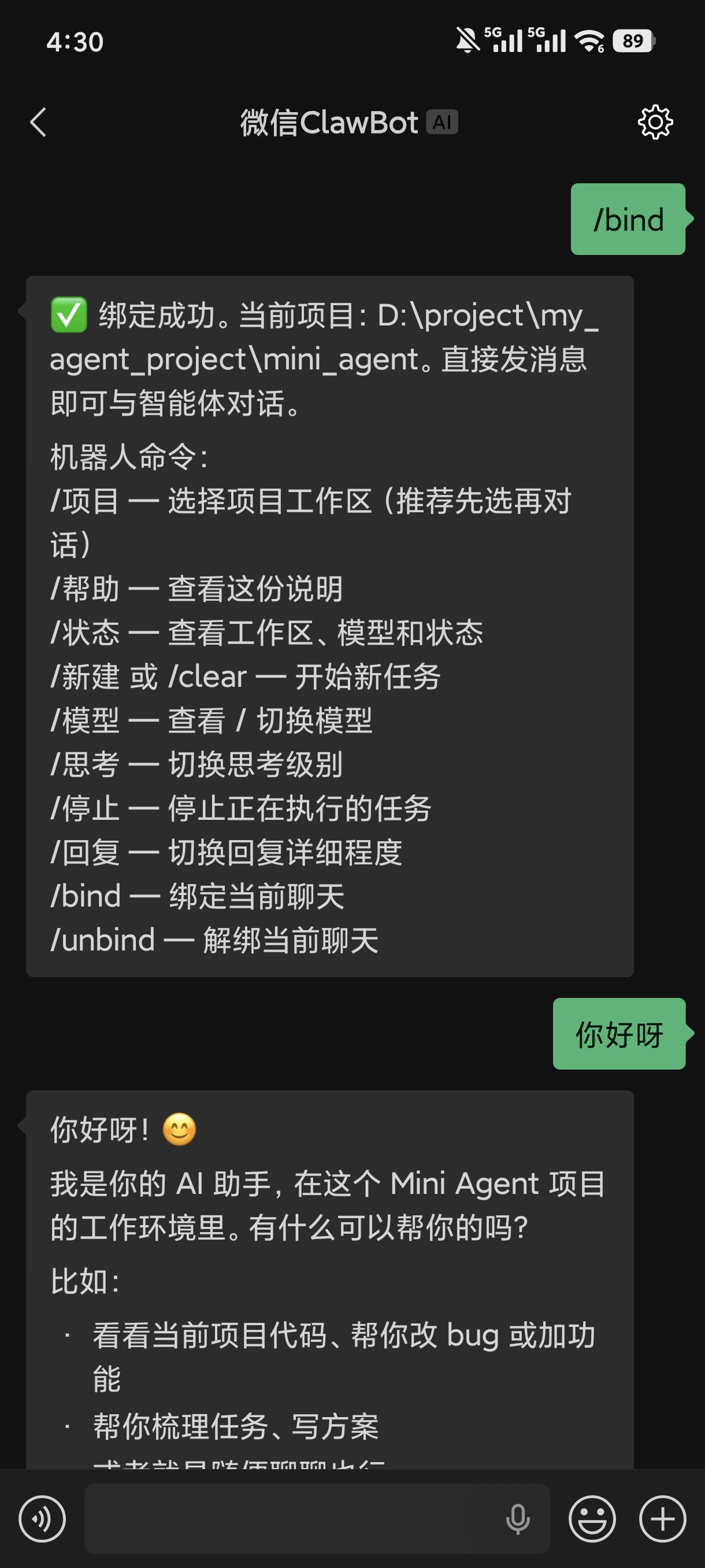
- 打开网页 → 设置 → 插件 → 手机连接。
- 点微信或飞书卡片,用手机扫码(二维码可点击刷新)。
- 扫码成功后页面会提示发送
/bind。 - 在 IM 里对机器人发送:
/bind          绑定当前聊天(必须第一步)
/项目          选择工作区(选完自动开新线程)
你好           直接开始对话
机器人命令
| 命令 | 说明 |
|---|---|
/bind |
绑定当前聊天到 harness 会话 |
/unbind |
解绑 |
/项目 / /项目 N |
查看 / 切换工作区(新开线程) |
/新建 或 /clear |
清空上下文,开新任务 |
/模型 / /模型 N |
查看 / 切换模型 |
/思考 N |
切换思考级别(按当前模型支持的级别列出) |
/回复 N |
回复详细程度:1 简洁 / 2 标准 / 3 详细 |
/停止 |
中断正在执行的任务 |
/状态 |
查看当前会话与模型 |
/帮助 |
命令列表 |
回复详细程度:简洁=只回最后一条 AI 消息,标准=回全部 AI 消息(默认),详细=附带工具调用过程。
从源码开发
git clone https://github.com/ivorytower1026/dsh-im-bot.git
cd dsh-im-bot/im-channel && pnpm install && pnpm build
cd ../ui-settings-im && pnpm install && pnpm build
构建产物 lib/ 随仓库提交,GitHub 安装无需本地构建步骤。
许可证
MIT
相关推荐Related
-
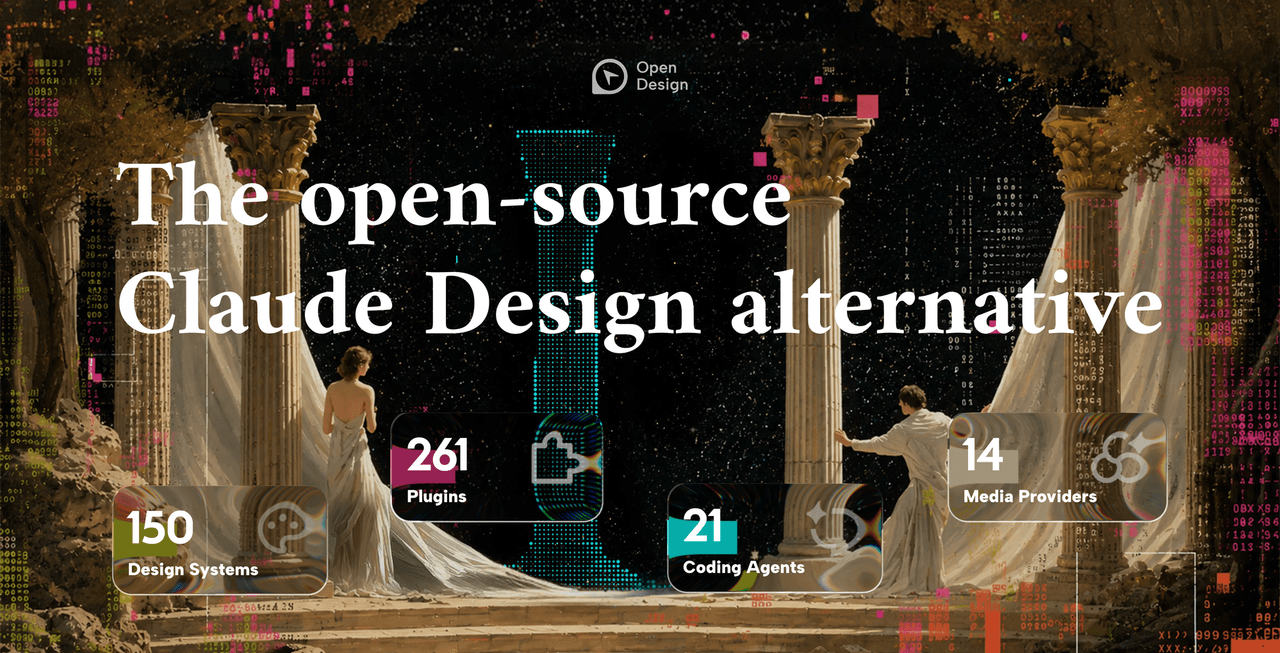 nexu-io/open-design
🎨 Best DeepSeek Harness Design Plugin. The open-source Claude Design alternative. 🖥️ Local-first desktop app. 🖼️ Your…
nexu-io/open-design
🎨 Best DeepSeek Harness Design Plugin. The open-source Claude Design alternative. 🖥️ Local-first desktop app. 🖼️ Your…
-
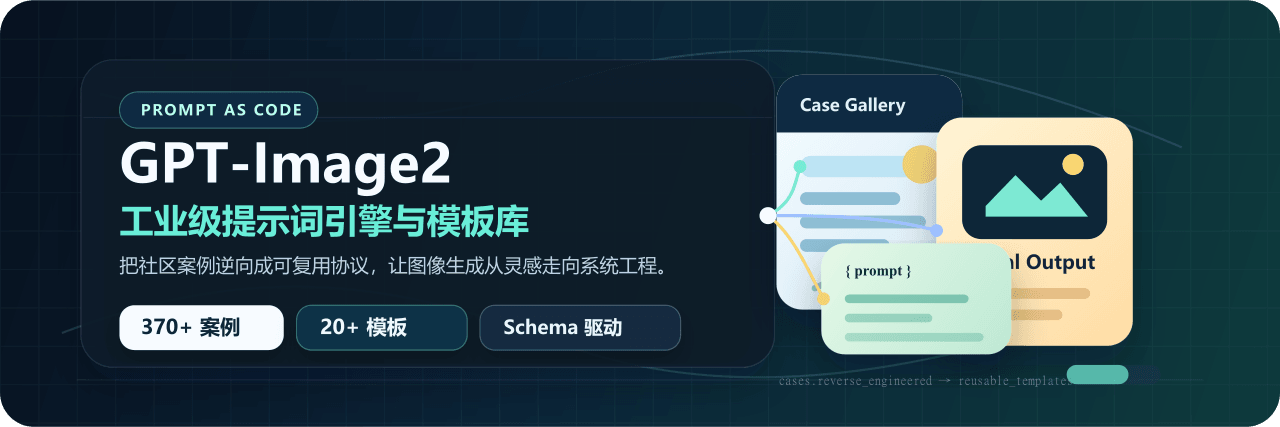 freestylefly/awesome-gpt-image-2
Prompt as Code | GPT-Image2 工业级提示词引擎与模板库,530+ 个案例逆向工程,20+ 套工业级模板,并提炼出Skills,持续更新中
freestylefly/awesome-gpt-image-2
Prompt as Code | GPT-Image2 工业级提示词引擎与模板库,530+ 个案例逆向工程,20+ 套工业级模板,并提炼出Skills,持续更新中
-
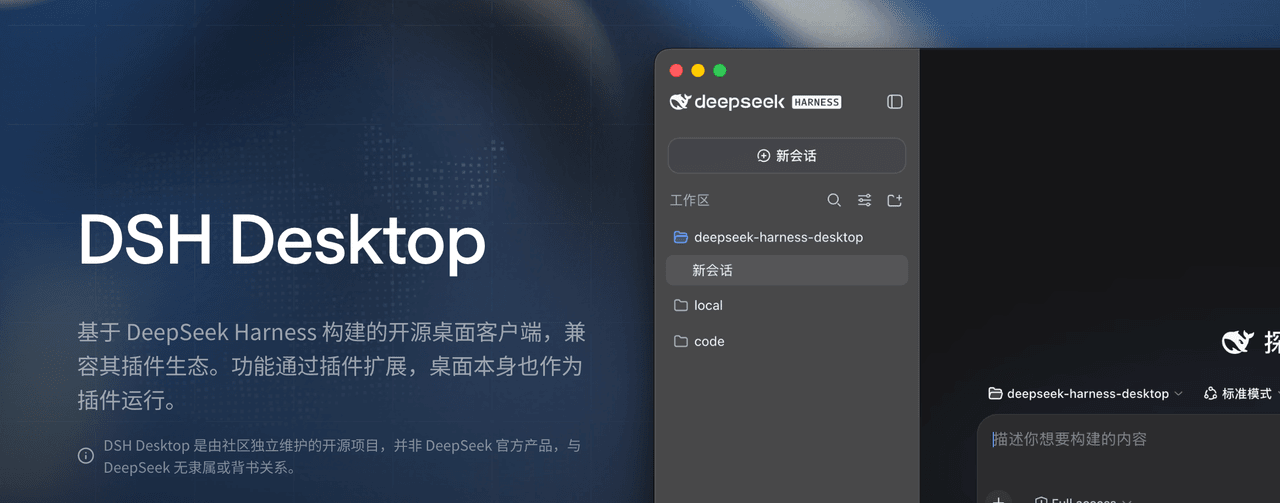 anywhere-labs/dsh-desktop
为 DeepSeek Harness (DSH) 插件生态打造的现代化桌面端解决方案。万物皆「插件」,桌面本身也是「插件」。
anywhere-labs/dsh-desktop
为 DeepSeek Harness (DSH) 插件生态打造的现代化桌面端解决方案。万物皆「插件」,桌面本身也是「插件」。
- Nagi-ovo/voyager Enhancement suite for Gemini, AI Studio, Claude & ChatGPT — plus a prompt manager for any web UI, DeepSeek Harness inclu…
-
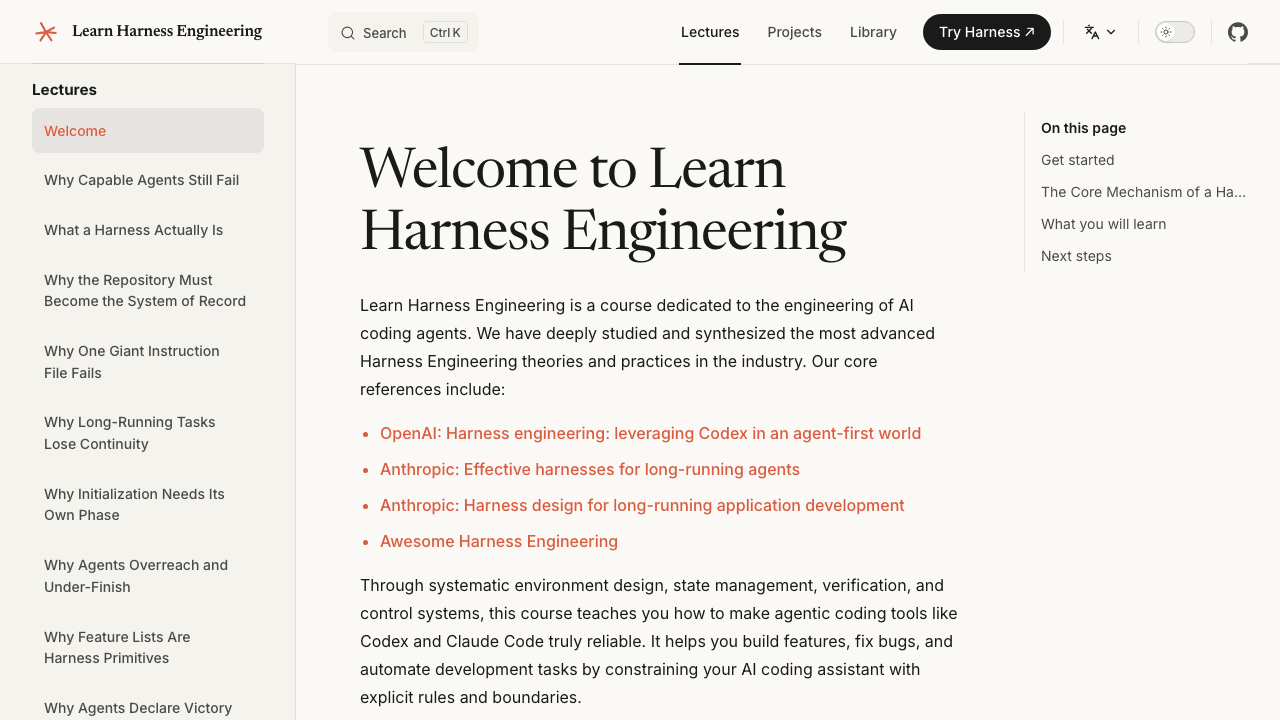 walkinglabs/learn-harness-engineering
Harness engineering beginner tutorial, from 0 to 1
walkinglabs/learn-harness-engineering
Harness engineering beginner tutorial, from 0 to 1
-
 awesome-dsh-plugin/awesome-dsh-plugin
A curated list of plugins for DeepSeek Harness (dsh) · DeepSeek Harness 插件精选列表
awesome-dsh-plugin/awesome-dsh-plugin
A curated list of plugins for DeepSeek Harness (dsh) · DeepSeek Harness 插件精选列表
-
 MemTensor/MemOS
Self-evolving memory OS for LLM & AI Agents: ultra-persistent memory, hybrid-retrieval, and cross-task skill reuse, with…
MemTensor/MemOS
Self-evolving memory OS for LLM & AI Agents: ultra-persistent memory, hybrid-retrieval, and cross-task skill reuse, with…
- yjh051108/dsh-routing-suite dsh-routing-suite — injector + router-standard kit: install the runtime injector first, then the task-aware reasoning-mo…