kakadeka/Baton
传递你的项目,而非你的上下文。
项目介绍Project Overview
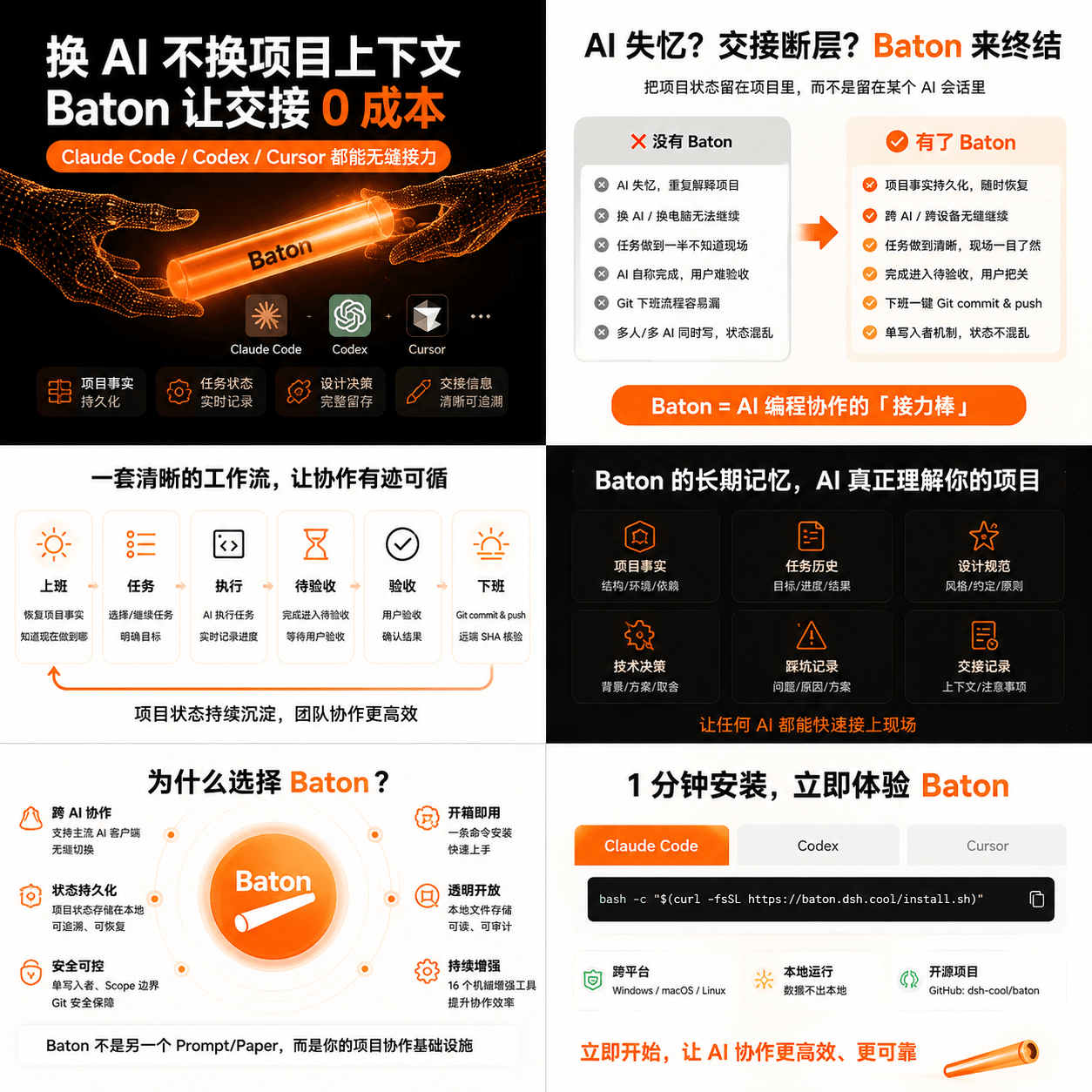
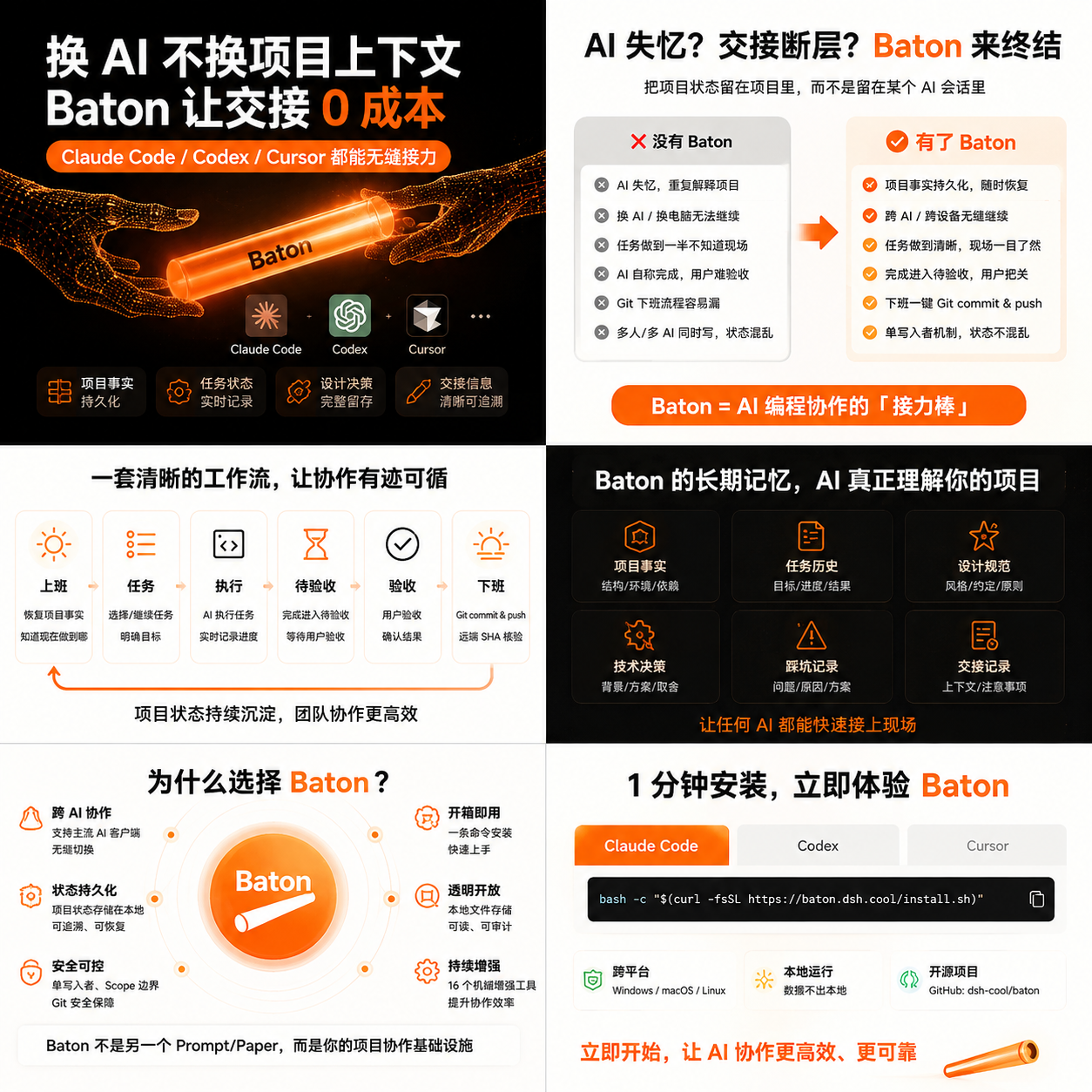
Baton 是一款 DSH 插件,把项目任务、进度、设计规则与交接记录存入 docs/ai_memory/,通过 Git 在不同电脑或 AI 之间传递上下文。支持 Codex、Cursor、Claude Code 与 DeepSeek Harness,适合需要跨会话或跨工具继续同一项目的开发场景。注意:终端负责安装,AI 聊天中执行 Baton init 与 clock in;同步默认仅快进,不做强制推送。
Baton is a DSH plugin that stores tasks, progress, design rules, and handoffs inside the project under docs/ai_memory/ and relays them across machines or AI assistants through Git. It supports Codex, Cursor, Claude Code, and DeepSeek Harness. Use it when a project must continue seamlessly across sessions or tools. Note: the terminal installs Baton; Baton init and clock in run inside AI chat, and sync defaults to fast-forward only with no force push.
请帮我了解并安装插件:【Baton】【https://github.com/kakadeka/Baton】把上面这条消息直接发给当前会话里的 DSH,让它帮你了解并安装。安装命令不一定准确,发给 DSH 更稳。Send this message to DSH in your current session. CLI install commands may not be accurate across systems — DSH will figure it out for you.
或使用命令行安装(适合开发者)Or use CLI install (for developers)
命令行安装CLI Install
dsh plugin --profile web add github:kakadeka/Baton把 kakadeka/Baton 加入你的 DSH 配置(web profile)即可启用。
READMEREADME
🥁 Baton — Switch AI, Not Your Project Memory



简体中文 · English
You switch to another AI. It looks at your project and asks:
So... what were we doing?
You sigh and retell the entire story from the invention of electricity.
Baton is a relay baton for AI-assisted projects. It keeps tasks, progress, design rules, lessons learned, and handoffs inside your project, then carries them to another computer or AI through Git.
It supports Codex, Cursor, Claude Code, and DeepSeek Harness.
The 20-second explanation: where do I type things?
Read this table first. It may save you half an hour of creative confusion.
| What you type | Where you type it | What it does |
|---|---|---|
git clone ... |
PowerShell / terminal | Downloads Baton |
baton-install.ps1 |
PowerShell / terminal | Teaches your AI about Baton |
Baton init |
AI chat | Adds Baton memory to the project you opened |
clock in |
AI chat | Reads the project state and starts work |
The one-line version:
The terminal installs Baton. The AI chat uses Baton.
Baton initis not a Git command. PowerShell has no idea what you mean.
🛝 Beginner quick start: three steps
This is the recommended path. On your first visit, this is the only section you need.
Before you start, install:
- Git
- Node.js 18+
- Windows: the built-in Windows PowerShell 5.1 works
- macOS / Linux: install PowerShell 7, then run the commands inside
pwsh
Step 1: Install Baton in your terminal
If you use Codex, Cursor, or Claude Code
Open PowerShell and run these two lines:
git clone https://github.com/kakadeka/Baton.git "$HOME/Baton"
& "$HOME/Baton/scripts/baton-install.ps1" -Scope User
That is it. The first line downloads Baton. The second installs it. No side quest.
One run installs the user-level Skills for Codex, Cursor, and Claude Code together. Do not run it three times.
Already have $HOME/Baton? Do not clone it again. Update it instead:
git -C "$HOME/Baton" pull --ff-only
& "$HOME/Baton/scripts/baton-install.ps1" -Scope User
When installation finishes, restart your AI or open a new session. Skills are usually loaded when a session starts.
If you use DeepSeek Harness
Run this in your terminal:
npm install -g @deepseek-ai/dsh@latest
dsh plugin --profile web add @kakadeka/dsh-baton
Restart the DSH web profile. If you use another profile, replace web with its real name.
Step 2: Initialize your project in AI chat
Use Codex, Cursor, Claude Code, or DSH to open the project you actually want to work on.
Then send this message in the AI chat:
Baton init
Send it to the AI, not PowerShell.
The AI prepares docs/ai_memory/, .baton/config.json, and the host entry files for the current project. Existing project documents are not silently overwritten; conflicts stop with an explanation.
When docs/ai_memory/ appears in your project, this step worked.
Step 3: Start work in AI chat
Open a new AI session and say:
clock in
The AI should check Git, read the latest progress and handoff, then show a task table.
Congratulations. You have finished the installation guide. Everything below is optional detail.
What did those three steps do?
Step 1: Install Baton on this computer
                  ↓
Step 2: Add relay memory to this project
                  ↓
Step 3: Read the memory and start working
- User-level installation: usually once per computer. It teaches the AI Baton commands.
- Project initialization: once per project that needs handoffs. It adds the memory structure to the project.
- Normal work: no more installing. Say
clock in,continue work, orclock out.
Step 1 alone lets the AI recognize Baton, but the project still has no long-term memory.
Manual project installation also works, but beginners do not need to start there.
Where did Baton install for my AI?
The daily commands are shared. The installation paths differ.
Codex
The user-level installation creates:
~/.agents/skills/baton/SKILL.md
~/.agents/skills/baton-lean-review/SKILL.md
~/.agents/skills/baton-debt/SKILL.md
~/.agents/skills/baton-doctor/SKILL.md
~/.agents/skills/baton/version.json
After Baton init, the project also has AGENTS.md and .agents/skills/baton/.
Cursor
The user-level installation creates:
~/.cursor/skills/baton/SKILL.md
~/.cursor/skills/baton-lean-review/SKILL.md
~/.cursor/skills/baton-debt/SKILL.md
~/.cursor/skills/baton-doctor/SKILL.md
~/.cursor/skills/baton/version.json
After Baton init, the project also has .cursorrules, .cursor/rules/baton.mdc, and .cursor/skills/baton/.
Claude Code
The user-level installation creates:
~/.claude/skills/baton/SKILL.md
~/.claude/skills/baton-lean-review/SKILL.md
~/.claude/skills/baton-debt/SKILL.md
~/.claude/skills/baton-doctor/SKILL.md
~/.claude/skills/baton/version.json
After Baton init, the project also has CLAUDE.md and .claude/skills/baton/.
DeepSeek Harness
For DSH, Step 1 is a profile-level plugin installation:
dsh plugin --profile web add @kakadeka/dsh-baton
It installs 19 native baton_* tools into that profile. Step 2 is still a message in the AI chat for the target project:
Baton init
The profile plugin stays on this computer. It does not travel through the project Git repository. The project memory does.
Manual project installation: the backup route
Most beginners do not need this section. Use it only when:
- the AI does not recognize
Baton init; or - you deliberately want to initialize from the terminal.
Enter your project and run:
cd C:\path\to\your-project
& "$HOME/Baton/scripts/baton-install.ps1" -Scope Project -ProjectRoot (Get-Location).Path
This has the same goal as saying Baton init: it adds memory and host adapters to the current project. Pick one route. You do not need both.
If $HOME/Baton does not exist, complete Step 1 first.
Before the first commit, look at Git
Baton uses Git to move project memory between computers. Existing Git repositories do not need another git init.
For a brand-new project:
git init
git status
Use git status to see what will be committed before choosing when to run git add and git commit. Surprises belong at birthday parties, not in git add -A.
Everyday commands
Send these to the AI chat, not the terminal.
| You say | Baton does |
|---|---|
clock in |
Checks Git, reads the handoff and tasks, then shows a task table |
continue work |
Continues from the last next step instead of excavating the whole project |
complete task |
Moves the task to awaiting acceptance; it is completed only after you accept |
update project docs |
Saves progress and a handoff without ending the workday |
remember this pitfall |
Adds a verified lesson to long-term memory |
record this decision |
Saves a technical decision and its trade-offs |
clock out |
Verifies, records, commits, pushes, and checks the remote SHA |
check update |
Checks for a Baton update without changing anything |
update baton |
Updates after confirmation, then verifies the installed version |
repair Baton |
Updates official Baton, reinstalls project mirrors, migrates the scaffold safely, and runs init/Doctor checks without changing business code |
Chinese commands such as 上班啦, 继续工作, and 下班啦 are equivalent.
Switching computers or AI tools
Another AI, same project
Open the same project with another AI and say:
continue work
Codex, Cursor, and Claude Code read the project Skills and docs/ai_memory/. DSH also needs the plugin installed in the relevant profile on this computer.
Another computer
- Install Git and the AI tool on the new computer.
git cloneyour own project.- Open it with the AI and say
clock inorcontinue work.
This time you clone your project, not the Baton installer repository.
If the new computer has no user-level Skills, repeat Step 1. DSH always needs its profile plugin installed on each computer.
What appears in my project?
your-project/
├── AGENTS.md                       # Codex entry
├── CLAUDE.md                       # Claude Code entry
├── .cursorrules                    # Cursor compatibility entry
├── .agents/skills/baton/           # Codex project Skill
├── .claude/skills/baton/           # Claude Code project Skill
├── .cursor/skills/baton/           # Cursor project Skill
├── .cursor/rules/baton.mdc         # Modern Cursor rule
├── docs/ai_memory/                 # Long-term project memory tracked by Git
└── .baton/
    ├── config.json                 # tracked: project gates and routing
    ├── manifest.json               # tracked: installer-managed file hashes
    ├── version.json                # ignored: local version anchor
    └── local/                      # ignored: local temporary data
Important: not all of .baton/ is ignored. config.json and manifest.json should be tracked. version.json, local/, and private scan patterns stay local.
The four hosts are not identical
| Capability | Codex / Cursor / Claude Code | DeepSeek Harness |
|---|---|---|
| Project memory, tasks, and handoffs | Skill + Markdown/JSON | The same project files |
| Git operations | The AI invokes host commands under Skill rules | Native tool orchestration |
Native baton_* tools |
No; follows the equivalent Skill workflow | Yes; currently 19 tools |
| Single-writer protection | File/Git rules, not a host-level atomic lock | Stronger mechanical gates from the plugin |
| Model identity and approval evidence | Recorded as unknown when the host does not expose it |
Can use DSH host events and approval services |
The project memory and workflow are shared. The automation and mechanical guarantees are not. Baton does not pretend that four different hosts have identical internals.
Updating and uninstalling
Update
The easy route: say check update in AI chat. If an update exists, say update baton.
If a business project hits a bug already fixed upstream, say repair Baton in that project's AI chat. Baton updates the official source, reinstalls the user-level and current-project Skills, runs a non-destructive migration when needed, then runs Baton init and Doctor checks. A business project must not copy, patch, or maintain Baton source code. If no official release contains the fix yet, the correct result is to wait for that release instead of applying a local framework patch.
To update manually in the terminal:
git -C "$HOME/Baton" pull --ff-only
& "$HOME/Baton/scripts/baton-install.ps1" -Scope User
Open a new AI session afterward. Restart the DSH profile after updating its plugin. The update is complete only when global Skills, project mirrors, the project version anchor, the report-script path, and init/Doctor checks all agree.
Safe project uninstall
Preview first without writing:
& "$HOME/Baton/scripts/baton-uninstall.ps1" -ProjectRoot "C:\path\to\your-project" -DryRun
Remove -DryRun after reviewing the output. Project memory in docs/ai_memory/ and .baton/config.json is preserved by default. Only -RemoveMemory removes it.
The current uninstall script handles project-level files only. To remove user-level Skills, delete only the baton, baton-lean-review, baton-debt, and baton-doctor subdirectories below. Do not delete the entire skills directory:
~/.agents/skills/~/.cursor/skills/~/.claude/skills/
Remove the DSH profile plugin with:
dsh plugin --profile web remove @kakadeka/dsh-baton
Stuck? Start here
git clone says $HOME/Baton already exists
You downloaded it before. Do not clone it again:
git -C "$HOME/Baton" pull --ff-only
If that directory is not a Git repository, inspect it for important files and rename it manually. Baton does not overwrite it for you.
baton-install.ps1 does not exist
The Step 1 clone probably failed. Read the Git error above it instead of skipping straight to the second command.
macOS or Linux says pwsh does not exist
Install PowerShell 7, enter pwsh, and then run the PowerShell commands from this guide.
Installation worked, but Baton init does nothing
- Open a new AI session or restart the DSH profile.
- Check that the user-level
SKILL.mdexists for your AI. - Confirm that the AI opened your project, not the
$HOME/Batoninstaller directory. - Tell the AI: “Use the Baton skill to run
Baton init.”
git pull --ff-only cannot fast-forward
Baton stops. It does not secretly rebase, reset, or overwrite changes. Inspect the installer repository:
git -C "$HOME/Baton" status
Understand the difference before choosing a fix. Do not use reset --hard just to update the installer.
clock out did not push
Baton should report a completed clock-out only when git push succeeds and the remote SHA equals local HEAD. Network, permission, credential, or branch-protection failures mean “not finished yet.” No acting.
Safety floor
- No force push,
reset --hard, dangerousclean, or surprise rebase. - Synchronization defaults to
ff-only; divergence stops the workflow. - API keys, tokens, passwords, and private keys stay out of Git, project memory, reports, and handoffs.
- History is append-only or explicitly marked as superseded.
- The public Baton repository contains runtime files only, never your project's
docs/ai_memory/.
Repository and license
- GitHub: https://github.com/kakadeka/Baton
- npm: @kakadeka/dsh-baton
- License: Apache-2.0
Pass your project, not your context. 🥁
相关推荐Related
-
 nexu-io/open-design
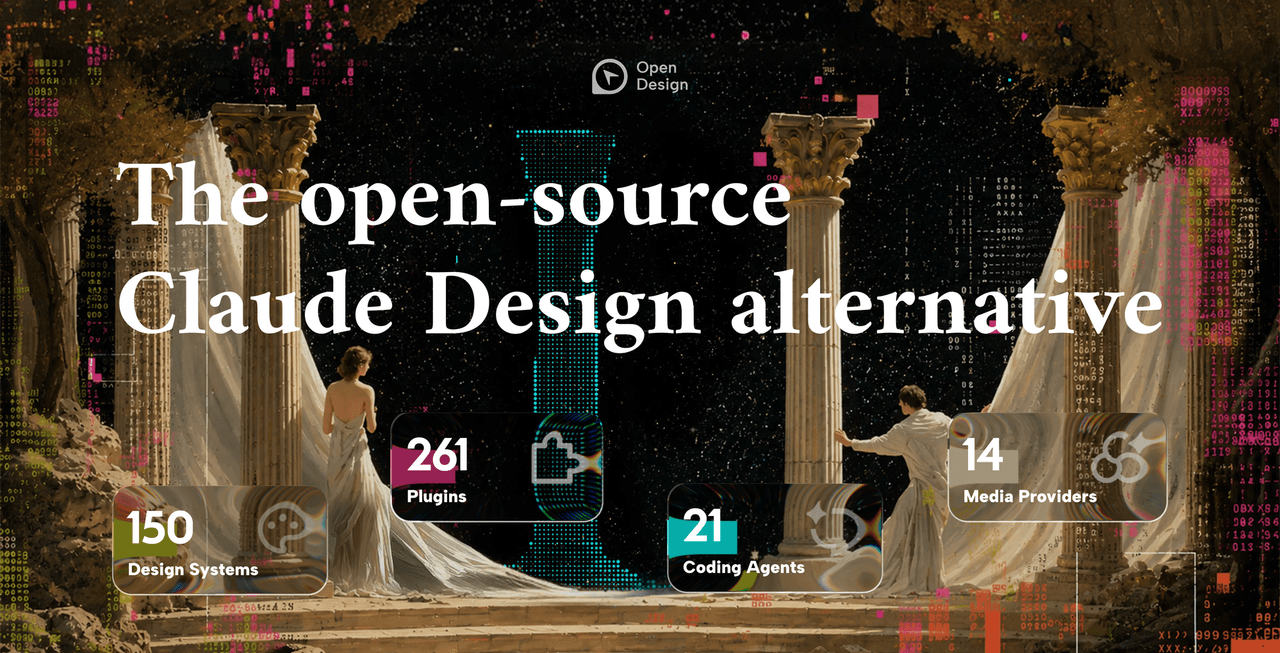
🎨 Best DeepSeek Harness Design Plugin. The open-source Claude Design alternative. 🖥️ Local-first desktop app. 🖼️ Your…
nexu-io/open-design
🎨 Best DeepSeek Harness Design Plugin. The open-source Claude Design alternative. 🖥️ Local-first desktop app. 🖼️ Your…
-
 ruvnet/ruflo
🌊 The original agent meta-harness. Deploy intelligent multi-player swarms, coordinate autonomous workflows, and build c…
ruvnet/ruflo
🌊 The original agent meta-harness. Deploy intelligent multi-player swarms, coordinate autonomous workflows, and build c…
-
 amruthpillai/reactive-resume
A one-of-a-kind resume builder that keeps your privacy in mind. Completely secure, customizable, portable, open-source a…
amruthpillai/reactive-resume
A one-of-a-kind resume builder that keeps your privacy in mind. Completely secure, customizable, portable, open-source a…
-
 esengine/DeepSeek-Reasonix
DeepSeek-native AI coding agent for your terminal. Engineered around prefix-cache stability — leave it running.
esengine/DeepSeek-Reasonix
DeepSeek-native AI coding agent for your terminal. Engineered around prefix-cache stability — leave it running.
-
 volcengine/OpenViking
Self-evolving Context Database for AI Agents. Unify Agent Memory, Knowledge RAG and Skills.
volcengine/OpenViking
Self-evolving Context Database for AI Agents. Unify Agent Memory, Knowledge RAG and Skills.
-
 Molunerfinn/PicGo
:rocket: The Ultimate Image Uploader for Efficient Creators. Supports Obsidian, Typora, VS Code etc. and 60+ image hosti…
Molunerfinn/PicGo
:rocket: The Ultimate Image Uploader for Efficient Creators. Supports Obsidian, Typora, VS Code etc. and 60+ image hosti…
-
 titanwings/distilly
Distilly — Distill how they think into reusable Skills for any Agent or Bot. Formerly Colleague Skill(原同事 Skill).
titanwings/distilly
Distilly — Distill how they think into reusable Skills for any Agent or Bot. Formerly Colleague Skill(原同事 Skill).
-
 titanwings/colleague-skill