liangyou09/lyshell
> 🔌 Your terminal, now AI's terminal too. LyShell is a Windows terminal with a built-in MCP server — letting Claude Code and other AI clients drive your SSH / Telnet / serial / local PTY sessions directly. Plus DeepSeek Harness workspaces (TUI + embedded Web UI), AI Agent launcher, plugin system, and Python scripting.
catalog 简介 / catalog descriptioncatalog description:AI-native terminal & SSH client — built-in DeepSeek Harness to launch agents in TUI or embedded Web UI, plus SFTP, serial/Telnet and MCP server.
安装Install
dsh plugin --profile web add github:liangyou09/lyshell把 liangyou09/lyshell 加入你的 DSH 配置(web profile)即可启用。
READMEREADME





💻 LyShell
🔌 Your terminal, now AI's terminal too. LyShell is a Windows terminal with a built-in MCP server — letting Claude Code and other AI clients drive your SSH / Telnet / serial / local PTY sessions directly. Plus DeepSeek Harness workspaces (TUI + embedded Web UI), AI Agent launcher, plugin system, and Python scripting.
English | 简体中文
✨ Highlights · 🐋 DeepSeek Harness · 🔗 MCP · 🤖 AI Agents · 🧩 Plugins · 🚀 Quick Start · ❓ FAQ
✨ Highlights
| 🔗 MCP Server — Expose your terminals to Claude Code and other AI clients, with per-session authorization and audit log | 🤖 Agent Launcher — Run Claude Code, Aider, Copilot CLI, or any custom CLI in a clean transient terminal |
| 🧩 Plugin System — Extend with Python or Node.js plugins, each running under granular permissions | 🐍 Python Engine — Script terminal automation through a built-in LyShell API |
| 🐋 DeepSeek Harness — Manage workspaces with variable sets & model presets, launch TUI and embedded Web UI side by side | 🔐 Embedded Web UI — Run dsh web in an in-app <webview> tab, loopback-locked and URL-validated |
📥 Install
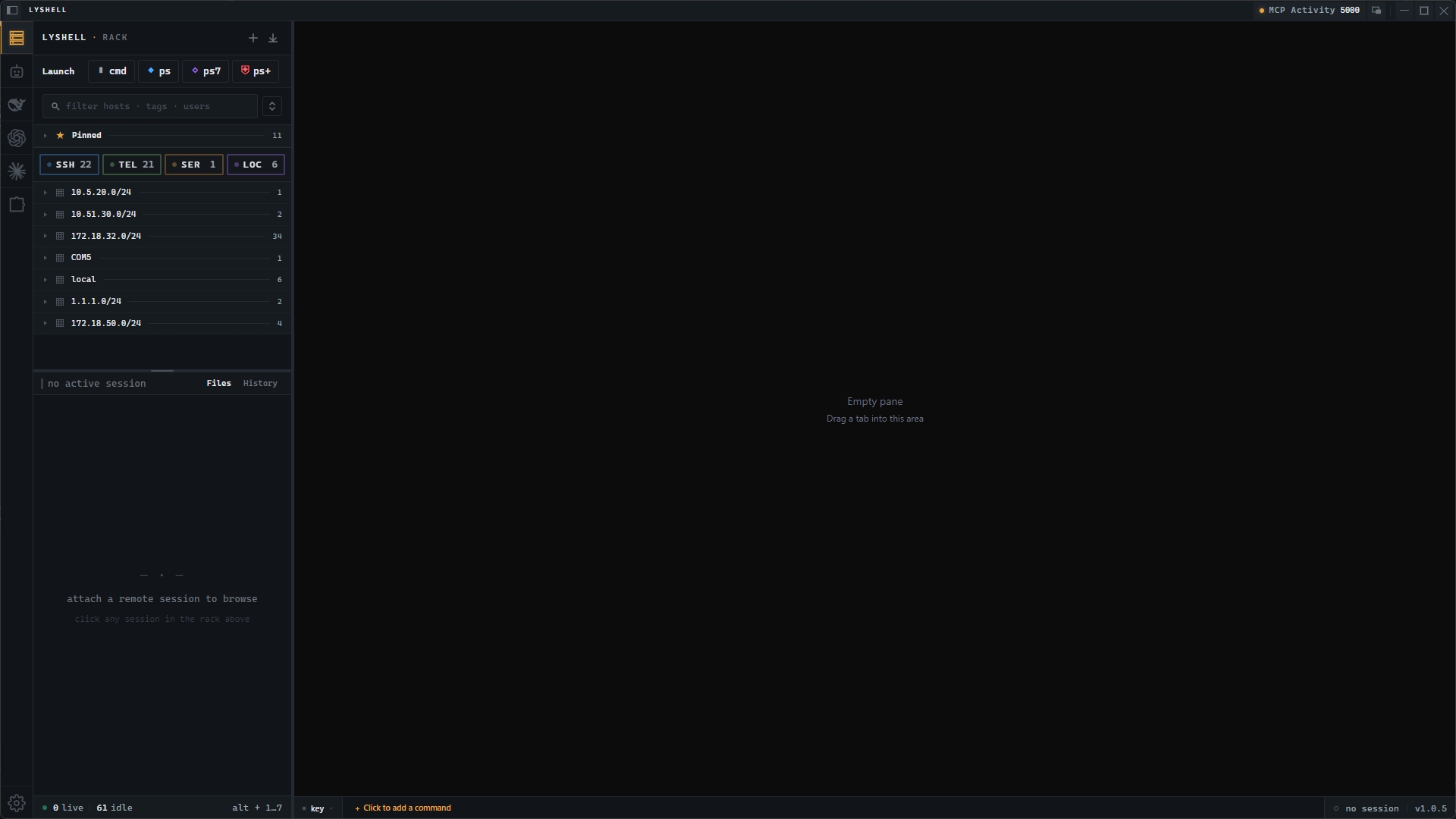
Download the latest portable build from Releases — no installation needed, just download and run.
| Platform | Format | Architecture | Requirements |
|---|---|---|---|
| 🪟 Windows | Portable (.exe) | x64 | Windows 10 / 11, 64-bit |
🚧 Currently Windows only — macOS and Linux builds are not yet available.
🔗 MCP Integration
This is what makes LyShell different. It serves as an MCP server, letting external AI clients like Claude Code control terminals via the MCP protocol — listing sessions, sending commands, reading output, transferring files, and managing connections.
📖 Configuration — see MCP Configuration. In most cases you don't configure anything by hand: launch an agent from the Agent Launcher and ask it to configure LyShell as its MCP server itself. Registration configs are emitted in JSON / CLI / TOML to fit different clients.
Tools
| Tool | Capability | Description |
|---|---|---|
list_sessions |
read |
List sidebar sessions |
send_input |
interactiveWrite |
Send text, autoNewline support |
send_and_wait |
interactiveWrite |
Send and capture response, strips echo + ANSI |
execute_command |
execute / localExecute |
Run via independent exec channel (SSH only) |
run_on_sessions |
execute / localExecute |
Broadcast command, max 50 sessions, concurrency 10 |
read_output |
read |
Read N lines of terminal output |
upload_file / download_file |
fileWrite |
SFTP file transfer |
read_file / stat_file / list_files |
read |
Remote file inspection, recursive + glob |
create_session |
sessionControl |
Create/reuse saved session, auto-dedup by target |
reconnect_session |
sessionControl |
Reconnect dropped connection |
close_session |
sessionControl |
Disconnect without deleting the saved session |
open_connection_dialog |
sessionControl |
Open the new-connection dialog for user input |
read_session_notes |
read |
Read session summary, notes, tags |
write_session_notes |
sessionMetadataWrite |
Update summary, notes, tags |
wait_for_prompt |
read |
Wait for shell prompt or regex |
tail_until |
read |
Poll output until pattern matches |
Security
- 🔑 Per-session authorization — each terminal gets its own scoped permission
- 🚪 Capability gates — enforced server-side on every endpoint
- 🛡️ Destructive-command check — scans for
rm -rf,dd if=, fork bombs - 🔒 Shared PTY locking — MCP vs human input never collide
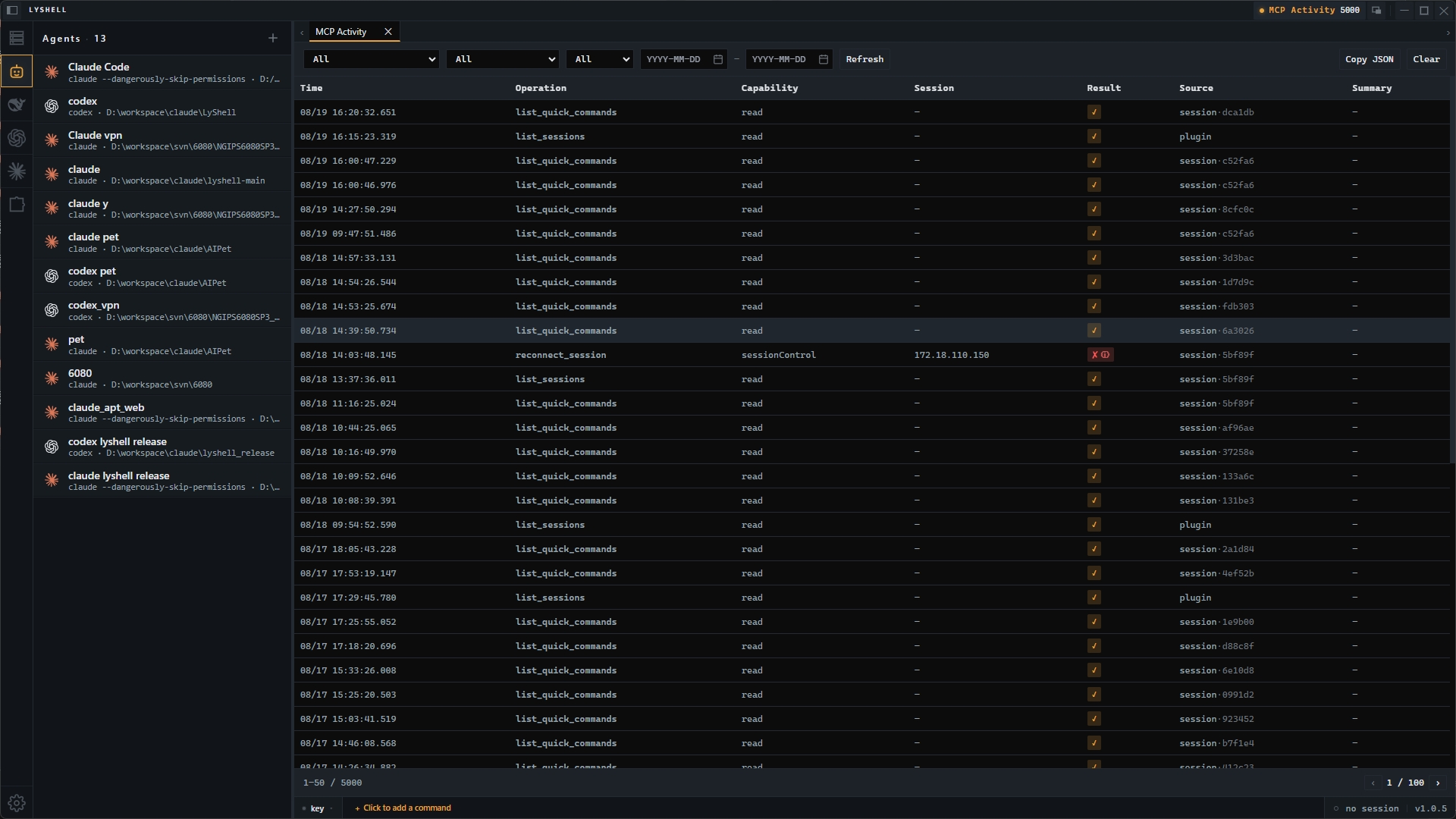
- 📊 Audit panel — calendar + filter + pagination, accessible from the title bar
⚠️ Full-screen TUI apps (vim, htop, less) are not supported over MCP — ANSI stripping garbles alternate-screen sequences. Use the LyShell UI native terminal instead.
🤖 AI Agents
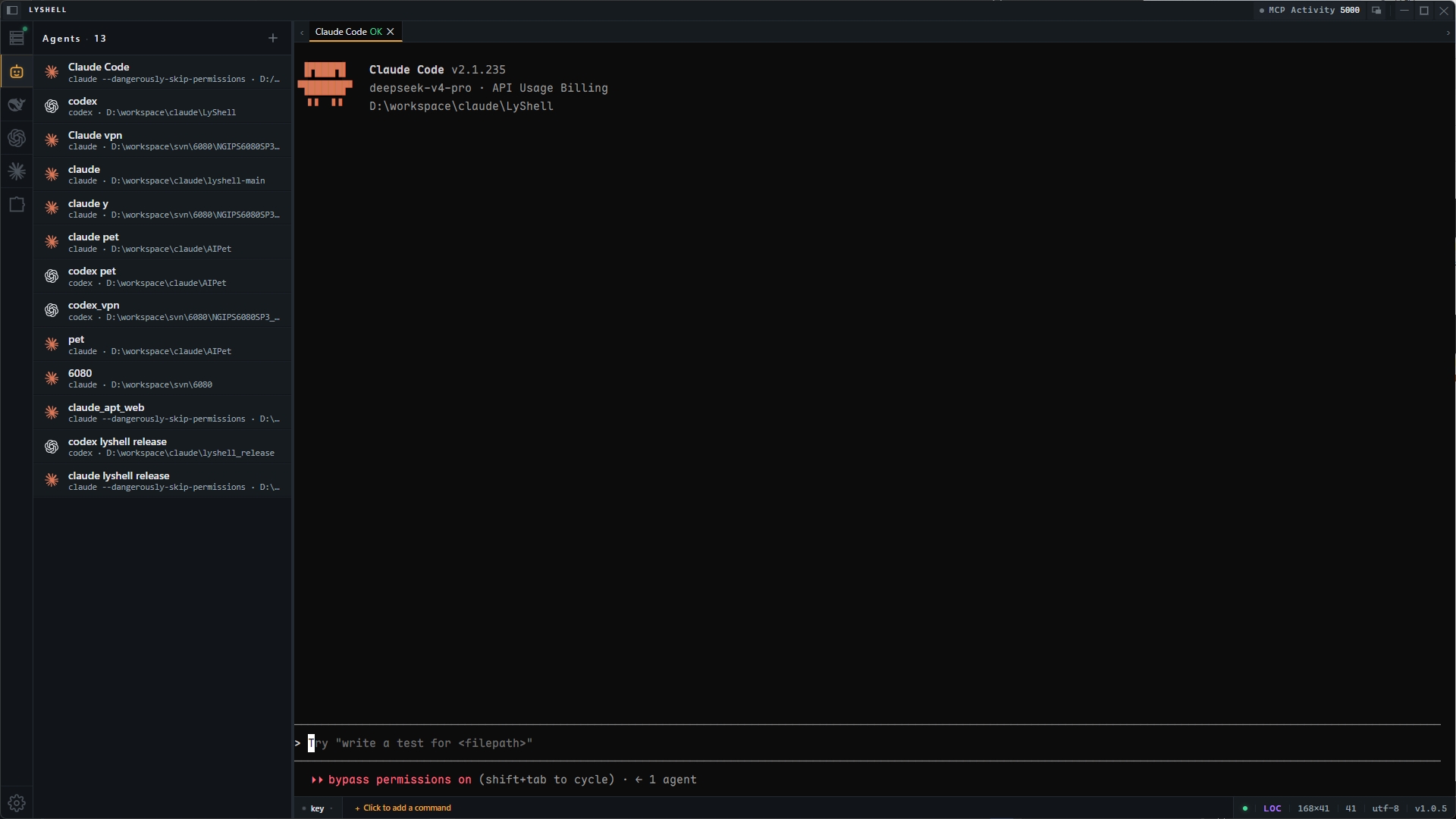
Agent-agnostic terminal — no lock-in to any AI tool. Launch any CLI agent and it runs in a regular terminal with full scrollback, split panes, and IME support.
| Agent | Command |
|---|---|
| 🧠 Claude Code | claude |
| 🛠️ OpenAI Codex | codex |
| 🤝 Aider | aider |
| 🐙 Copilot CLI | gh copilot |
First-class Harness agents — dsh, codex, and claude are first-class in the Harness panel: each gets its own left-rail tab, a dedicated workspace list, dependency detection, and per-workspace model & environment variables (model passed as --model, with OPENAI_API_KEY / ANTHROPIC_API_KEY defaults).
Custom agents: Any CLI tool can be registered — name, command, icon, working directory, env vars. Sessions are transient: close the tab, it's gone.
🐋 DeepSeek Harness
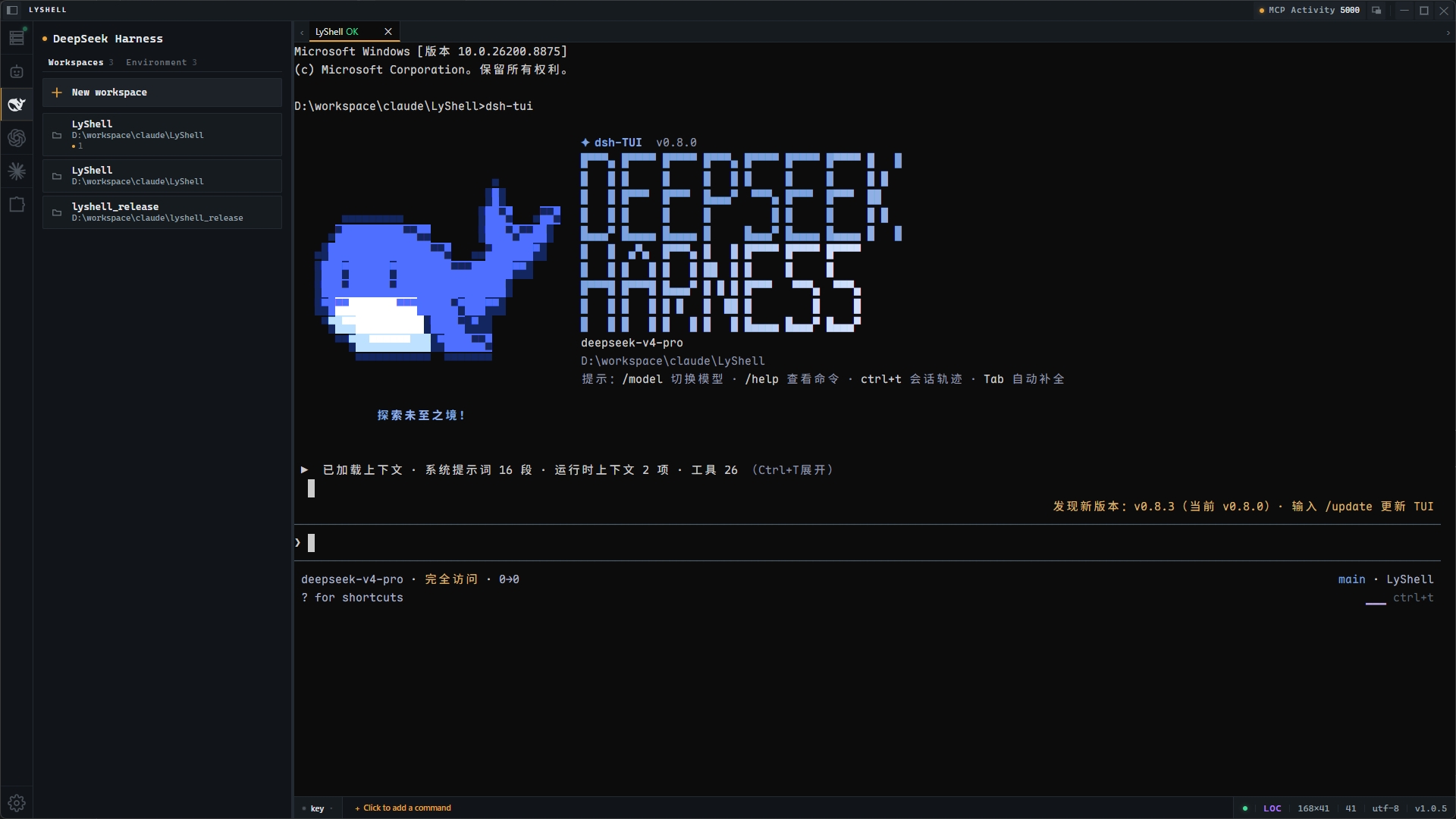
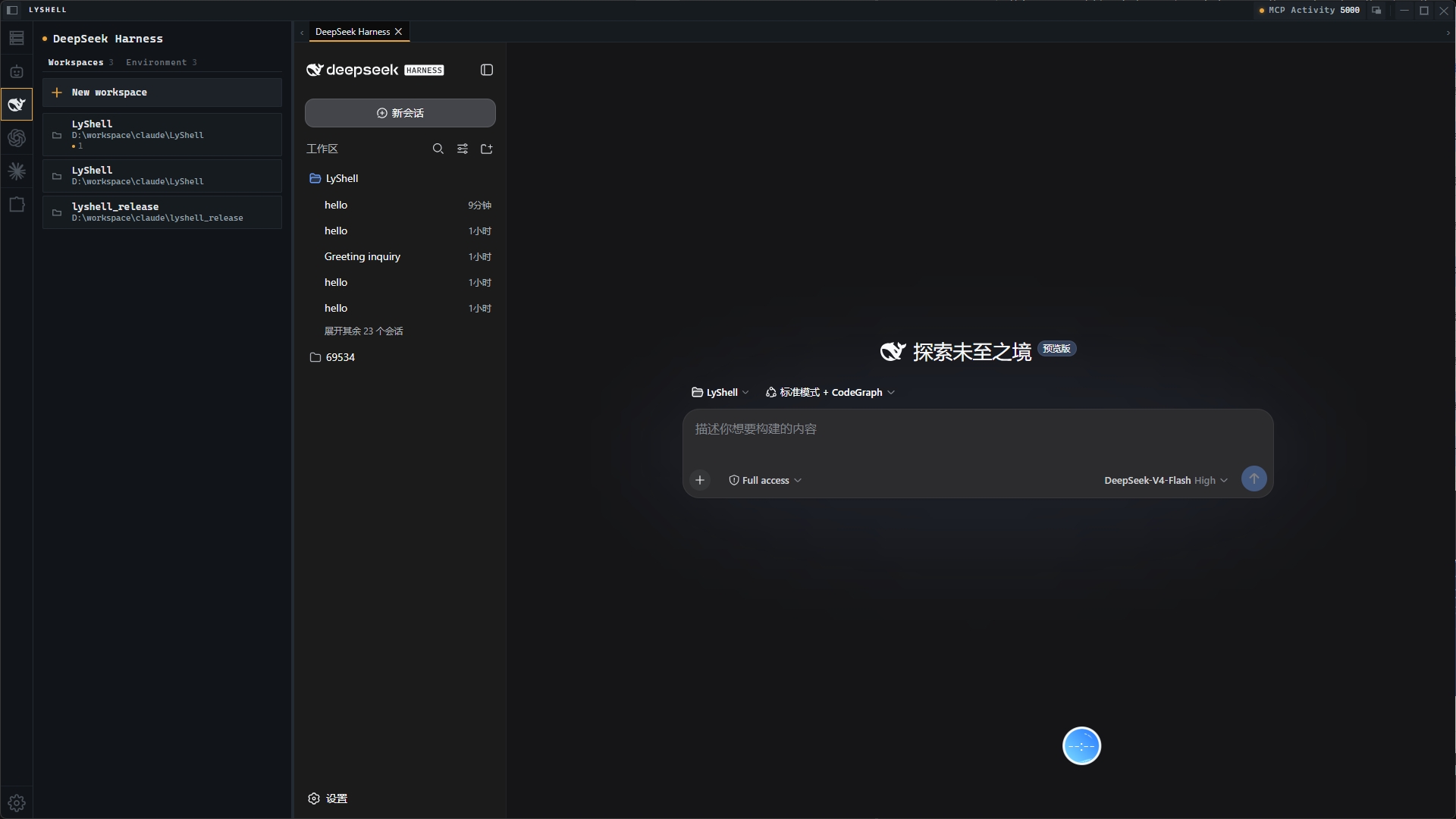
A first-class home for DeepSeek Harness workspaces. Manage every workspace in one dedicated panel, then launch each one as a terminal TUI or an embedded Web UI — inside LyShell, not a separate browser window. The two can even run side by side in split panes.
| 🗂️ Workspace panel — create, edit, delete | 🔧 Variable sets — pre-configure env sets, switch the enabled one |
| 🎛️ Model presets — save & switch models per workspace | 🖥️ TUI launch — dsh-tui in a native terminal tab |
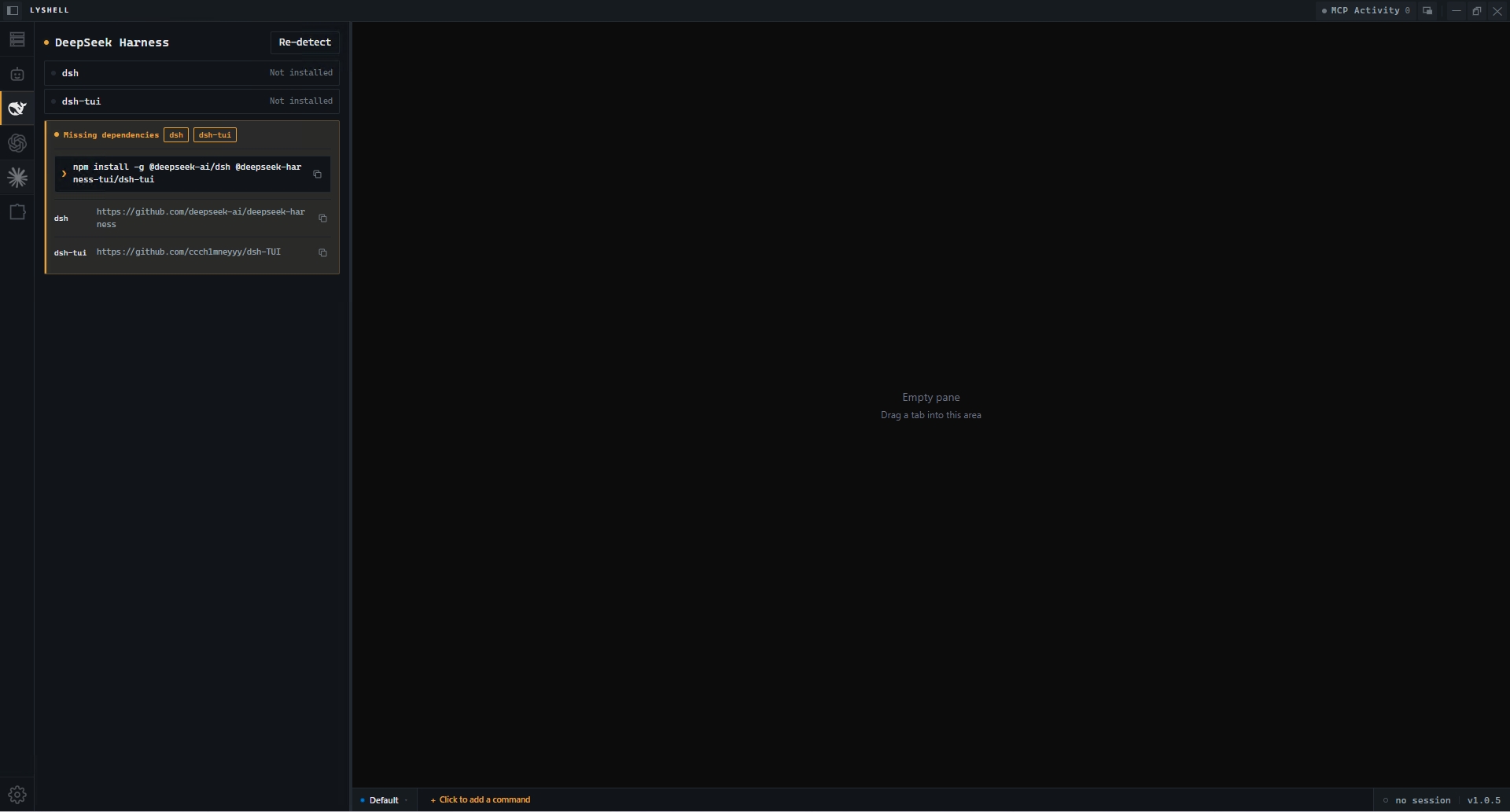
Dependency detection & install
Each Harness tab auto-detects its CLI dependencies on open — dsh + dsh-tui for DeepSeek Harness, codex / claude for the others — by scanning PATH. When something is missing, the panel shows which dependency is absent, its one-line install command, and the source-repo link — it never installs anything for you. A Re-detect button re-scans on demand, and PATH is read live from the registry, so a freshly installed CLI is picked up without restarting LyShell.
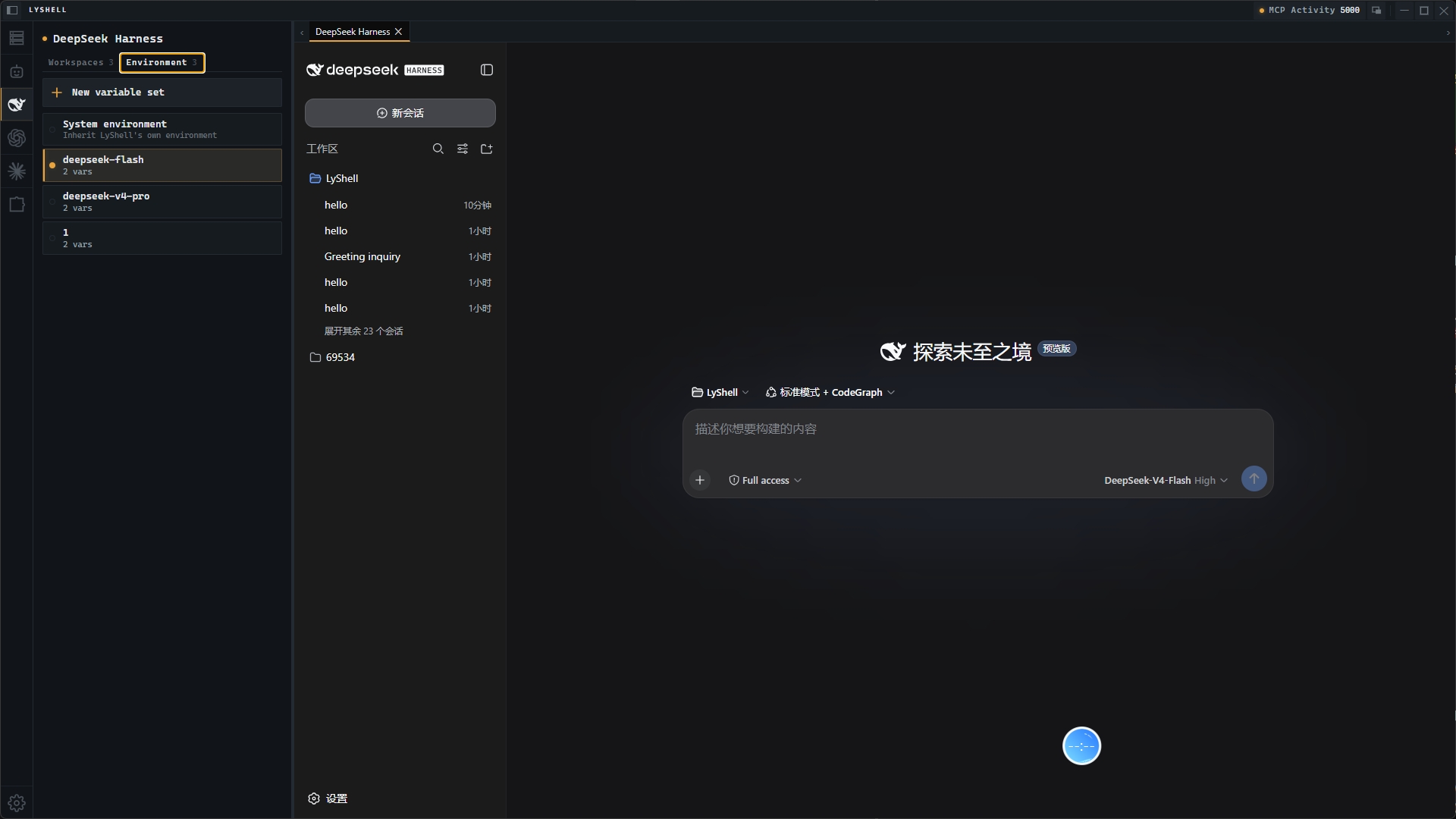
Environment tab: pre-configure, then switch
The panel splits into Workspaces and Environment tabs. In the Environment tab, pre-configure named variable sets — collections of KEY=VALUE (DEEPSEEK_API_KEY, DEEPSEEK_BASE_URL, DSH_HOME, …). At most one set is enabled at a time; click a set to switch to it, or click the always-on System environment slot to fall back to LyShell's own process environment.
Each workspace can bind to a specific set, or follow the enabled set — pick nothing and it inherits whichever set is currently enabled (or the system environment when none is). Enter secrets once, then switch between environments without touching each workspace.
Launch: TUI or Web UI
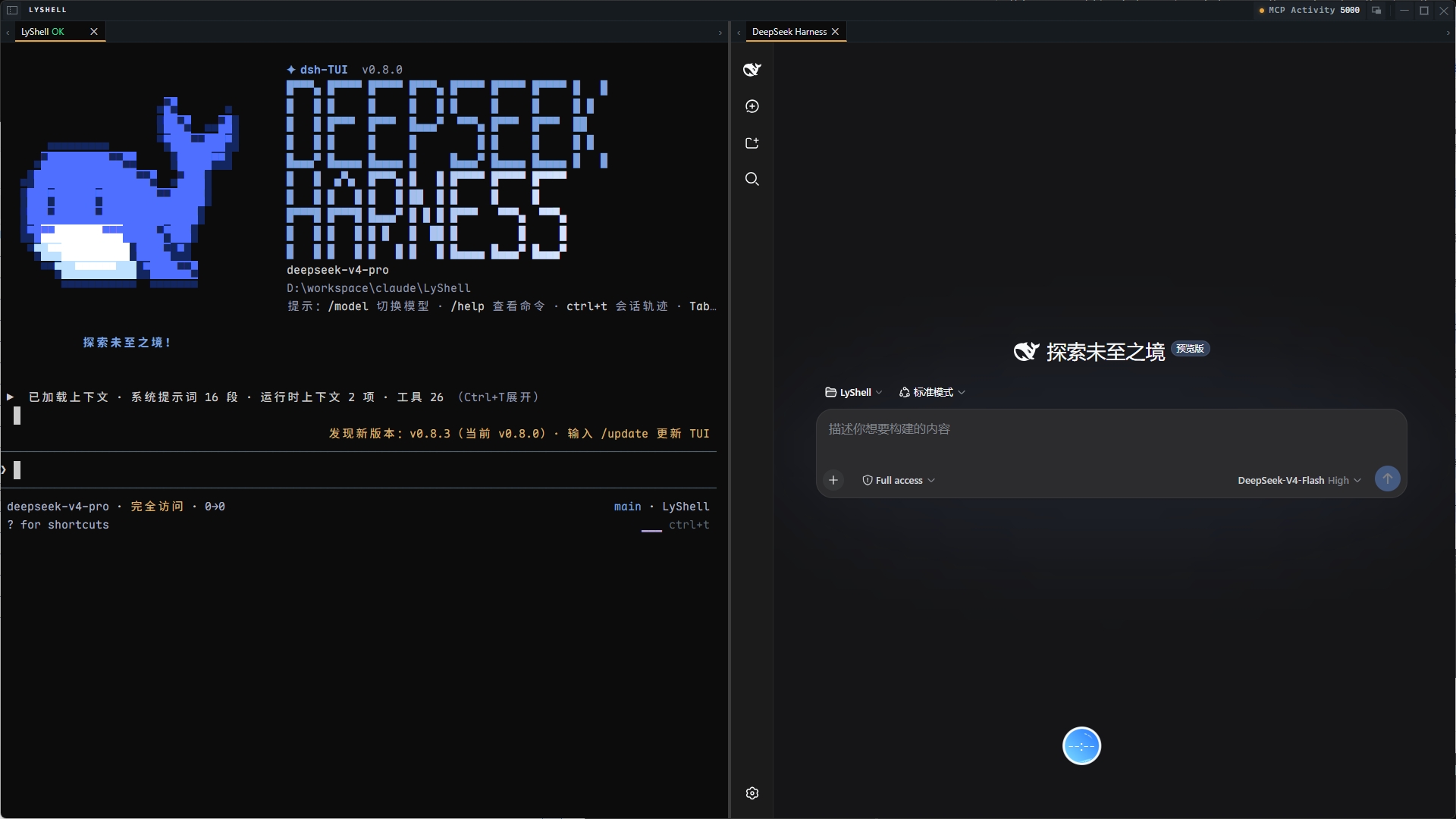
Every workspace opens two ways:
- Terminal TUI —
dsh-tuiruns as a standard terminal tab with full scrollback, split panes, and IME support. - Embedded Web UI — spawned as
dsh web --port 0; LyShell parses the real port from stdout and renders the app in an in-app<webview>tab. No browser, no manual port juggling.
TUI + Web UI, side by side
Drag the Web UI tab to a pane edge to split it into its own pane — the TUI and the embedded Web UI run in the same frame, side by side. Drag it back onto a pane's center to remount it as a regular tab.
Web UI acts like a terminal tab
- ✕ close — only ✕ tears the tab down and terminates the subprocess.
- Switch away — switching to another tab hides the Web UI but keeps the page state and the
dsh websubprocess alive; switching back resumes instantly.
Security
- 🔒 Loopback-locked — navigation and popups are pinned to the workspace's loopback origin.
- ✅ Validated URL — the echoed URL is checked (loopback + explicit port, no embedded credentials) before the
<webview>ever loads it.
🧩 Plugin System & Python Scripting
Plugins
Permission-gated host for Python (one-shot / persistent) and Node.js (persistent) plugins. Install from local directory, ZIP, or remote URL. Each plugin runs with its own scoped authorization — granular permissions (read / write / execute / file / session control) with path safety, destructive-command confirmation, and shared-PTY locking.
⚠️ Plugins activate on startup (
onStartup) today. Event-based activation and declarative UI contributions are not wired up yet.
📦 Ready-to-run examples in examples/.
Python Engine
Embedded Python with LyShell API for terminal automation:
session = LyShell.get_current_session()
LyShell.execute("ls -la")
LyShell.send("hello\n")
LyShell.wait_for("prompt$")
Environment variables: LYSHELL_SESSION_ID · LYSHELL_SESSION_TYPE · LYSHELL_HOST · LYSHELL_PORT.
Python path auto-detected from system PATH, configurable in settings.
💡 For long-running or scheduled tasks, consider Node.js plugins via the Plugin System — they're a better fit.
🚀 Quick Start
First Connection
- Click + at the top of the session list → SSH
- Fill in host, port, username, password/private key
- Click Connect — tab turns 🟢 green
💡 For network devices needing
shell→enable, add those in Shell Enter Commands — LyShell sends them sequentially.
Quick Connect
Ctrl+Alt+F from any app → search → Enter to connect.
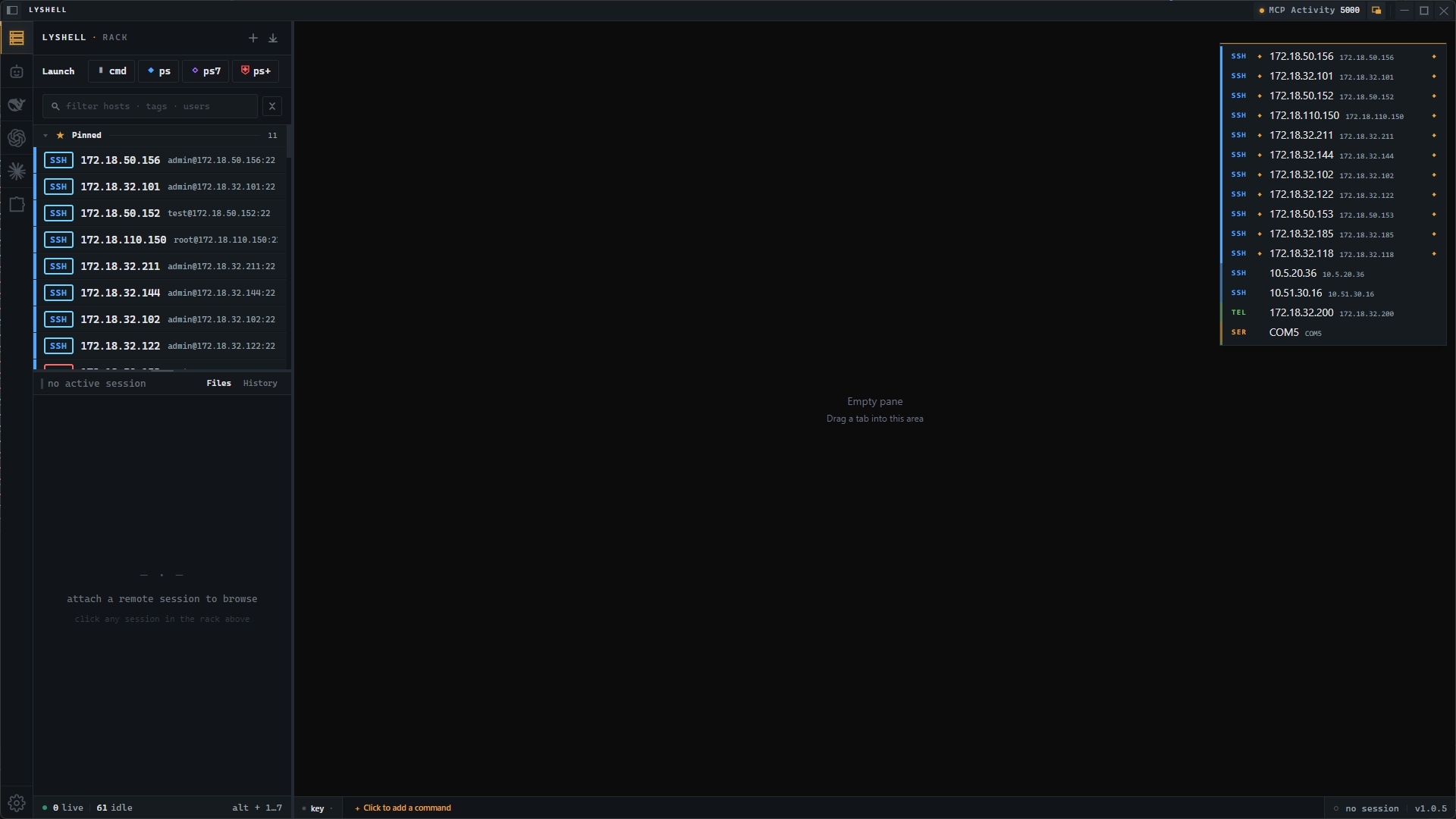
Multi-Server Monitoring
Click a session → Ctrl+Shift+V to split vertically → click another session. Layout auto-saves.
File Transfer
- Upload — drag from desktop to File Panel
- Download — double-click remote file or right-click → Download
- Progress — real-time speed + ETA, auto MD5 on completion
- History — file, size, path, MD5 recorded; supports re-download
- Security — independent SSH connection (never blocks terminal), SFTP or TCP-over-SSH tunnel; no plaintext fallback even when
AllowTcpForwardingis disabled - Download directory — default
~/Downloads/LyShell/, optional auto-create server subdirectory for archiving
Quick Commands
Right-click the quick commands bar → Edit Group → add commands like tail -f /var/log/syslog. Trigger with Ctrl+F1–F12. Up to 12 commands × 5 groups.
Session Management
- 📌 Pin — hover card → click 📌
- 📋 Clone session — double-click tab left half
- ⚡ Clone channel (no re-auth) — double-click tab right half (SSH only)
- 🔍 Search — type name/host/tag in search box
Terminal Tips
- Select text → auto-copy · Right-click → paste · Middle-click → search bar
Ctrl+F→ in-terminal search (regex, case-sensitive, cross-tab)- Encoding issues → edit session, switch UTF-8 / GBK / GB2312
- Click
cols × rowsin status bar → clear screen - Click buffer count → scroll to bottom; double-click → clear scrollback
🔌 Connection Types & Terminal
| Type | Key params | Notes |
|---|---|---|
| 🖥️ SSH | password or private key; port 22 |
Post-login commands, keepalive; dual-click clone |
| 📟 Telnet | host + port 23 |
Full IAC negotiation |
| 🔌 Serial | COM port, baud 115200 (9600–921600), 8N1 |
Auto-detects ports |
| 💻 Local PTY | cmd.exe / PowerShell | Configurable working directory + env |
Terminal: GPU-accelerated rendering, full ANSI + 256 colors. Scrollback up to 100,000 lines. Split panes (horizontal/vertical), drag-to-split. Quick commands bar Ctrl+F1–F12. Tab status: 🟢 Connected · 🔴 Error · ⚪ Disconnected · 🔵 New output.
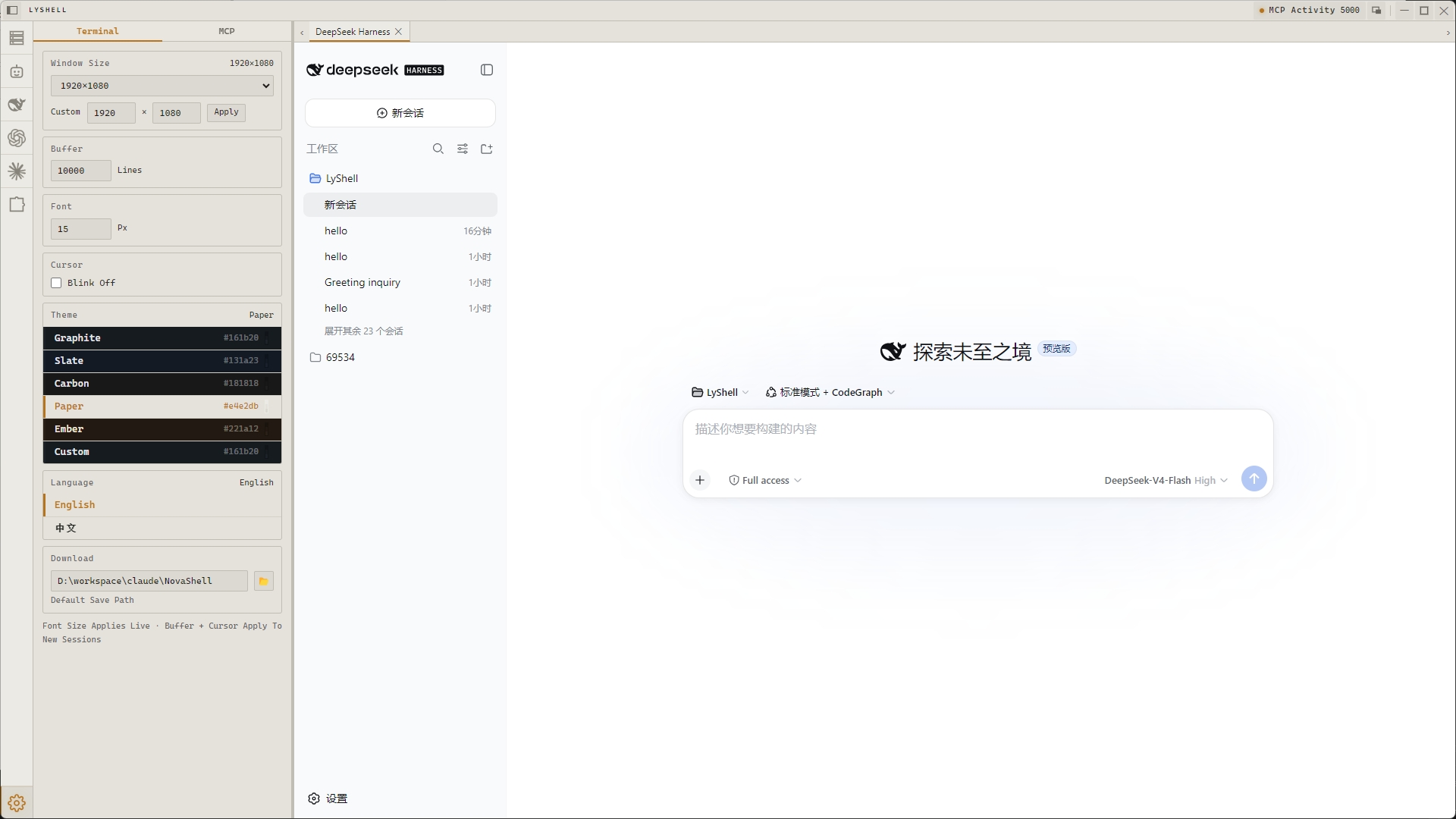
🎨 Themes
5 presets + custom. Instant switch, no restart.
| Theme | Style | Mode |
|---|---|---|
| Graphite | Deep graphite + tungsten amber (default) | Dark |
| Slate | Blue-tinted slate, amber accent | Dark |
| Carbon | Neutral charcoal, no blue cast | Dark |
| Ember | Warm walnut brown + warm amber | Dark |
| Paper | Natural warm paper, graphite ink | Light |
Custom: pick a background and accent color, LyShell auto-builds a complete harmonious theme.
⌨️ Keyboard Shortcuts
| Shortcut | Action |
|---|---|
Ctrl + Alt + F |
Toggle float window |
Ctrl + F |
Terminal search |
Ctrl + F1 ~ F12 |
Quick command 1–12 |
Ctrl + Shift + H |
Horizontal split |
Ctrl + Shift + V |
Vertical split |
| Right-click | Paste |
| Middle-click | Search bar |
⚙️ Configuration
JSON files in %APPDATA%\lyshell\:
sessions.json · preferences.json · quickCommands.json · agents.json · download-history.json · download-config.json · mcp-server.json
AES-256-CBC encrypted export/import for sessions and quick commands.
❓ FAQ
SSH garbled Chinese characters?
Edit session, switch encoding from UTF-8 to GBK or GB2312.Serial port no output?
Verify port + baud rate → check no other program uses it → some devices need Enter to activate.File manager not showing?
SSH sessions only. Ensure the active tab is an SSH connection.How to reset all configuration?
Delete all JSON files in `%APPDATA%\lyshell\` and restart.Ctrl+Alt+F not working?
May be taken by another app. Reconfigure in LyShell settings.Where are downloaded files?
Default `~/Downloads/LyShell/`. Change in settings.📄 License
LyShell is open-source software released under the MIT License. You are free to use, modify, and redistribute it, provided the original copyright and license notices are preserved.
© 2026 liangyou
GitHub · Issues · Releases · Changelog · Contributing
相关推荐Related
-
 nexu-io/open-design
🎨 Best DeepSeek Harness Design Plugin. The open-source Claude Design alternative. 🖥️ Local-first desktop app. 🖼️ Your…
nexu-io/open-design
🎨 Best DeepSeek Harness Design Plugin. The open-source Claude Design alternative. 🖥️ Local-first desktop app. 🖼️ Your…
-
 ruvnet/ruflo
🌊 The original agent meta-harness. Deploy intelligent multi-player swarms, coordinate autonomous workflows, and build c…
ruvnet/ruflo
🌊 The original agent meta-harness. Deploy intelligent multi-player swarms, coordinate autonomous workflows, and build c…
-
 esengine/DeepSeek-Reasonix
DeepSeek-native AI coding agent for your terminal. Engineered around prefix-cache stability — leave it running.
esengine/DeepSeek-Reasonix
DeepSeek-native AI coding agent for your terminal. Engineered around prefix-cache stability — leave it running.
-
 volcengine/OpenViking
Self-evolving Context Database for AI Agents. Unify Agent Memory, Knowledge RAG and Skills.
volcengine/OpenViking
Self-evolving Context Database for AI Agents. Unify Agent Memory, Knowledge RAG and Skills.
-
 Tencent/WeKnora
Open-source LLM knowledge platform: turn raw documents into a queryable RAG, an autonomous reasoning agent, and a self-m…
Tencent/WeKnora
Open-source LLM knowledge platform: turn raw documents into a queryable RAG, an autonomous reasoning agent, and a self-m…
- Nagi-ovo/voyager Enhancement suite for Gemini, AI Studio, Claude & ChatGPT — plus a prompt manager for any web UI, DeepSeek Harness inclu…
-
 anywhere-labs/deepseek-harness-desktop
为 DeepSeek Harness (DSH) 插件生态打造的现代化桌面端解决方案。万物皆「插件」,桌面本身也是「插件」。
anywhere-labs/deepseek-harness-desktop
为 DeepSeek Harness (DSH) 插件生态打造的现代化桌面端解决方案。万物皆「插件」,桌面本身也是「插件」。
-
 EverMind-AI/EverOS
One portable memory layer for every AI agent: local-first, Markdown-native, user-owned, and self-evolving across apps, t…
EverMind-AI/EverOS
One portable memory layer for every AI agent: local-first, Markdown-native, user-owned, and self-evolving across apps, t…