
liguobao/ds-harness-remote
一个基于 DeepSeek Harness 插件机制构建的多端远程访问方案,通过安全、低延迟、端到端加密的 P2P 优先网络,支持从 PC、Android 和 Web 随时访问并操作远程 Harness 和 CodeX。 (A multi-device remote access solution built on the DeepSeek Harness plugin system, enabling PC, Android, and Web clients to securely access and operate remote Harness and CodeX over a low-latency, end-to-end encrypted, P2P-first network.)
Project Overview项目介绍
DSH Remote is a plugin that turns DeepSeek Harness into a cross-device workspace over an end-to-end encrypted channel. It lets phones, computers, and browsers continue the same Harness session, send instructions, view progress, and respond to permission prompts without exposing a public port. Use it when you need to resume work across devices. Caveat: 0.4.1 only supports Harness rc.2 and alpha.1, and cross-generation connections are rejected.
DSH Remote 是 DeepSeek Harness 的远程接入插件。它通过端到端加密通道,让手机、电脑或浏览器继续同一 Harness 会话、发送指令、查看进度并回答权限请求,无需公网端口。适用于跨设备延续工作流的场景。注意:0.4.1 仅支持 rc.2 与 alpha.1 协议版本,跨版本连接会被拒绝。
请帮我了解并安装插件:【ds-harness-remote】【https://github.com/liguobao/ds-harness-remote】Send this message to DSH in your current session. CLI install commands may not be accurate across systems — DSH will figure it out for you.把上面这条消息直接发给当前会话里的 DSH,让它帮你了解并安装。安装命令不一定准确,发给 DSH 更稳。
Or use CLI install (for developers)或使用命令行安装(适合开发者)
CLI Install命令行安装
dsh plugin --profile web add ds-harness-remote@0.4.13把 liguobao/ds-harness-remote 加入你的 DSH 配置(web profile)即可启用。
READMEREADME

English · 中文 · Documentation · Download: Windows · macOS · Linux · Web · Android
Connect once. Ready whenever you are.
Continue using your DeepSeek Harness instance from a phone, computer, or browser.
Return to the same Harness session from whichever device is with you. Harness keeps running on your work computer, with the same workspaces, tools, and project setup. Remote is simply another window into that environment.
Features
- Continue active sessions and review their latest progress from another device
- Send new instructions, change direction, and use image prompts with Harness
dsh-v0.1.1-rc.2,dsh-v0.1.2-alpha.1–rc.1, ordsh-v0.1.5-rc.1 - Answer questions and permission requests from clients with live conversation controls
- Open workspaces from another authorized computer on the same account
- Reuse the native Harness interface instead of maintaining a separate desktop conversation UI
- Preview remote files between two Harness installations with the optional
dsh-file-viewerplugin - Run a terminal-only dsh-TUI profile as a Host and authorize it with a GitHub or Zhihu QR code
- The Harness Host does not need a public listening port. Connect securely from anywhere with internet access over a bidirectional end-to-end encrypted channel
Install
Path A: DSH Desktop
Install DSH Desktop on Windows, macOS, or Linux. Remote is included and enabled by default, so no separate plugin installation is required.
Path B: Existing DSH installation
Add the exact package version through DSH's plugin manager for the web profile:
dsh plugin --profile web add ds-harness-remote@0.4.13
Restart Harness after installation.
Do not install this package directly with npm. Only dsh plugin updates the selected profile and
adds the bundle's configuration layer.
Path C: dsh-TUI Host
Remote can run as a Host in a terminal-only dsh-TUI
profile; it does not require the Desktop browser connection service. Install the plugin in the
TUI profile:
dsh plugin --profile dsh-tui add ds-harness-remote@0.4.13
Start dsh-TUI and use its native slash command:
/remote                    # live Host status
/remote login              # Zhihu QR login by default
/remote login github
/remote status
/remote logout
/remote login opens a TUI-native QR scene and prints a clickable authorization URL below the QR
code. Login defaults to Zhihu; GitHub is also supported. Host control is enabled by default, and
/remote logout revokes the Host and rotates its local device identity. Host configuration is not
exposed yet; the integration uses https://dsh.r2049.cn. Tab completion is available for the
subcommands and login providers. The /remote Host-management surface supports TUI profiles on
dsh-v0.1.1-rc.2, dsh-v0.1.2-alpha.1–rc.1, and
dsh-v0.1.5-rc.1; Remote workspace capabilities are advertised
only when their official Harness carrier is available.
See the dsh-TUI Remote guide for the compatibility matrix, rc.2 ApiProxy setup, status fields, and troubleshooting.
Quick start
- Open Remote from the Harness sidebar.
- Sign in with a GitHub or Zhihu QR code, or use your account and password. New password accounts can register through Remote Web; the site shows the current invitation requirements.
- Enable remote control for the current computer.
- On another device, open DSH Desktop, Remote Web, or the Android client and sign in to the same account.
- Select the online Host, then choose an existing workspace or browse remote directories to open one.
The public service currently uses the hosted Remote relay. A supported self-hosted relay option is not available yet.
Screenshots
Desktop
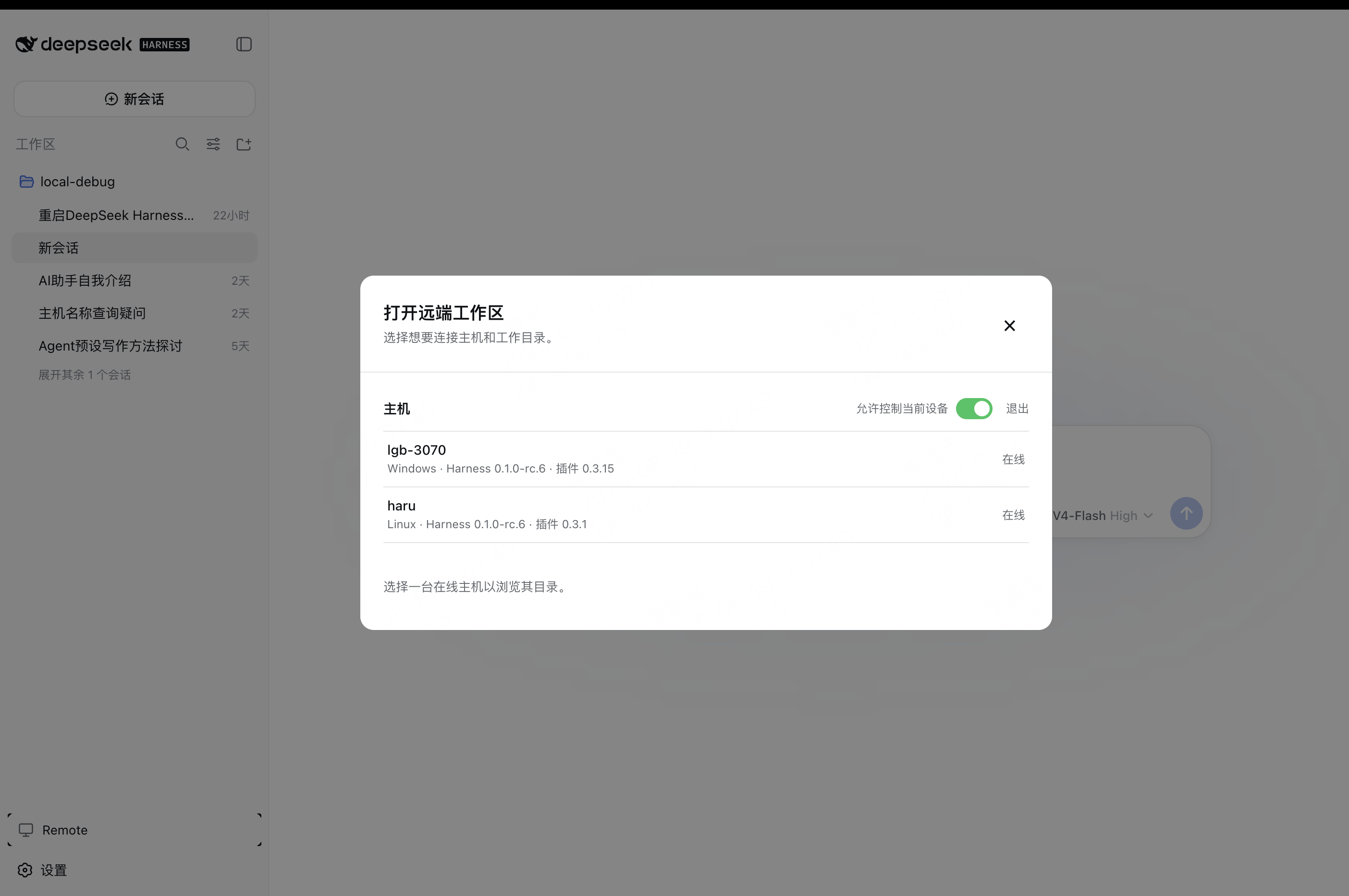
Enable Allow control of this device in Remote settings to make the current computer available as a Host.
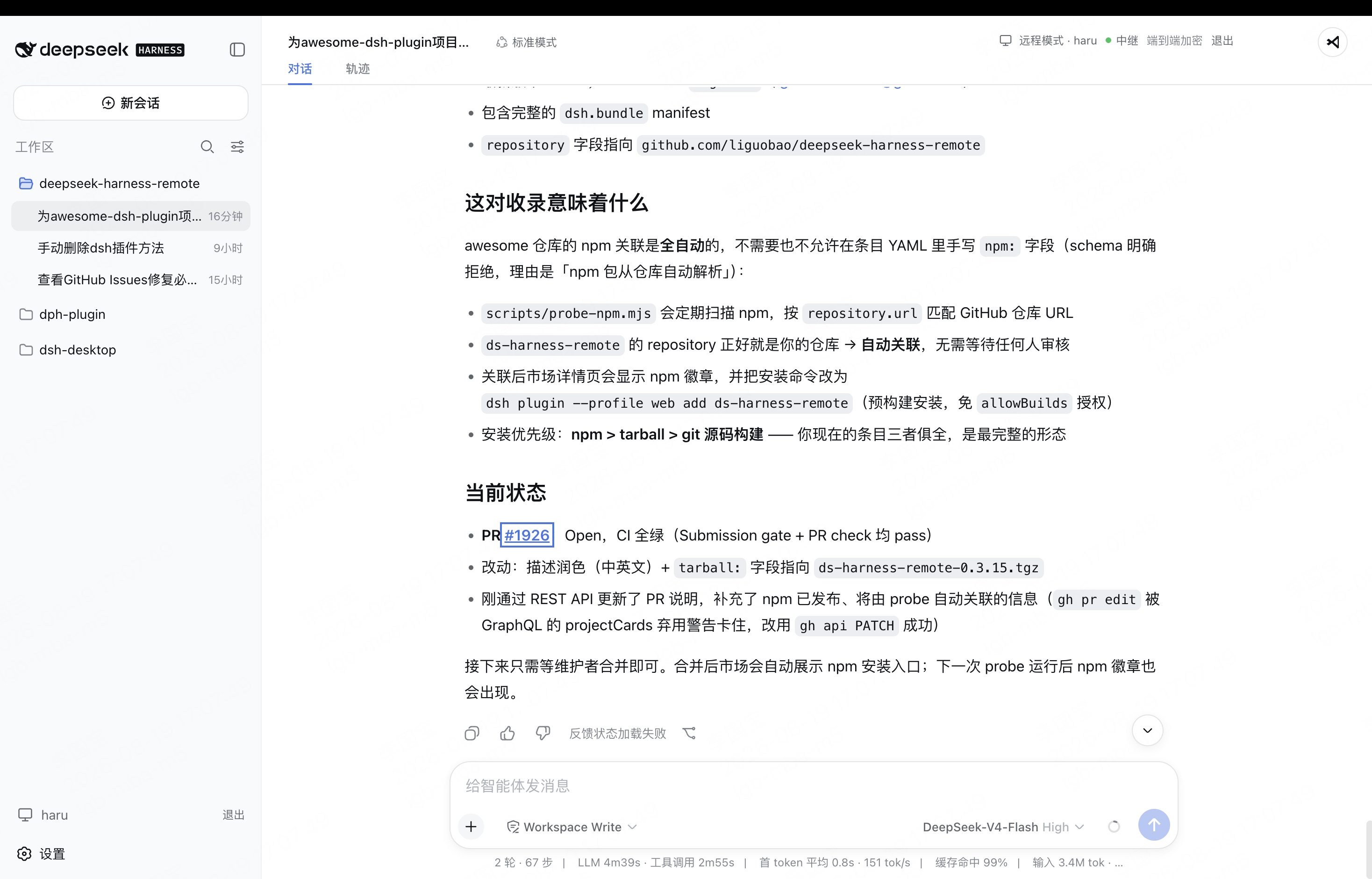
On another computer, select an online Host and open one of its workspaces.
The workspace opens in the native Harness interface, with the active Host and encrypted connection status shown in the header.
Android
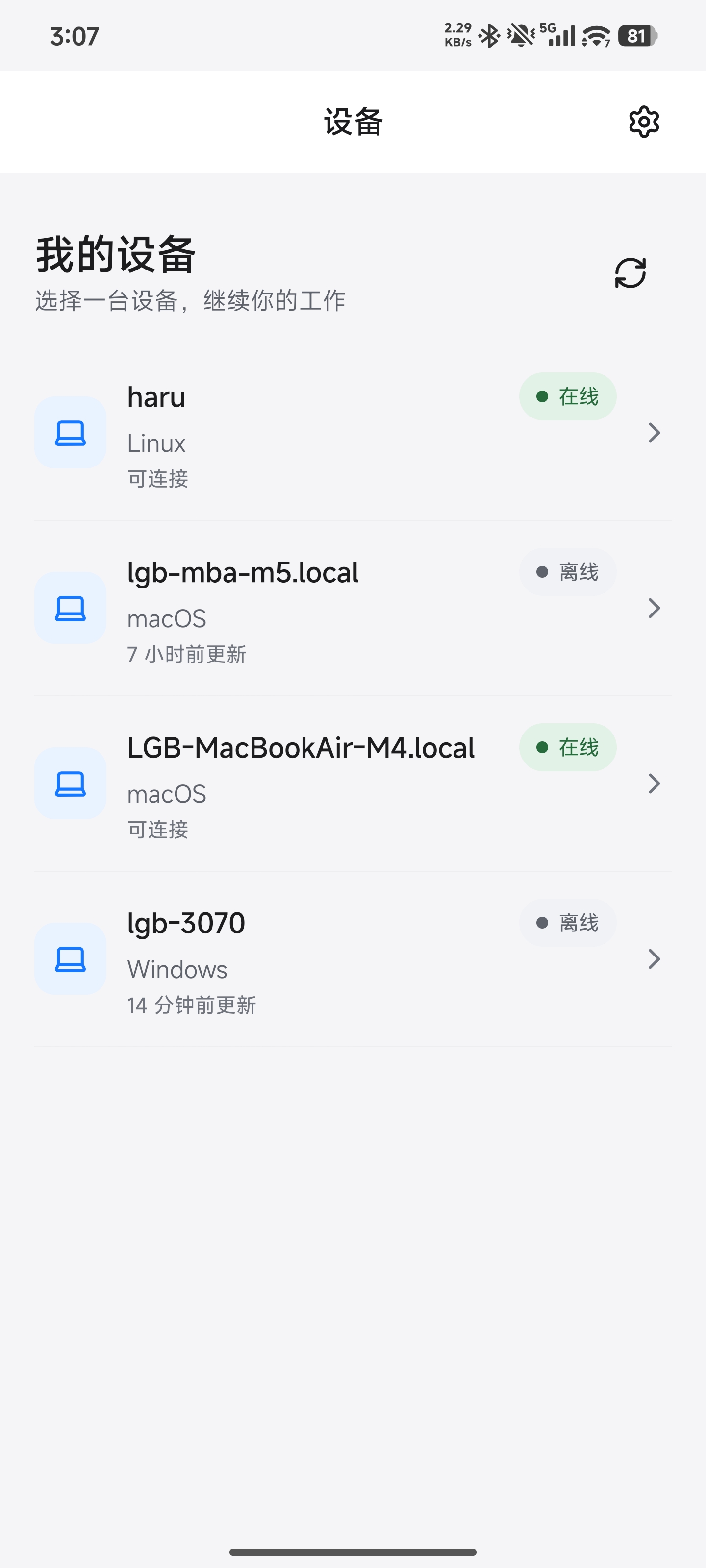
Download the latest Android APK from GitHub Releases.
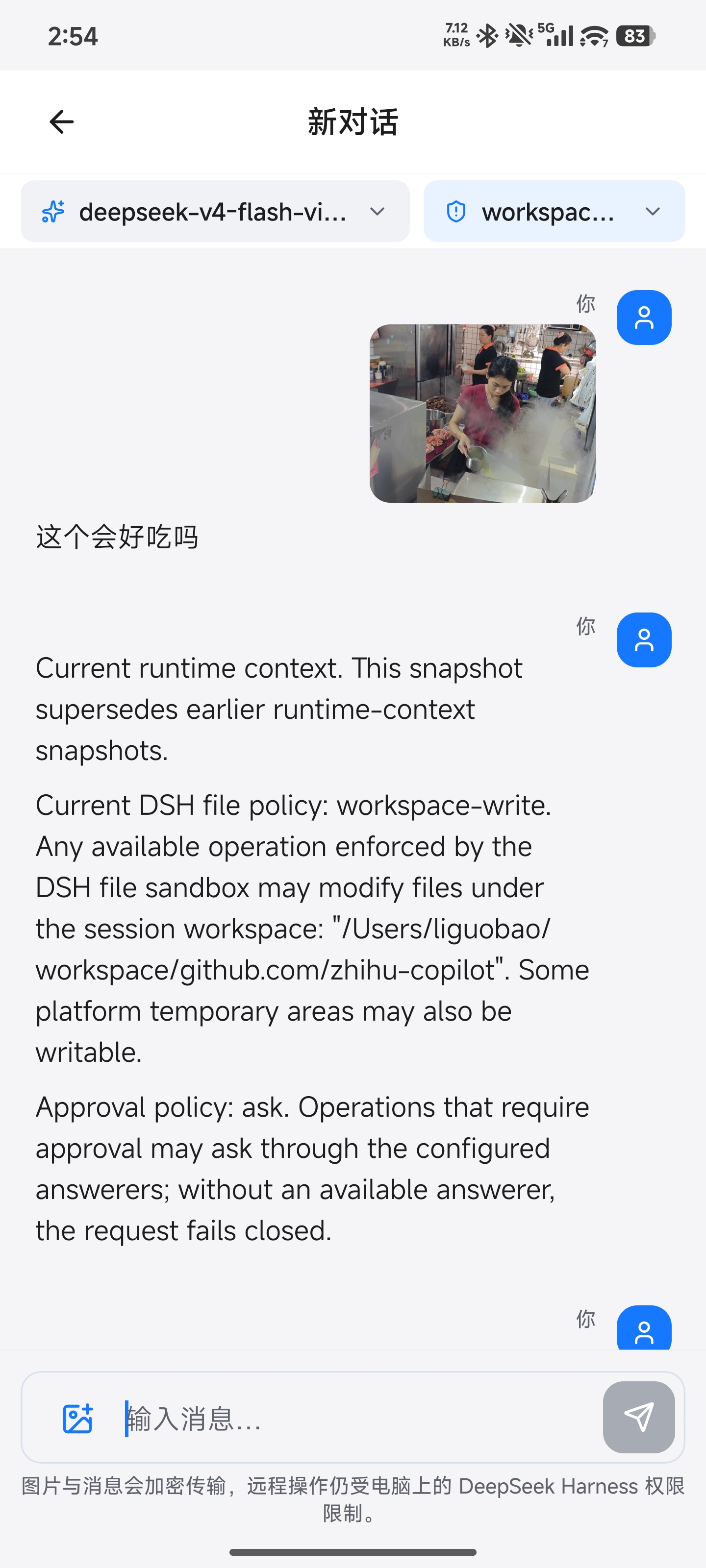
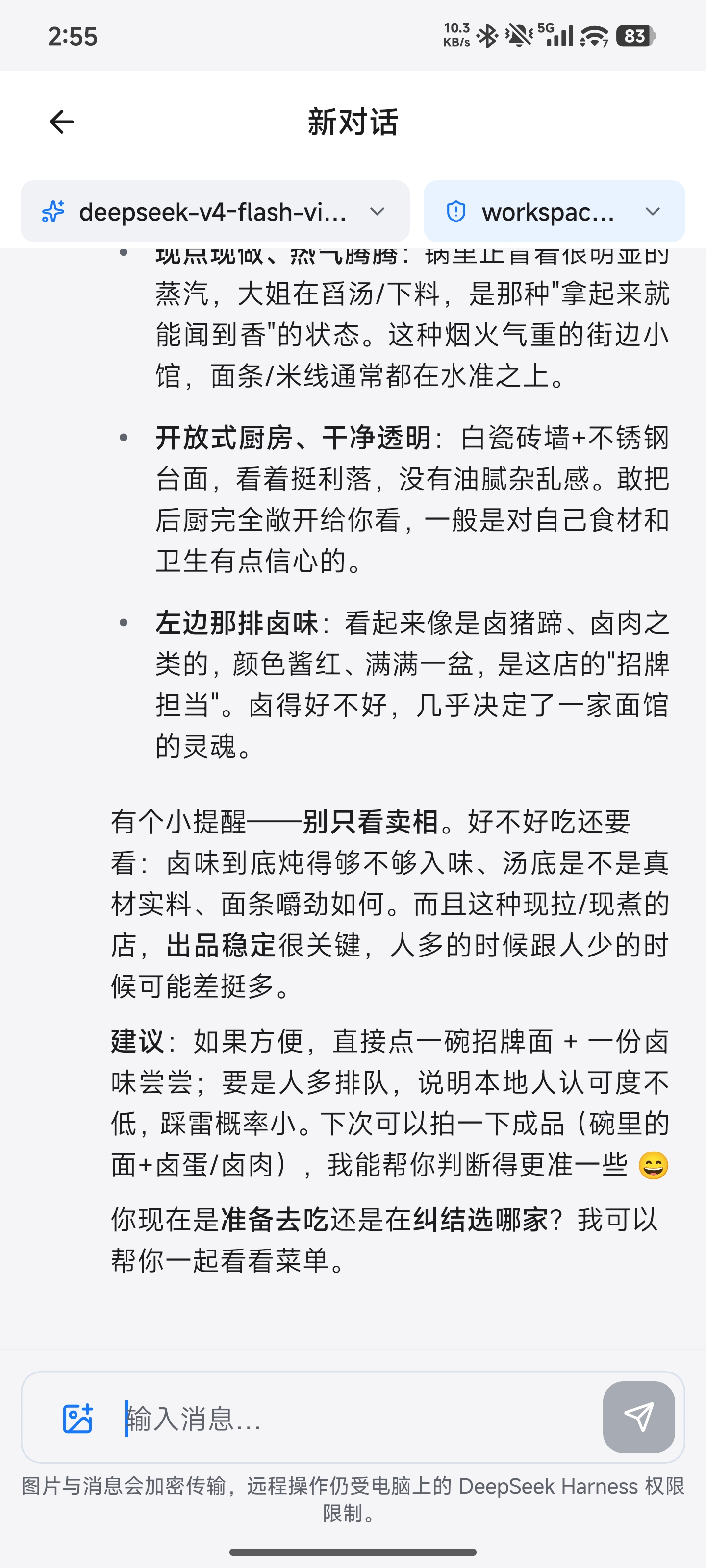
Sign in to the Android client with your existing account, select an available computer, open a workspace, and continue the conversation with text or image prompts. The conversation toolbar also lets you switch the active model and choose any reasoning effort declared by it.
How it works
DSH Desktop / Remote Web / Android
  ↔ authenticated, end-to-end encrypted channel
Remote Plugin on the Host
  ↔ supported Harness or optional Codex workspace support
Harness sessions/workspaces or Codex projects
The Harness Host does not need a public listening port. You can connect from anywhere with internet access, and Remote communicates over a bidirectional end-to-end encrypted channel. It switches the client to the selected Host's native Harness API, so the original workspace, tools, and permission flow remain on that computer. Every settings namespace currently registered by the Host can also be configured remotely through the official Harness settings API. Credential values remain write-only, and Host-local document/open actions are never exposed.
Experimental Codex workspaces
Remote can also show Codex projects from an authorized Host. Pick one from the normal workspace chooser and continue in the existing Harness or Android interface; there is no separate Codex screen to learn. The Desktop chooser and Android workspace page can also add a Host directory to the Codex project catalog without importing it into Harness storage.
Codex Remote is meant as a convenience layer for your own devices. It supports text prompts, image prompts where available, model and permission controls, interrupt, and approvals. It is still published as experimental while long-running recovery and compatibility work continue.
Web and Desktop approval controls show the Host-confirmed mode for the selected Codex session. If it has not been reported, they indicate that Host settings are inherited. Changing the mode requires Host confirmation; sending a prompt preserves the session's current policy.
Codex is enabled by default and can be turned off in the DeepSeek Remote settings card. Advanced configuration and implementation notes live in Codex Remote technical notes.
End-to-end encryption
Harness business traffic is encrypted on the Client and decrypted only by the selected Host using
the fixed Noise_IK_25519_ChaChaPoly_SHA256 suite. Account membership and locally pinned device
identity keys must both authorize a connection. The service can route connections and observe
network metadata, but it cannot read session messages, prompts, tool output, workspace paths, or
File Viewer content. See End-to-end encryption for the handshake,
key lifecycle, visible metadata, replay protection, and security limits.
Network and transport
The Host opens outbound connections only; it does not listen on a public port or require router
port forwarding. Remote negotiates LAN -> P2P -> TURN -> Relay, falling back to the encrypted
WebSocket Relay when WebRTC is unavailable or cannot connect. Every path carries the same Noise
ciphertext and keeps the same Host/Client identity boundary. See Network and transport
for the topology, control and data planes, NAT behavior, fallback, reconnect semantics, and current
validation status.
Security
- Session traffic is end-to-end encrypted. The service relays ciphertext without storing session plaintext or device private keys.
- Server membership and the Host's locally pinned peer identity must both authorize a connection.
- Remote does not expose a direct shell, PTY, general tool RPC, or remote desktop. Harness tools may still modify files or run commands on the Host under Harness's normal permission controls.
- The workspace picker lists folders only and returns bounded, read-only directory metadata.
- Optional File Viewer access is limited to authenticated, encrypted range reads and continues to enforce provider root and locator authorization.
- Remote file preview cannot write, delete, upload, execute, or open a path in an external application.
- Codex Remote is optional, can be disabled, and follows the same encrypted Host permission boundary as the rest of Remote.
- Removing a device revokes its credentials, membership, and active Remote connections.
Compatibility
Breaking change notice: Plugin 0.4.1 removes the earlier experimental
Remote business RPC surface (sessions.*, session.*, permissions.respond,
sync.from). Harness session traffic now only uses the official rc.2
ApiProxy or the v0.1.2 Typert Remote Gateway, and this plugin does not provide
an adapter or wire-format translation for the old RPC surface.
Plugin 0.4.13 supports DeepSeek Harness dsh-v0.1.1-rc.2 through the legacy
official ApiProxy, and dsh-v0.1.2-alpha.1–rc.1 through the
official Typert Remote Gateway. It also supports
dsh-v0.1.5-rc.1 Session V3 through the official Typert Remote Gateway. A 0.4.13 Client running rc.2 remains compatible
with older rc.2 Hosts through the legacy capability fallback.
Remote Web/Desktop and the Android app also normalize released sessions that
still report the retired code agent preset to ptc, so old sessions can
resume on dsh-v0.1.5-rc.1 without changing DeepSeek Harness itself.
Desktop endpoints must use a compatible Harness carrier. Plugin 0.4.13 selects the legacy
ApiProxy path for rc.2 Hosts when that Host exposes it, and Session V3 Desktop clients can open
legacy v0.1.2 Typert Remote Hosts through Remote-side history and event normalization. Legacy
Typert clients still reject Session V3 Hosts before switching the native UI or mutating a Workspace.
Documentation
- Plugin guide
- dsh-TUI Remote guide
- Codex Remote technical notes
- Documentation index
- End-to-end encryption
- Network and transport
- Remote Protocol
- Development status and roadmap
Links
- Friendly link: dsh-TUI — Remote integration is available; see the dsh-TUI Remote guide.
- Friendly link: LINUX DO
- Friendly link: Cyber Liu Kanshan
Project status and trademarks
This is an independent community project and is not an official DeepSeek product. DeepSeek and related names and marks belong to their respective owners.
License
Related相关推荐
-
 saya-ch/dsh-mobile
DeepSeek Harness 的 Android App 与安全远程访问插件,支持局域网/远程连接和高度自定义的移动界面与扩展能力。
saya-ch/dsh-mobile
DeepSeek Harness 的 Android App 与安全远程访问插件,支持局域网/远程连接和高度自定义的移动界面与扩展能力。
-
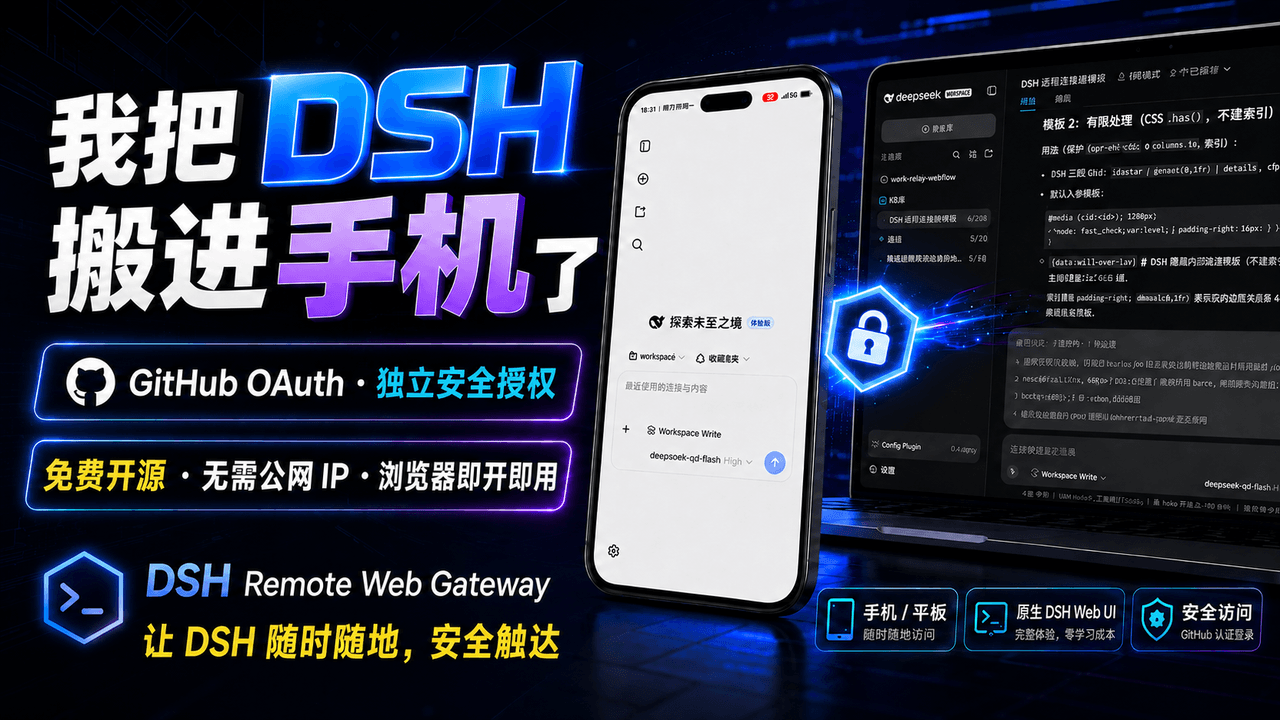 summer1238/dsh-remote-web-gateway
手机平板远程 DeepSeek Harness:扫码即可继续使用电脑上的 DSH,无需远程桌面 / SSH / 公网 IP,支持一次性配对、Github授权加密登录,独立设备授权与随时撤销,实现远程连接很简单,但安全才是我们所想要的。
summer1238/dsh-remote-web-gateway
手机平板远程 DeepSeek Harness:扫码即可继续使用电脑上的 DSH,无需远程桌面 / SSH / 公网 IP,支持一次性配对、Github授权加密登录,独立设备授权与随时撤销,实现远程连接很简单,但安全才是我们所想要的。
-
 sorsama/deepseek-harness-mobile
Android companion for DeepSeek Harness | chat, goals, approvals & notifications from your phone, over your LAN. Kotlin +…
sorsama/deepseek-harness-mobile
Android companion for DeepSeek Harness | chat, goals, approvals & notifications from your phone, over your LAN. Kotlin +…
-
 Blank-not-black/dsh-Remote
DSH Remote · 口袋里的 DSH 控制台 会话 · 审批 · 提问 · 文件传输,局域网 / Tailscale 直连 多服务器自动选优,聊天记录离线可看 带 Token 鉴权,数据只在你的设备之间流动 Sessions · ap…
Blank-not-black/dsh-Remote
DSH Remote · 口袋里的 DSH 控制台 会话 · 审批 · 提问 · 文件传输,局域网 / Tailscale 直连 多服务器自动选优,聊天记录离线可看 带 Token 鉴权,数据只在你的设备之间流动 Sessions · ap…
-
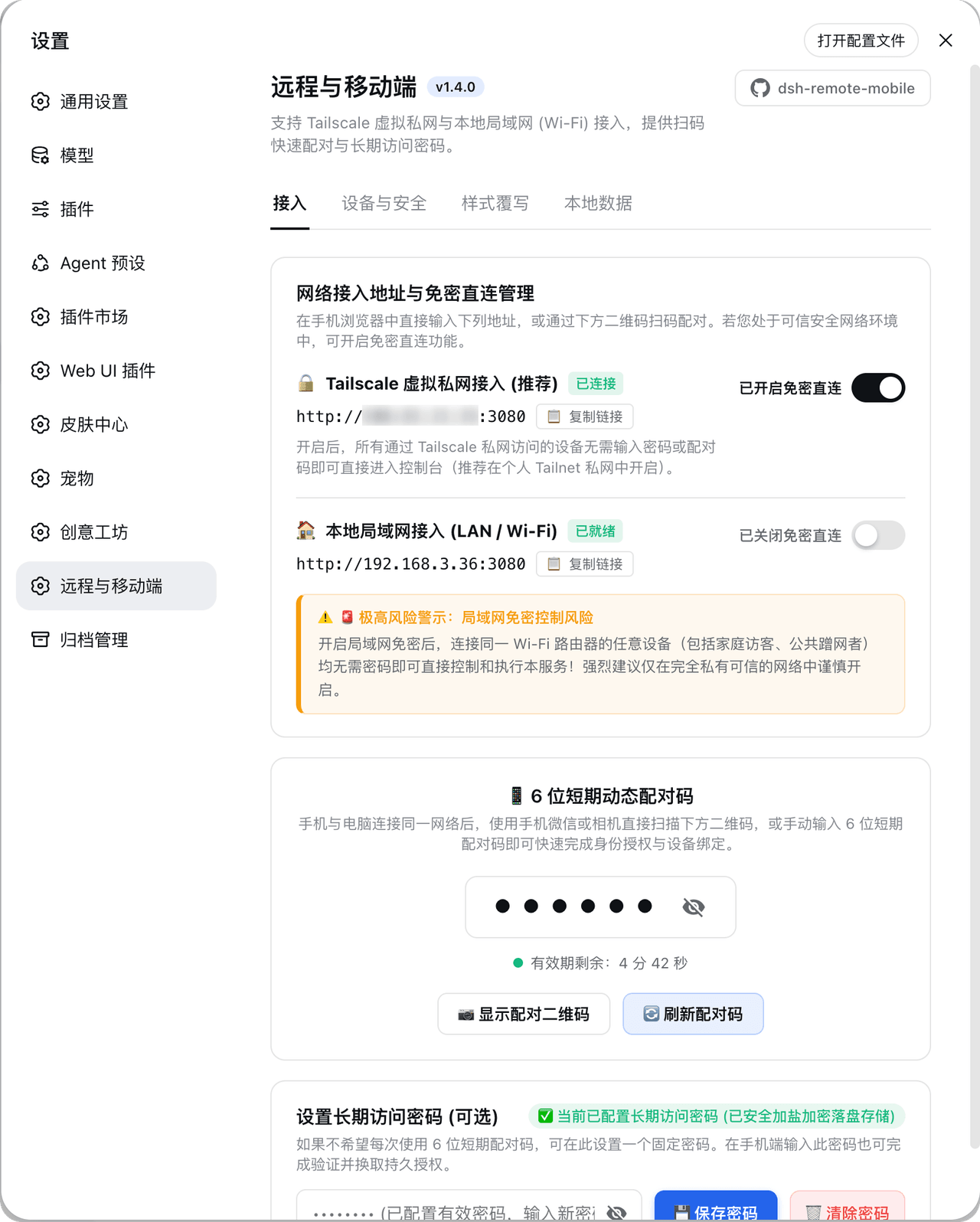 IceApriler/dsh-remote-mobile
DeepSeek Harness 远程与移动端安全网关插件:零修改 DSH 底层代码安全开放局域网与 Tailscale 连接 | DeepSeek Harness (DSH) Remote & Mobile Security Guard:…
IceApriler/dsh-remote-mobile
DeepSeek Harness 远程与移动端安全网关插件:零修改 DSH 底层代码安全开放局域网与 Tailscale 连接 | DeepSeek Harness (DSH) Remote & Mobile Security Guard:…
- hchao3335-maker/dsh-lan-gate 一个DSH内网访问插件 局域网设备安全访问本机 DSH 的即插即用网关:本机审批、设备令牌、限流、手机适配,单文件零依赖。
- Hyna-hla/dsh-remote DSH Remote 手机遥控端:把电脑上的 DeepSeek Harness 装进口袋。手机连上就能给 AI 派活、看实时回复、批审批;支持局域网/内网穿透、扫码连接、审批通知、会话管理、多主题换装,还能解锁加密保险库。第三方社区作品,开…
-
 KyoMio/dsh-zen-remote
Turn DeepSeek Harness into a phone app you can securely reach from anywhere: minimal mobile UI rework + pairing-code gat…
KyoMio/dsh-zen-remote
Turn DeepSeek Harness into a phone app you can securely reach from anywhere: minimal mobile UI rework + pairing-code gat…