louisecxqiu-glitch/html-doc-center
perfect workbench for html generated by Agents, edit, history,favorites
项目介绍Project Overview
HTML Studio 是一款本地 HTML/Markdown 编辑与浏览器预览工具。它将指定目录聚合为可搜索文档中心,提供三模编辑(GrapesJS 可视化、ProseMirror 富文本、CodeMirror 源码)、2 秒空闲自动快照、按目录白名单校验的写入安全机制,以及选择区 AI 文本改写与差异预览。适用于 Claude Code、Cursor、Copilot 生成的报告、Dashboard、封面等 HTML 产物批处理。首次运行需联网安装 aiohttp;AI 改写需自行在 config.json 配置 provider。
HTML Studio is a local HTML/Markdown editor and browser preview tool built on Python aiohttp. It aggregates configured directories into a searchable document hub, offering three editing modes (GrapesJS visual, ProseMirror rich-text, CodeMirror source), 2-second idle auto-snapshots, path-whitelisted write validation, and selection-scoped AI text rewriting with diff preview. Use it to batch-browse and edit HTML artifacts produced by Claude Code, Cursor, or Copilot. First run requires internet to install aiohttp; AI editing needs manual provider configuration in config.json.
请帮我了解并安装插件:【html-doc-center】【https://github.com/louisecxqiu-glitch/html-doc-center】把上面这条消息直接发给当前会话里的 DSH,让它帮你了解并安装。安装命令不一定准确,发给 DSH 更稳。Send this message to DSH in your current session. CLI install commands may not be accurate across systems — DSH will figure it out for you.
或使用命令行安装(适合开发者)Or use CLI install (for developers)
命令行安装CLI Install
dsh plugin --profile web add github:louisecxqiu-glitch/html-doc-center把 louisecxqiu-glitch/html-doc-center 加入你的 DSH 配置(web profile)即可启用。
READMEREADME
🎨 HTML Studio
The HTML Editor & Viewer for the AI era.
Stop opening HTML files one by one. HTML Studio turns any folder into a browsable, editable, auto-saving document hub — in one command.



Why HTML Studio?
AI coding tools (Claude Code, Cursor, Copilot) generate HTML artifacts constantly — reports, dashboards, cover images, presentations. But then you're stuck:
- Opening each file manually in a browser
- No way to edit without source code
- No auto-save, no version history
- Files scattered across directories
HTML Studio solves this. One command, all your HTML in one place, instantly editable.
Quick Start
Option 1: Download executable (recommended, zero install)
- Go to Releases
- Download
HTMLStudio-<version>-macos-arm64.dmg(Apple Silicon Mac) orHTMLStudio.exe(Windows) - On Mac, open the notarized DMG and drag HTML Studio to Applications; on Windows, double-click the EXE
Option 2: Double-click launch (from source)
- Download the project (ZIP or
git clone https://github.com/louisecxqiu-glitch/html-doc-center.git) - Double-click
启动 HTMLStudio.command(Mac) or启动 HTMLStudio.bat(Windows) - Browser opens automatically → start using
First run auto-installs the dependency (
aiohttp), requires internet.
Option 2: Command line
git clone https://github.com/louisecxqiu-glitch/html-doc-center.git
cd html-doc-center
pip install aiohttp
python3 server.py --open-browser
# → http://localhost:9901
Or as a Claude Code Plugin:
/plugin install htmlstudio@claude-plugins-official
Features
| Feature | Description |
|---|---|
| 📁 Directory tree | Auto-discovers all HTML/MD files, searchable sidebar |
| ✏️ Click to edit | Zero-config inline editing with toolbar injection |
| 💾 Smart auto-save | 2s idle → snapshot; close → overwrite / save-as / discard |
| 🔍 Markdown support | Built-in MD editor with live preview |
| ⭐ Favorites & sort | Bookmark files, sort by time or name |
| 🔄 Live refresh | 10s polling with ETag signatures (99.99% zero-traffic) |
| 📂 Multi-root | Configure multiple scan directories via settings UI |
| 🖱️ Drag & drop | Move files between directories |
| 🔒 Path-safe | All writes validated against scan_roots whitelist |
v3.0: Three-Mode Editing + AI Text Editing
v3.0 introduces a professional three-mode editor kernel, AI-assisted text editing, and version history.
Three Editing Modes
When you open an HTML file, you get three editing modes:
| Mode | Engine | Best for |
|---|---|---|
| 🎨 Design | GrapesJS | Visual editing: drag components, edit properties, see layout |
| 📝 RichText | ProseMirror | Text-focused editing: bold, italic, lists, links, headings |
| </> Source | CodeMirror 6 | Direct HTML/CSS editing with syntax highlight, search |
Switch modes with the top toolbar buttons or keyboard shortcuts (Alt+D/R/S).
Component Library (Blocks)
The left sidebar has 14 draggable components:
- Basic: Heading, Paragraph, Text, Button, Link, Divider, Quote, Table
- Layout: Container, 2-Columns
- Media: Image, Video
- Lists: Bullet List, Numbered List
Property Panel
The right sidebar shows two tabs:
- Style: Typography, Layout, Background, Border, Effects
- Props: Element ID, classes, attributes
AI Text Editing
- Select text in Design or RichText mode
- Click the ✨ AI Edit button (or the floating button near your selection)
- Enter your instruction (e.g., "Make this more concise", "Translate to Chinese")
- Review the diff preview (added/removed highlights)
- Click Accept, Reject, or Regenerate
- AI results are never auto-applied — you must review and accept
- Only your selected text is sent to AI (never the full document)
- Each AI accept creates one undoable action (Ctrl+Z to revert)
Configuring AI Providers
Edit ~/.codebuddy/html-doc-center/config.json and add an ai section:
{
  "ai": {
    "default_provider": "openai",
    "providers": {
      "openai": {
        "type": "openai-compatible",
        "base_url": "https://api.openai.com/v1",
        "model": "gpt-4o-mini",
        "api_key": "sk-..."
      },
      "anthropic": {
        "type": "anthropic",
        "base_url": "https://api.anthropic.com/v1",
        "model": "claude-sonnet-4-20250514",
        "api_key": "sk-ant-..."
      },
      "ollama": {
        "type": "openai-compatible",
        "base_url": "http://localhost:11434/v1",
        "model": "llama3.1",
        "api_key": "ollama"
      }
    }
  }
}
Or use environment variables (e.g., "api_key_env": "OPENAI_API_KEY").
Version History
HTML Studio automatically creates version snapshots:
- Before AI edits (
pre-ai) - Before version restore (
pre-restore) - When you manually save (
pre-overwrite/manual)
Each version records a content hash, timestamp, and reason tag. Access version history through the History button in the toolbar.
Complex Page Protection
Pages with scripts, framework mount points (React/Vue), or excessive CSS rules are automatically detected as "complex" and default to Source mode to prevent visual editing from altering structure. You can opt into visual editing with the "Enable anyway" button.
Keyboard Shortcuts
| Shortcut | Action |
|---|---|
| Ctrl+Z / Cmd+Z | Undo |
| Ctrl+Y / Cmd+Shift+Z | Redo |
| Alt+D | Switch to Design mode |
| Alt+R | Switch to RichText mode |
| Alt+S | Switch to Source mode |
| Ctrl+F (Source) | Search in code |
Claude Code Integration
HTML Studio works as a Claude Code Plugin with MCP support:
/hotpage ./report.html     # Open file in HotPage
/hotpage serve ./outputs   # Serve a directory
When Claude Code generates HTML, it automatically opens in HTML Studio for preview and editing.
MCP Tools
| Tool | Description |
|---|---|
hotpage_open |
Open a specific file |
hotpage_status |
Check if server is running |
hotpage_serve |
Start serving a directory |
hotpage_list |
List all discovered files |
Architecture
┌─────────────────────────────────────────┐
│  Python (aiohttp) — single process      │
│  ├─ /api/tree → directory tree JSON     │
│  ├─ /api/file → serve HTML with         │
│  │              saver-runtime.js inject  │
│  ├─ /api/save → overwrite / save-as     │
│  └─ /api/settings → config CRUD         │
├─────────────────────────────────────────┤
│  saver-runtime.js (injected into iframe)│
│  ├─ contentEditable toolbar             │
│  ├─ 2s idle → auto-snapshot             │
│  ├─ postMessage ↔ parent frame          │
│  └─ close → 3-option dialog             │
├─────────────────────────────────────────┤
│  web/app.js — sidebar + iframe viewer   │
└─────────────────────────────────────────┘
Zero dependencies beyond aiohttp. No npm, no webpack, no build step.
Configuration
Config stored at ~/.codebuddy/html-doc-center/config.json:
{
  "scan_roots": [
    {"path": "/Users/me/reports", "enabled": true},
    {"path": "/Users/me/outputs", "enabled": true}
  ]
}
Or configure via the in-app Settings panel (⚙️ button).
Comparison
| HTML Studio | mcp-html-artifacts-preview | File Browser | |
|---|---|---|---|
| Editing | ✅ Inline edit + toolbar | ❌ View only | ❌ No |
| Auto-save | ✅ 2s snapshot + 3-option | ❌ No | ❌ No |
| Persistence | ✅ Files stay on disk | ❌ Session-only | ✅ Yes |
| Zero-config | ✅ One command | ✅ MCP config | ⚠️ Docker |
| Claude Code | ✅ Plugin + MCP | ✅ MCP only | ❌ No |
| Markdown | ✅ Built-in | ❌ No | ❌ No |
Development
# Run the local development server without opening a browser automatically
python3 server.py --no-open-browser

# Then open http://127.0.0.1:9901 in your browser

# Run tests
python3 -m pytest tests/
Build distributable apps
python3 -m pip install -r requirements-build.txt
python3 build.py
On Apple Silicon macOS, the signed and notarized release command is:
python3 scripts/release_macos.py
See docs/macos-release.md for the one-time Apple certificate and GitHub Secrets setup.
WeChat article formatter
将 Markdown 教程转换成带苹果式内联样式、可直接复制到微信公众号编辑器的单文件 HTML:
python3 tools/wechat_formatter.py path/to/article.md --open
图片路径按 Markdown 文件所在目录解析;脚本会把本地图片内嵌到 HTML。需要指定输出路径时使用 --output,覆盖已有输出时使用 --force。
See CONTRIBUTING.md for guidelines.
License
MIT © Louis Jobs 2026
相关推荐Related
-
 nexu-io/open-design
🎨 Best DeepSeek Harness Design Plugin. The open-source Claude Design alternative. 🖥️ Local-first desktop app. 🖼️ Your…
nexu-io/open-design
🎨 Best DeepSeek Harness Design Plugin. The open-source Claude Design alternative. 🖥️ Local-first desktop app. 🖼️ Your…
-
 amruthpillai/reactive-resume
A one-of-a-kind resume builder that keeps your privacy in mind. Completely secure, customizable, portable, open-source a…
amruthpillai/reactive-resume
A one-of-a-kind resume builder that keeps your privacy in mind. Completely secure, customizable, portable, open-source a…
-
 esengine/DeepSeek-Reasonix
DeepSeek-native AI coding agent for your terminal. Engineered around prefix-cache stability — leave it running.
esengine/DeepSeek-Reasonix
DeepSeek-native AI coding agent for your terminal. Engineered around prefix-cache stability — leave it running.
-
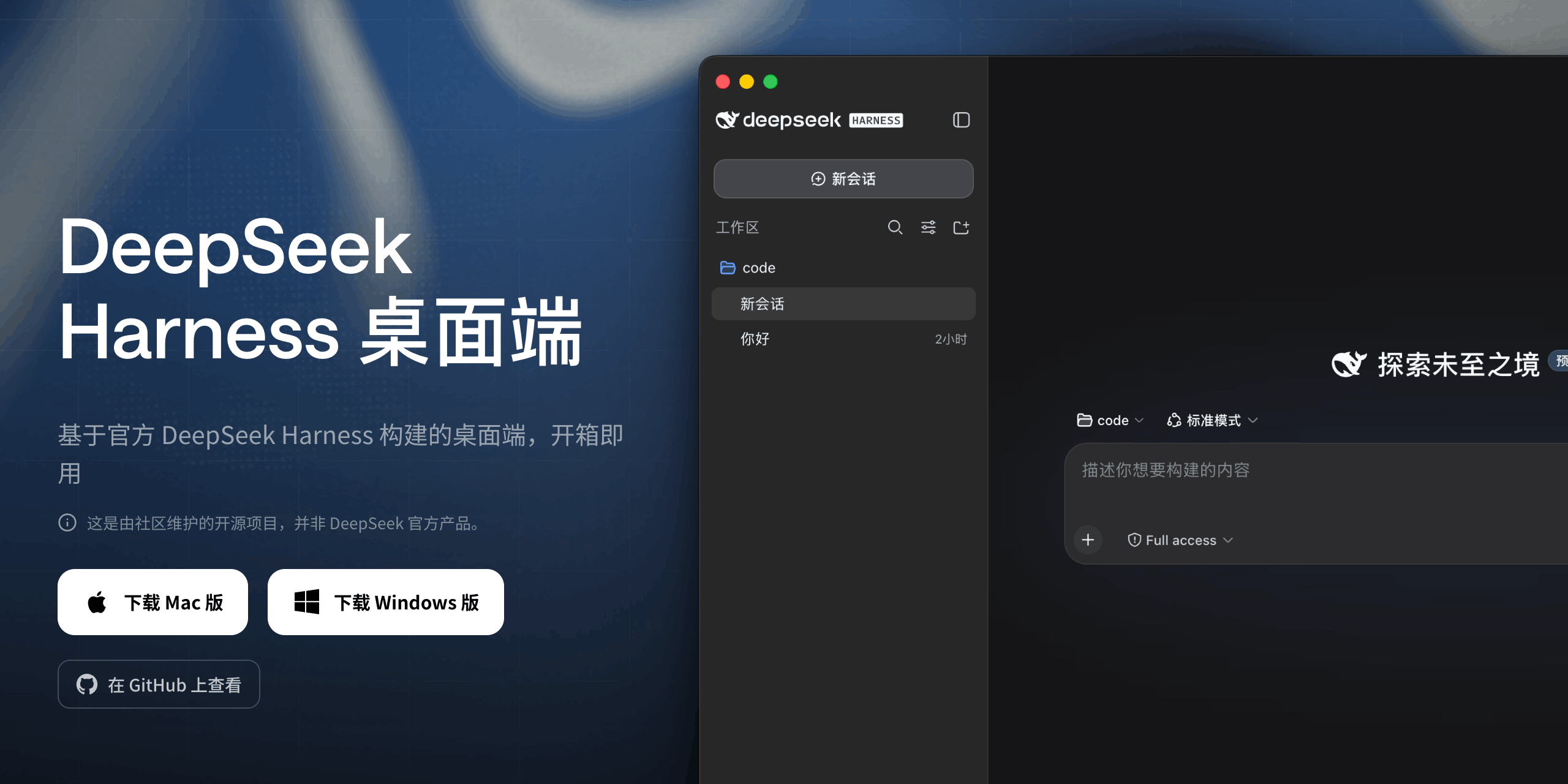 anywhere-labs/deepseek-harness-desktop
为 DeepSeek Harness (DSH) 插件生态打造的现代化桌面端解决方案。万物皆「插件」,桌面本身也是「插件」。
anywhere-labs/deepseek-harness-desktop
为 DeepSeek Harness (DSH) 插件生态打造的现代化桌面端解决方案。万物皆「插件」,桌面本身也是「插件」。
-
 walkinglabs/learn-harness-engineering
Harness engineering beginner tutorial, from 0 to 1
walkinglabs/learn-harness-engineering
Harness engineering beginner tutorial, from 0 to 1
-
 YaoApp/yao
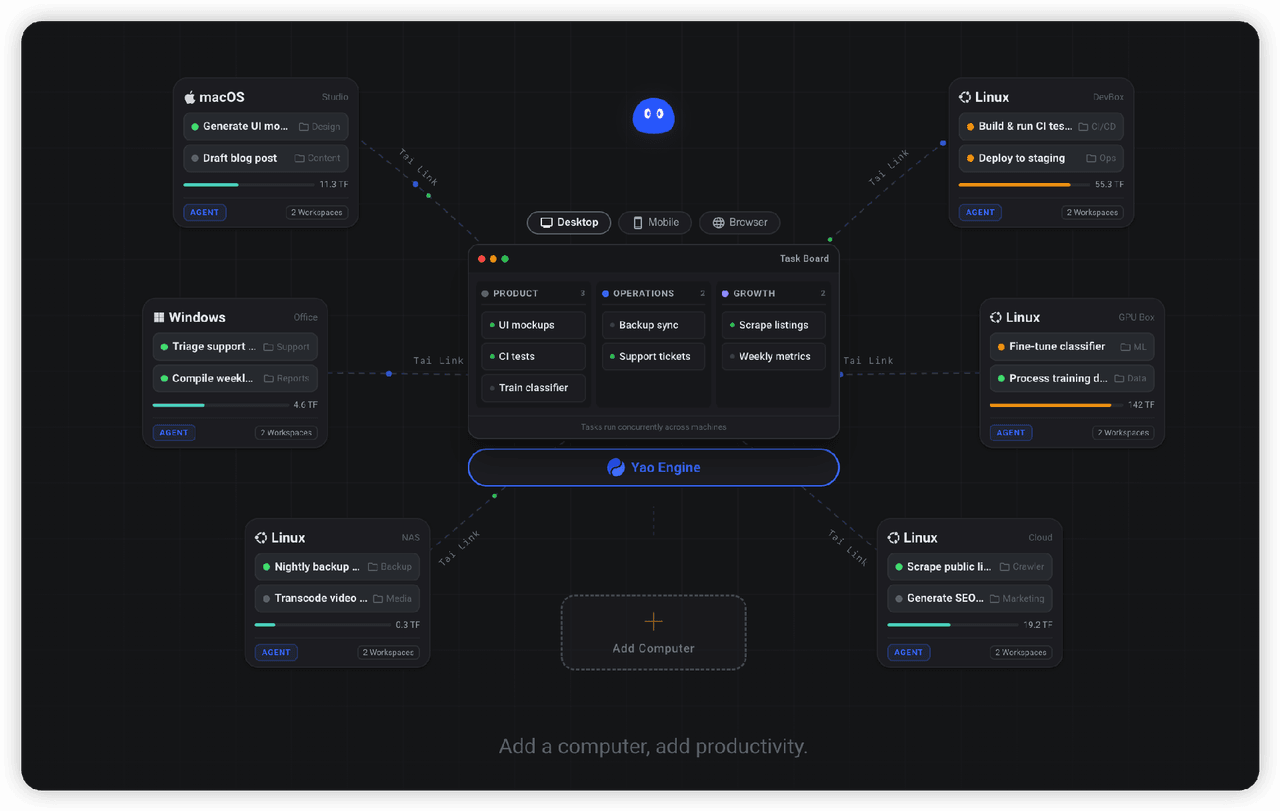
✨ All your agents and workspaces in one place, on every device you own. Track tasks on a board, accessible from desktop,…
YaoApp/yao
✨ All your agents and workspaces in one place, on every device you own. Track tasks on a board, accessible from desktop,…
- yjh051108/dsh-routing-suite dsh-routing-suite — injector + router-standard kit: install the runtime injector first, then the task-aware reasoning-mo…
-
 Devin-AXIS/iPolloWork
Enterprise-grade, local-first Agent Workbench for people and agent teams. A unified multi-engine workspace for Codex Har…
Devin-AXIS/iPolloWork
Enterprise-grade, local-first Agent Workbench for people and agent teams. A unified multi-engine workspace for Codex Har…