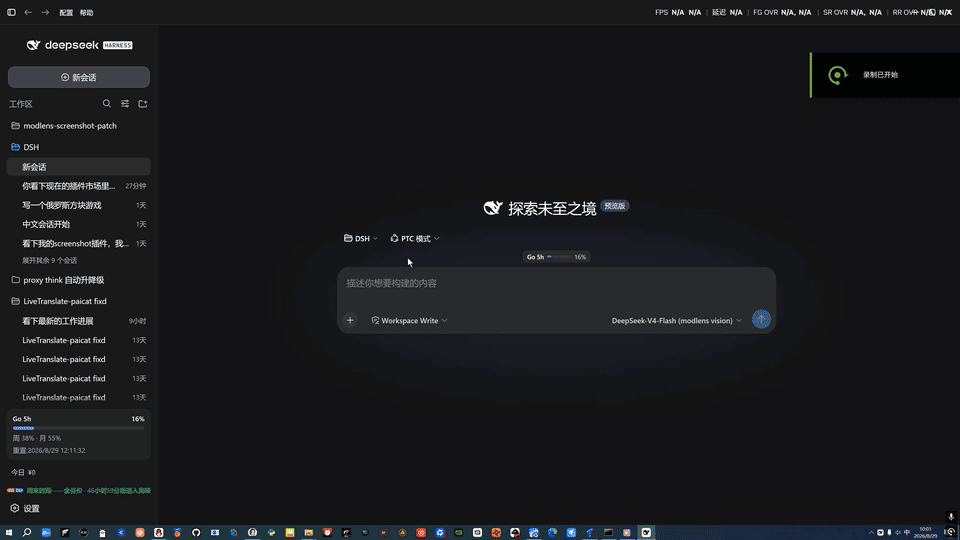
paicat1/dsh-screenshot
DeepSeek Harness(dsh)的独立屏幕捕获功能:浏览器热键外加面向代理的捕获加读取工具。从@liustack/modlens#48分支出来(上游拒绝了该功能)。
Project Overview项目介绍
dsh-screenshot is a native screenshot plugin built exclusively for DeepSeek Harness (DSH). To install it, you just need to run the command dsh plugin --profile web add @paicat1/dsh-screenshot in your terminal, then restart your DSH web instance to activate it. Built purely with PowerShell, it has no external dependencies or precompiled binaries, which makes it lightweight and stable against upstream dependency changes. It supports multiple screenshot modes: full-screen capture, free region selection, and window snap capture that can grab the full content of occluded windows. It offers two access channels for human users and AI agents respectively.
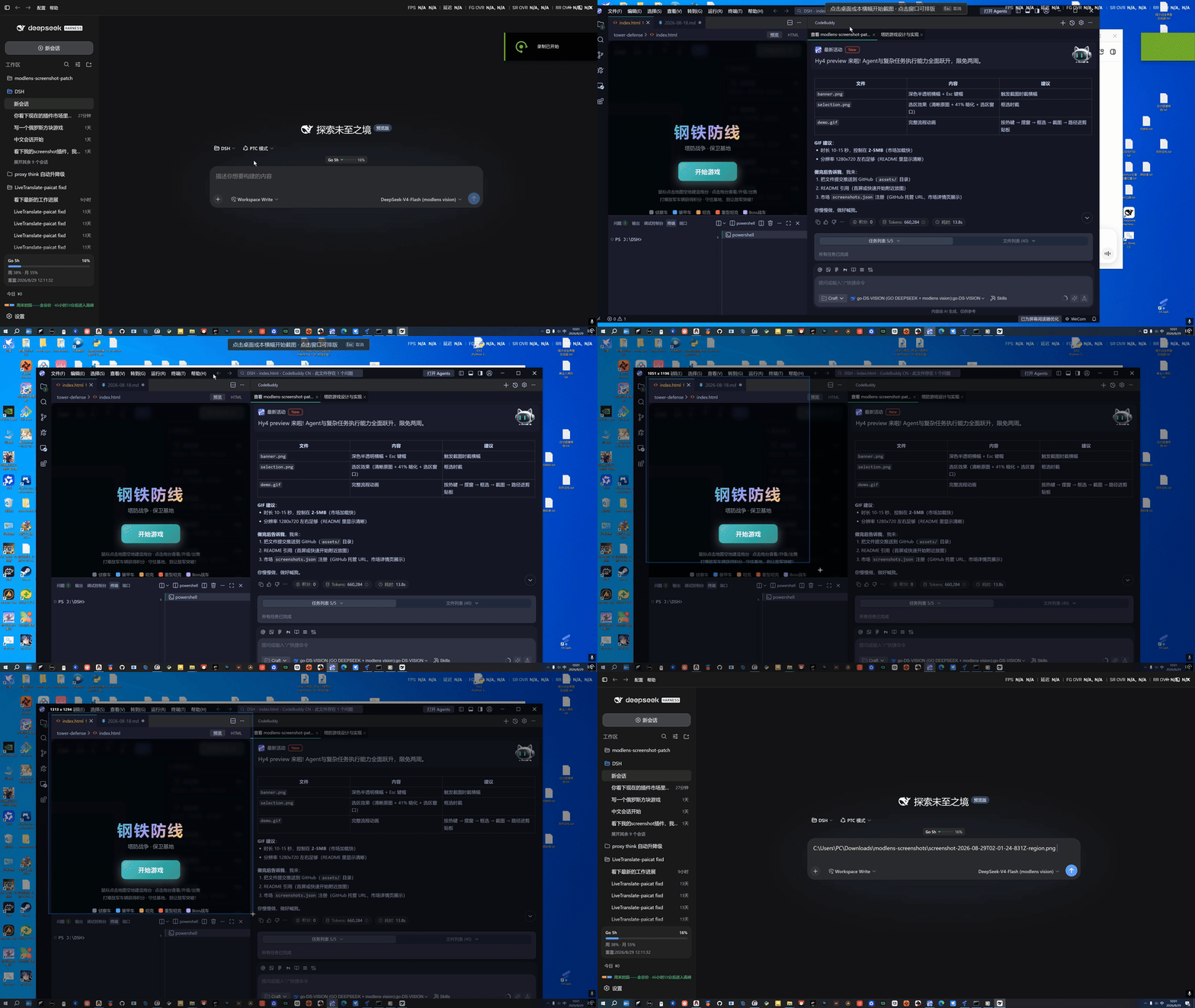
For human users, the plugin registers two global hotkeys after installation. Press Ctrl+Alt+S to enter interactive capture mode: click the desktop to capture the full screen, hover over a window to see its highlight border and click to capture it, or drag your cursor to select a custom region. Press Ctrl+Shift+Alt+S to directly capture the entire virtual desktop without any interaction. After capture, the PNG file path is automatically inserted into the DSH input box and copied to your system clipboard for easy reuse by you or the connected AI agent. For autonomous agent use, agents can call the modlens_screenshot tool directly.
This plugin is released under the open-source MIT license, and currently only supports Windows systems, as it relies on PowerShell’s System.Drawing.CopyFromScreen API. The only known limitation is that independently running PowerShell windows cannot be captured when occluded, because they do not respond to the PrintWindow API; users need to bring them to the foreground or use region selection to capture them. The core screenshot functionality does not require modlens to work, and only the OCR and structured content extraction feature requires an optional modlens installation. By only passing the file path instead of the image binary to the agent context, it avoids accumulating junk files and keeps the context clean. Users can configure optional settings to disable hotkey routes or the agent tool if needed.
dsh-screenshot 是专为 DeepSeek Harness (DSH) 开发的原生截图插件,可通过 dsh plugin --profile web add @paicat1/dsh-screenshot 命令一键安装,重启 DSH Web 后即可使用。插件采用纯 PowerShell 实现,零依赖零二进制,核心能力包含一键全屏截图、框选截图、窗口悬停吸附截图,支持截取被其他窗口遮挡的目标窗口内容。它同时提供人工热键操作和 Agent 自主调用两种入口,适配不同场景需求。
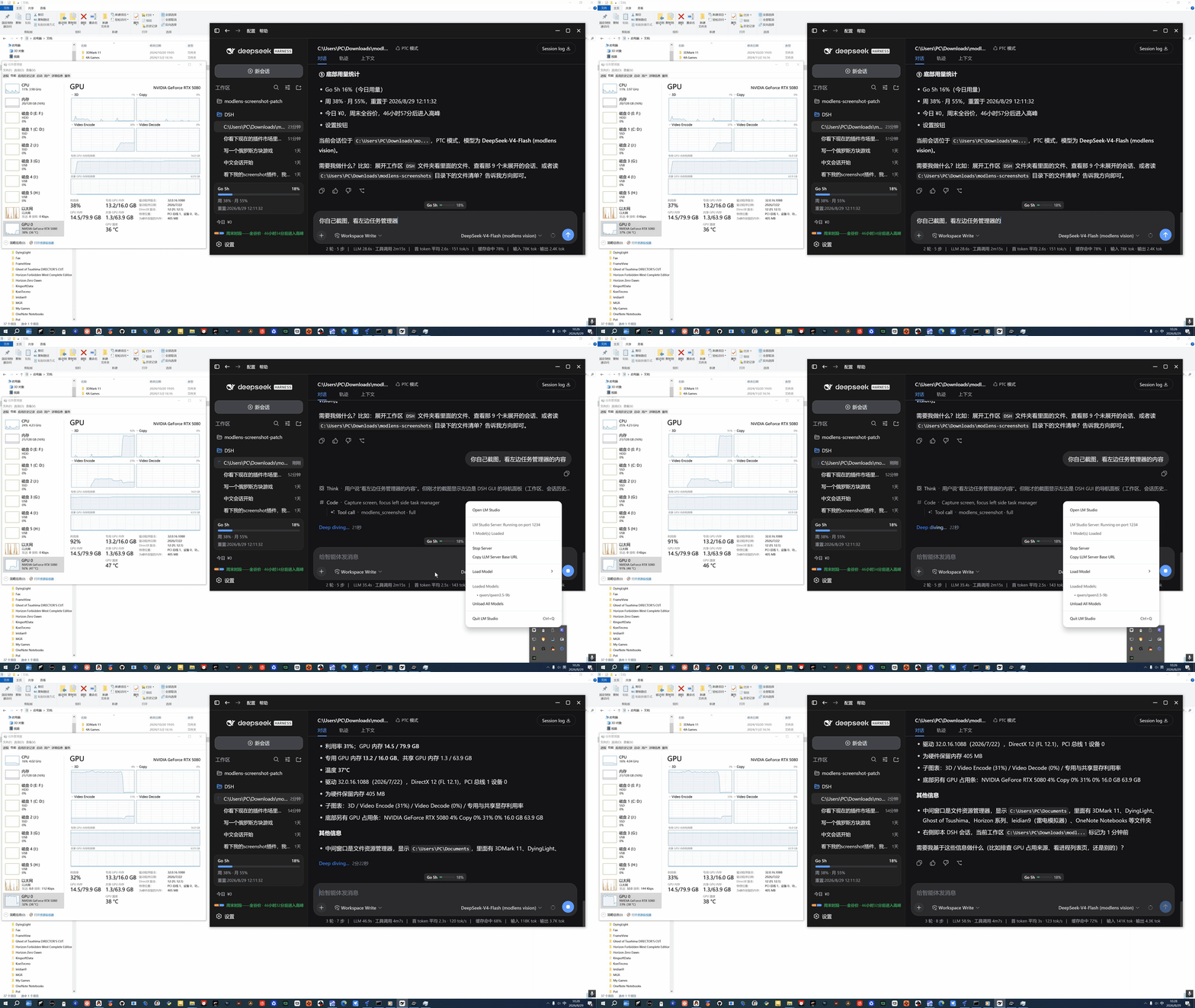
普通用户可按下 Ctrl+Alt+S 唤起截图交互,点击桌面得全屏截图,悬停窗口点击即可截取对应窗口,拖拽可自由框选选区;按 Ctrl+Shift+Alt+S 可直接触发无交互全屏截图。截图后会自动将 PNG 文件路径插入 DSH 输入框,同时复制到系统剪贴板,方便后续使用。Agent 可自主调用 modlens_screenshot 工具,结合选装的 modlens 实现截屏加结构化识图一步完成。
本插件采用 MIT 许可证开源,目前仅支持 Windows 平台,仅有的已知限制是独立运行的 PowerShell 窗口无法被遮挡穿透截取,需前置到前台或框选截取。截图能力不依赖 modlens,可独立使用,仅当需要结构化识图时才需选装 modlens。插件仅将截图路径而非图片本身传入上下文,可避免产生冗余垃圾文件,保持上下文整洁。
请帮我安装这个 DSH 插件。安装前先完成【兼容性检查 + 安全性检查】,检查通过再动手。

插件:dsh-screenshot(paicat1/dsh-screenshot)
仓库:https://github.com/paicat1/dsh-screenshot
本站详情页:https://www.yhbd.top/plugins/paicat1-dsh-screenshot/
本站登记:类型 client · 归类 原生 DSH 插件 · 许可证 MIT · ⭐ 5 · 最近提交 2026-09-08 · 主语言 JavaScript

按下面顺序执行,每步先把结论告诉我,再进入下一步:

【1 兼容性检查】
① 我这边:DSH 版本、Node 版本、操作系统、当前 profile(web / desktop)。
② 读它的 README、package.json、插件 manifest,列出它要求的 DSH 版本 / Node 版本 / 操作系统 / 外部依赖 / 需要另外先装的运行时。
③ 逐条比对,结论只写「满足 / 不满足 / 未知」三种;不满足的给出可行替代方案。
④ 检查是否和我已装的插件冲突:命令名重复、skill / tool 重名、端口占用、重复注册的 MCP server。

【2 安全性检查】
① 仓库可信度:和上面「本站登记」是否一致;star / fork 数、创建时间、最近提交,是否归档或长期停更。
② 安装脚本:逐行看 package.json 的 preinstall / install / postinstall,以及 install.sh、setup.ps1 之类脚本。出现 curl|bash、下载后直接执行、混淆代码、访问与插件功能无关的域名,立刻停下来告诉我,不要继续装。
③ 依赖:列出新增依赖,标出无人维护、或与知名包拼写近似的可疑包(typosquatting)。
④ 权限与副作用:它会读写哪些目录、访问哪些域名、需要哪些 DSH 权限(filesystem / network / shell / clipboard 等),以及怎么卸载和回滚。
⑤ 如果它要求 sudo / 管理员权限,或权限明显超出功能所需,先停下来问我。

【3 安装】
上面两步没有「不满足」和「高危项」时才执行;用官方推荐方式安装,不要自行提权。

【4 汇报】
用表格输出:检查项 / 结论 / 依据 / 是否需要我决策。拿不准的一律写「未知」并说明要我怎么确认——不要猜,也不要替我决定。
Send this message to DSH in your current session: it verifies compatibility and security first (answering met / not met / unknown item by item) and only installs once everything checks out — it will stop and ask you if it finds a high-risk item. The box scrolls; the copy is the full prompt. CLI install commands may not be accurate across systems, so DSH is the safer route.把上面这条消息直接发给当前会话里的 DSH:它会先核对兼容性与安全性(逐条给「满足 / 不满足 / 未知」),确认没问题再安装,有高危项会停下来问你。框内可滚动,复制到的是完整提示词;安装命令不一定准确,发给 DSH 更稳。
- Only 5 stars - very few users, little community feedback星标只有 5,几乎没人在用,遇到问题缺少社区反馈
- Desktop client: installation downloads an executable - verify the publisher and checksums桌面客户端:安装会下载可执行文件,请核对发布者与校验和
DSH walks through these 9 checksDSH 会逐条核对这 9 项
Compatibility兼容性
- DSH, Node, OS and profile requirementsDSH 版本 / Node 版本 / 操作系统 / profile 是否满足要求
- External dependencies and runtimes (Electron / Python / Docker, ...)外部依赖与运行时(Electron / Python / Docker 等)是否齐备
- Conflicts with installed plugins: command names, skill / tool names, ports, duplicate MCP registration与已装插件是否冲突:命令名、skill / tool 重名、端口占用、重复 MCP 注册
Security安全性
- Repo matches the facts registered here; archived or abandoned?仓库是否与页面登记一致,是否归档或长期停更
- Safety of preinstall / install / postinstall and install.sh / setup.ps1preinstall / install / postinstall 与 install.sh、setup.ps1 是否安全
- curl|bash, download-then-execute, obfuscation, unrelated domains → stop immediatelycurl|bash、下载即执行、混淆代码、无关域名 → 立刻停止
- Typosquatting or unmaintained packages among the new dependencies新增依赖里有没有 typosquatting 或无人维护的包
- Requested permissions vs. what the feature actually needs申请了哪些权限、是否超出功能所需(filesystem / network / shell / clipboard)
- Any sudo / admin requirement, plus uninstall and rollback是否要求 sudo / 管理员权限,以及卸载与回滚方式
Anything uncertain must be marked unknown with a note on how to confirm it. This site's signal screen is a static snapshot, not a security audit.拿不准的必须标「未知」并说明要我怎么确认。本站的信号筛查是静态快照,不能替代安全审计。
Or use CLI install (for developers)或使用命令行安装(适合开发者)
CLI Install命令行安装
dsh plugin --profile web add @paicat1/dsh-screenshot把 paicat1/dsh-screenshot 加入你的 DSH 配置(web profile)即可启用。
READMEREADME
dsh-screenshot
DSH 轻量截图插件:轻:零依赖零二进制;摆:一键全屏、窗口排版、悬停吸附截取被遮挡窗口;自助:Agent 可自助截屏,传路径不传图,路径通用,接上 modlens(选装)一步读出结构化内容。
- 轻 — 纯 PowerShell 实现,零依赖、零二进制;截图能力独立维护,不随任何上游更新而失效。
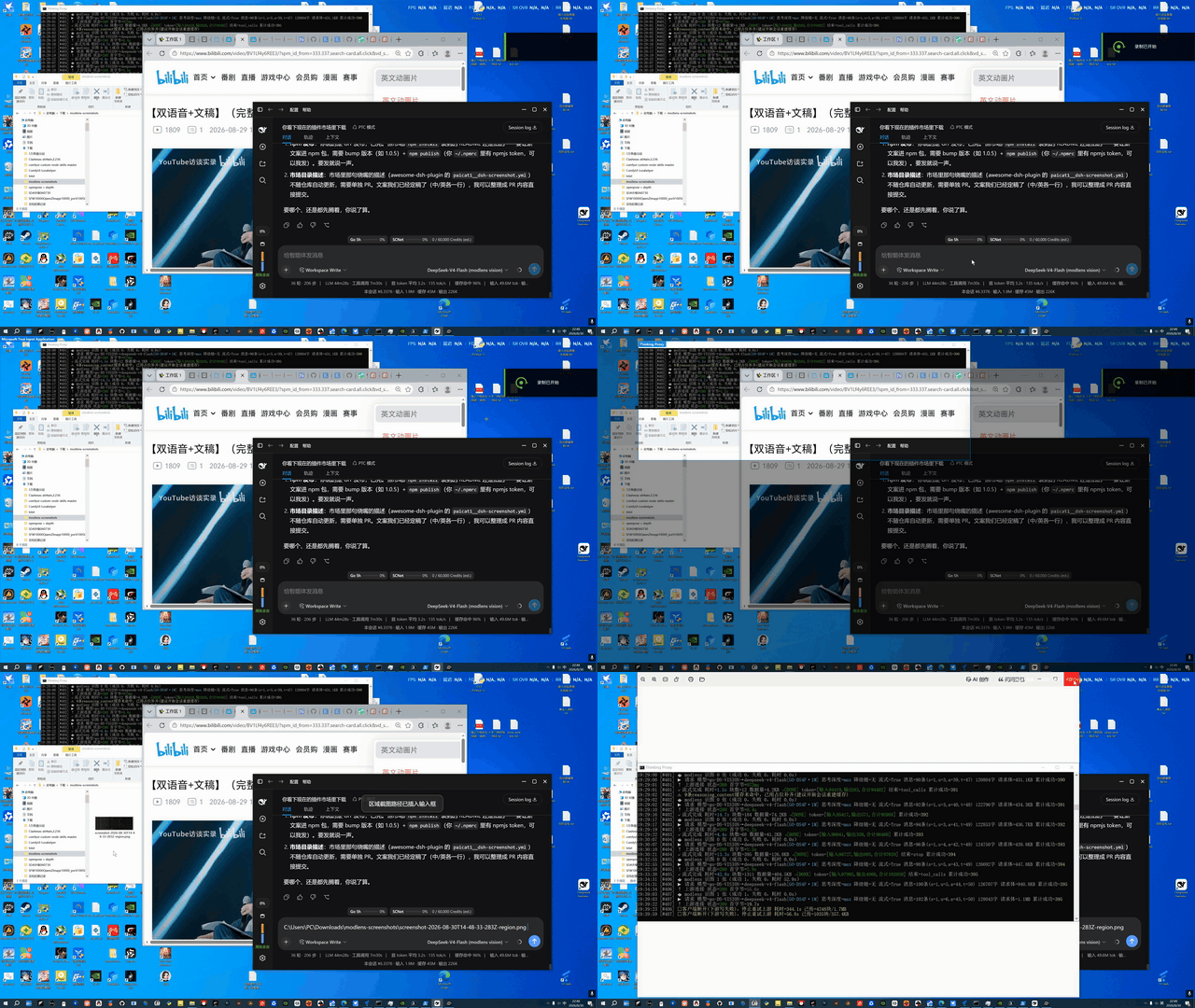
- 摆 — 一键全屏即拍;框选前整个桌面保持可操作,所有窗口像布置画面一样自由移动、缩放;鼠标悬停任意窗口即亮起吸附边框,点一下直接截该窗口——被遮挡也能拿到完整内容(独立运行的 PowerShell 除外,见下)——所得即所见。
- 自助 — Agent 可随时自行截屏;接上 modlens(选装),截屏 + 识图一步产出结构化内容(OCR/版面/语义),纯文本模型也能消费。
快速开始
dsh plugin --profile web add @paicat1/dsh-screenshot
# 重启 dsh web
Ctrl+Alt+S— 截图:进入选取后,点一下桌面 = 全屏;鼠标悬停窗口会亮起吸附边框,点一下 = 截该窗口完整内容(被遮挡也一样,独立运行的 PowerShell 除外);拖拽 = 自由选区(Esc 取消)Ctrl+Shift+Alt+S— 全屏截图:无交互,直接捕获整个虚拟桌面- 想让 Agent 自己截屏?直接告诉它用
modlens_screenshot工具即可
视频教程(B 站):用 DeepSeek Harness 给 DeepSeek Harness 写了个 Dsh screenshot 插件
双通道:人按热键,Agent 用工具
| 入口 | 适合 | 说明 |
|---|---|---|
| 浏览器热键(人) | "我想给你看这块屏幕" | 全屏 / 框选;截图后 PNG 路径自动插入 DSH 输入框,并复制到剪贴板 |
modlens_screenshot 工具(Agent) |
"我自己看一下屏幕" | 模型自主调用:截屏 +(modlens 在场时)当场读出结构化内容,返回证据 + 截图路径 |
| 人工操作演示 | Agent 自助调用演示 | 窗口吸附演示 |
|---|---|---|
 |
 |
 |
为什么传路径,不传图?
截图保存到 %USERPROFILE%\Downloads\modlens-screenshots\(独立、易清理的目录),只把 PNG 路径传给智能体,而不是把图片本身塞进对话框或临时目录。这是刻意的设计:
- 不产生图片垃圾:很多智能体框架粘贴图片时,会把图片复制到自己的临时/附件目录,日积月累产生大量无法追踪的垃圾文件。只传路径,图片只存在一个地方(
modlens-screenshots/),清理就是删一个目录。 - 路径通用:任何支持图片的智能体(原生多模态模型,或 modlens 类桥接)都能通过路径读取图片——路径是通用的,图片格式不是。
- 上下文干净:路径是几十字节的文本,图片是几百 KB 的二进制——传路径让上下文干净、可追溯。
"截图 → 智能体读图"的工作流因此更干净:截图一次,路径可复用到任何智能体,且不产生任何垃圾。
能力划分:哪些是插件的,哪些是 modlens 的
| 层 | 能力 | 归属 |
|---|---|---|
| 截图 | 全屏 / 框选 / 窗口吸附截图 / 摆窗布局,PowerShell 零依赖 | 本插件 |
| 分发 | 传路径不传图、剪贴板、独立保存目录 | 本插件 |
| 入口 | 浏览器热键 + Agent 可调用的截图工具 | 本插件 |
| 读图 | OCR / 版面 / 语义 结构化证据 | modlens(选装) |
| 消费 | 谁看懂这张图 | 任意多模态模型 / 视觉桥,不挑 |
截图与分发是纯本插件能力,可独立使用;读图是生态组合能力——装上 modlens(或交给任意支持图片的模型/视觉桥)即解锁,未装时截图照常工作。
窗口吸附为什么能截到"被挡住"的窗口? 悬停时插件枚举屏幕上的窗口、高亮光标下的那一个;单击后通过 PrintWindow 让窗口自己把内容渲染出来——截的是窗口自身,不是屏幕上可见的像素,所以被其他窗口遮挡、被 DWM 阴影包裹都不影响;最后按内容边界裁掉阴影,四边干净。
已知特例:独立运行的 PowerShell 窗口:它的控制台(conhost)实现不响应 PrintWindow,且被覆盖时不渲染 GDI 表面——两条"穿透遮挡"的路径都走不通,只能截到屏幕可见像素(会带上遮挡内容)。把它切到前台再截,或直接拖拽框选即可。其他窗口(含 cmd 等控制台窗口)均正常。
Showing the opening section of the README — the full document lives in the repository以上为 README 开头摘要,完整文档在仓库内 · View the full README on GitHub →在 GitHub 查看完整 README →
Related相关推荐
-
 Devin-AXIS/iPolloWork
Enterprise-grade, local-first Agent Workbench for people and agent teams. A unified multi-engine workspace for Codex Har…
Devin-AXIS/iPolloWork
Enterprise-grade, local-first Agent Workbench for people and agent teams. A unified multi-engine workspace for Codex Har…
-
 ysr666/dsh-vision-router
Eyes for text-only DeepSeek Harness agents: built-in free vision chain (no key) + pixel-level vision tools (Q&A, groundi…
ysr666/dsh-vision-router
Eyes for text-only DeepSeek Harness agents: built-in free vision chain (no key) + pixel-level vision tools (Q&A, groundi…
-
 Anionex/dsh-vision-toolkit
[dsh]为纯文本模型设计更强大的视觉工具箱:一行安装使用、粘贴图片直接识别、多张图片问答、截图到前端UI 还原等|DeepSeek Harness-native integration for agent-vision-toolkit: …
Anionex/dsh-vision-toolkit
[dsh]为纯文本模型设计更强大的视觉工具箱:一行安装使用、粘贴图片直接识别、多张图片问答、截图到前端UI 还原等|DeepSeek Harness-native integration for agent-vision-toolkit: …
-
 sunchaokun/PPT-Design-Skill
Precision PPT design skill for OpenCode/Claude Code/Codex, with 40,000+ styles, pixel-perfect Build Mode control, AI ima…
sunchaokun/PPT-Design-Skill
Precision PPT design skill for OpenCode/Claude Code/Codex, with 40,000+ styles, pixel-perfect Build Mode control, AI ima…
-
 zhaoolee/notes
开源版锤子便签,复刻锤科美学,一键Docker私有化部署,支持skill调用,支持dsh plugin,支持多租户,一键生成公众号格式,支持导出便签为图片
zhaoolee/notes
开源版锤子便签,复刻锤科美学,一键Docker私有化部署,支持skill调用,支持dsh plugin,支持多租户,一键生成公众号格式,支持导出便签为图片
-
 volcengine/ark-cli
The fastest way to put Volcengine Ark in your terminal and your AI agent — go from prompt to generated media, multimod…
volcengine/ark-cli
The fastest way to put Volcengine Ark in your terminal and your AI agent — go from prompt to generated media, multimod…
-
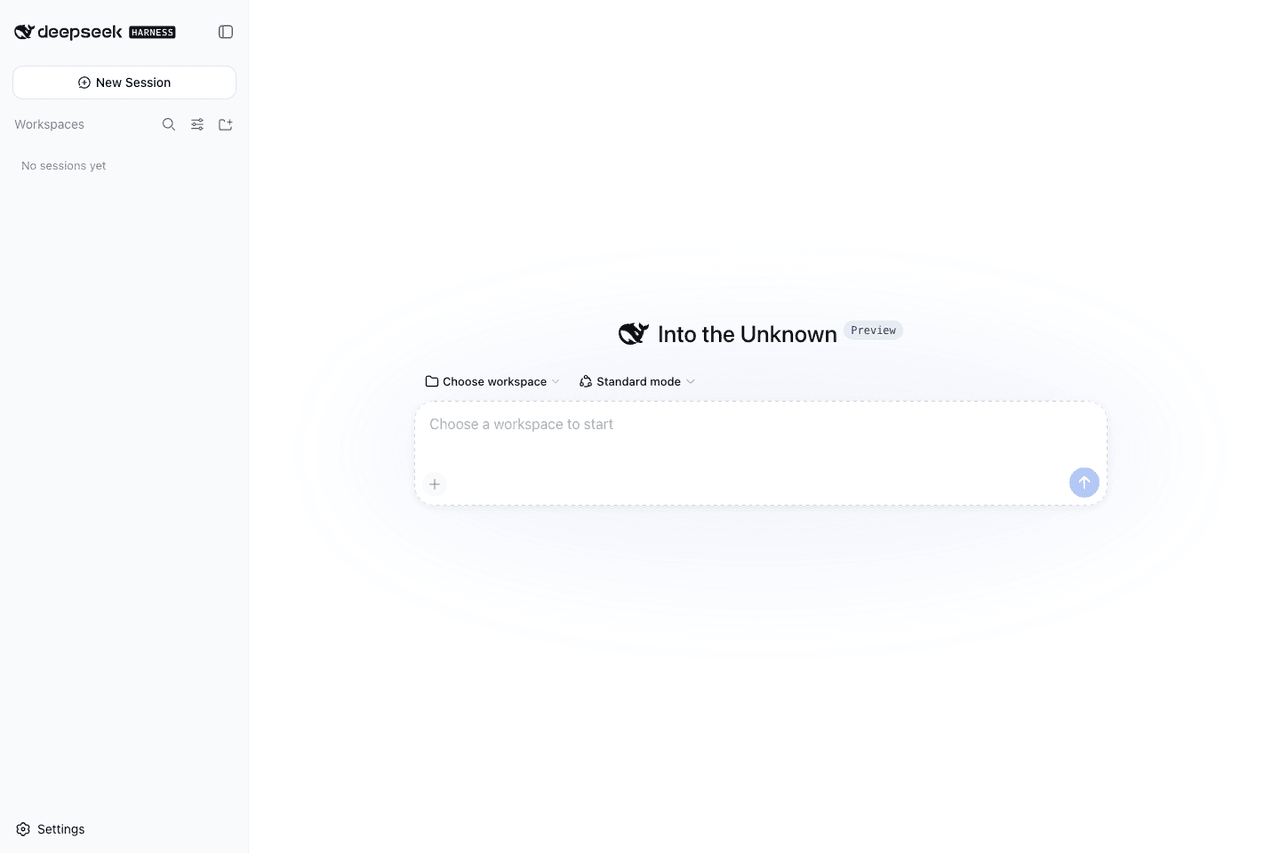 runzhliu/deepseek-harness-docker
Community Docker and Kubernetes packaging for DeepSeek Harness (@deepseek-ai/dsh), with a hardened image, Compose stack,…
runzhliu/deepseek-harness-docker
Community Docker and Kubernetes packaging for DeepSeek Harness (@deepseek-ai/dsh), with a hardened image, Compose stack,…
-
 labring/sealos-skills
AI agent skills for Sealos — deploy any project, provision databases, object storage & more with one command. Works with…
labring/sealos-skills
AI agent skills for Sealos — deploy any project, provision databases, object storage & more with one command. Works with…