chokwinlee/deepseek-harness-desktop
Compact DeepSeek Harness desktop host with a native SwiftUI iPhone Remote source preview.
项目介绍Project Overview
DSH Desktop 是一个基于 Tauri 的桌面客户端,将官方 DeepSeek Harness Web UI 封装为原生应用,自动管理本地 Harness 进程,无需手动安装 Node.js 或启动 dsh web。核心能力包括多模态会话、macOS 标题栏实时 token 用量与成本摘要、侧栏显示 Desktop 与捆绑的 Harness 版本,并支持插件安装与失败回滚。适用于希望直接运行 Harness 而避开 CLI 配置的开发者与团队。注意:Harness 仍为开发者预览版,跨版本可能存在破坏性变更,且非 DeepSeek AI 官方产品。
DSH Desktop is a Tauri-based client that packages the official DeepSeek Harness Web UI and runtime into a native desktop app, managing the local Harness process automatically so users do not need Node.js or the dsh web CLI. Core capabilities include multimodal sessions with image input, a macOS title-bar summary of daily and weekly token usage, estimated cost, and live throughput, plus visible runtime alignment showing both the Desktop and bundled Harness versions in the sidebar. Use it when running Harness without terminal setup. Caveat: Harness remains a developer preview that may introduce breaking changes, and this is an unofficial community project.
请帮我了解并安装插件:【deepseek-harness-desktop】【https://github.com/chokwinlee/deepseek-harness-desktop】把上面这条消息直接发给当前会话里的 DSH,让它帮你了解并安装。安装命令不一定准确,发给 DSH 更稳。Send this message to DSH in your current session. CLI install commands may not be accurate across systems — DSH will figure it out for you.
或使用命令行安装(适合开发者)Or use CLI install (for developers)
命令行安装CLI Install
dsh plugin --profile web add github:owner/repo把 chokwinlee/deepseek-harness-desktop 加入你的 DSH 配置(web profile)即可启用。
READMEREADME
DSH Desktop
A compact, self-contained DeepSeek Harness desktop host with native iPhone and Android Remote companions.
Download · Highlights · iPhone Remote · Android Remote · Development · Contributing
English · 简体中文


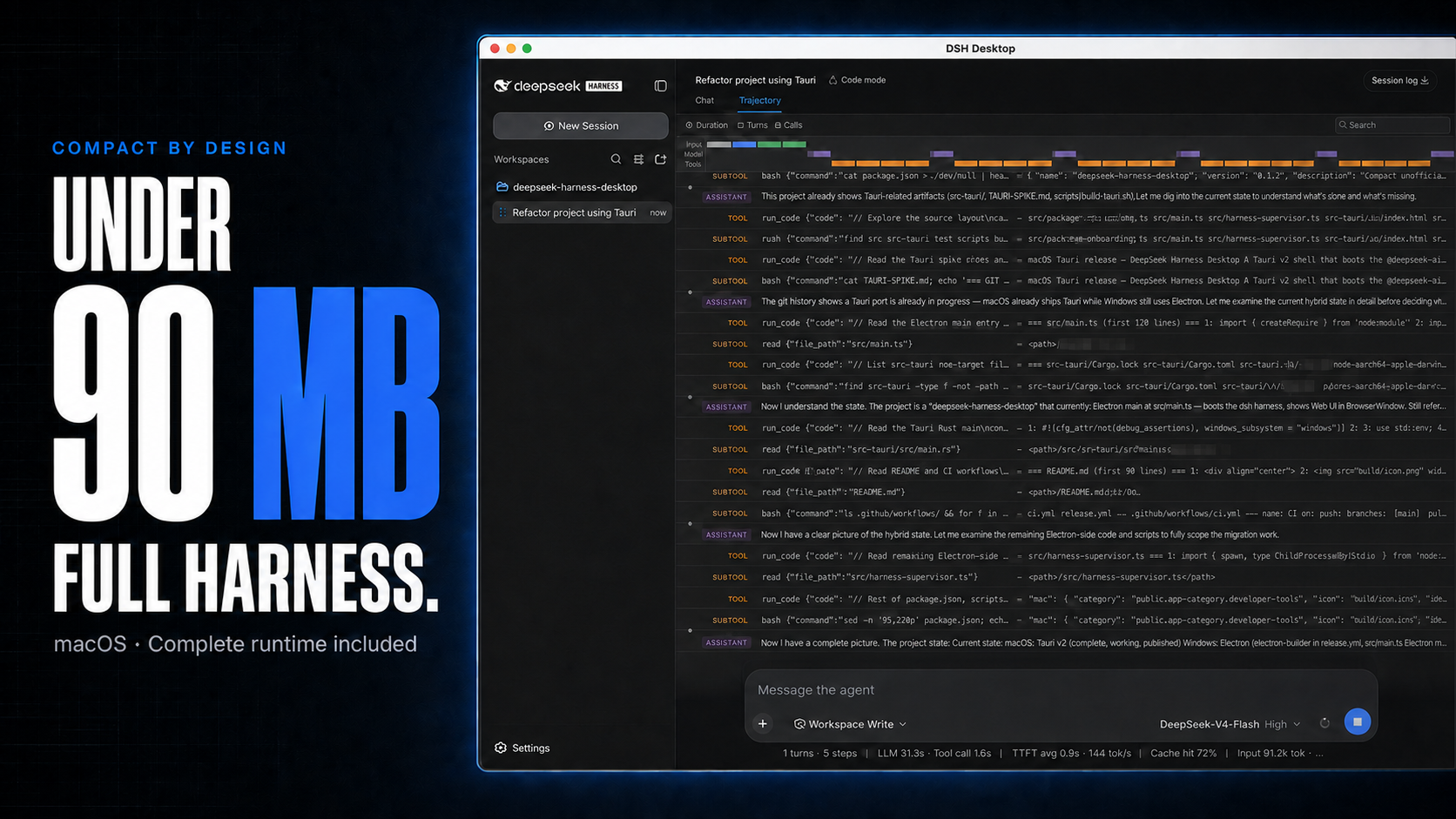
macOS downloads under 90 MB, with the complete Harness rc.8 runtime included.
DSH Desktop runs the official DeepSeek Harness Web UI and runtime in a desktop window. The repository also contains DSH Remote native companions for continuing the computer's projects, sessions, and running tasks from iPhone and Android. This build is aligned with @deepseek-ai/dsh@0.1.0-rc.8 and shows that bundled Harness version in the sidebar. The desktop app manages the local Harness process automatically, so users do not need to install Node.js or start dsh web themselves.
[!IMPORTANT] This is an independent community project, not an official DeepSeek AI product. DeepSeek Harness is a developer preview and may introduce breaking changes.
Highlights
- Multimodal sessions — paste or attach images and send them through the normal Harness conversation flow when the selected provider and model declare image input support. Image messages remain visible in session history.
- Usage at a glance on macOS — see today and seven-day token totals, estimated cost, active task count, and aggregate running throughput without leaving the current session.
- Compact macOS package — stays under 90 MB while bundling the complete Harness runtime, using Tauri and the system WKWebView instead of shipping Chromium.
- Visible runtime alignment — the sidebar identifies both the Desktop release and its bundled Harness version, such as
DSH Desktop v0.4.1 · Harness rc.8. - Ready to run — includes everything needed to start Harness, with no separate Node.js installation or terminal command. The app starts and stops the local runtime automatically.
- Native mobile Remote — the SwiftUI iPhone client and Kotlin/Compose Android client pair on trusted Wi-Fi or the user's own Tailscale network, then browse projects, create sessions, steer tasks, handle approvals, send images, and follow subagents without moving execution off the computer.
Cost figures are estimates derived from local token logs and available public model prices. Unmatched models stay visibly unpriced rather than being counted as free.
Multimodal and usage insights
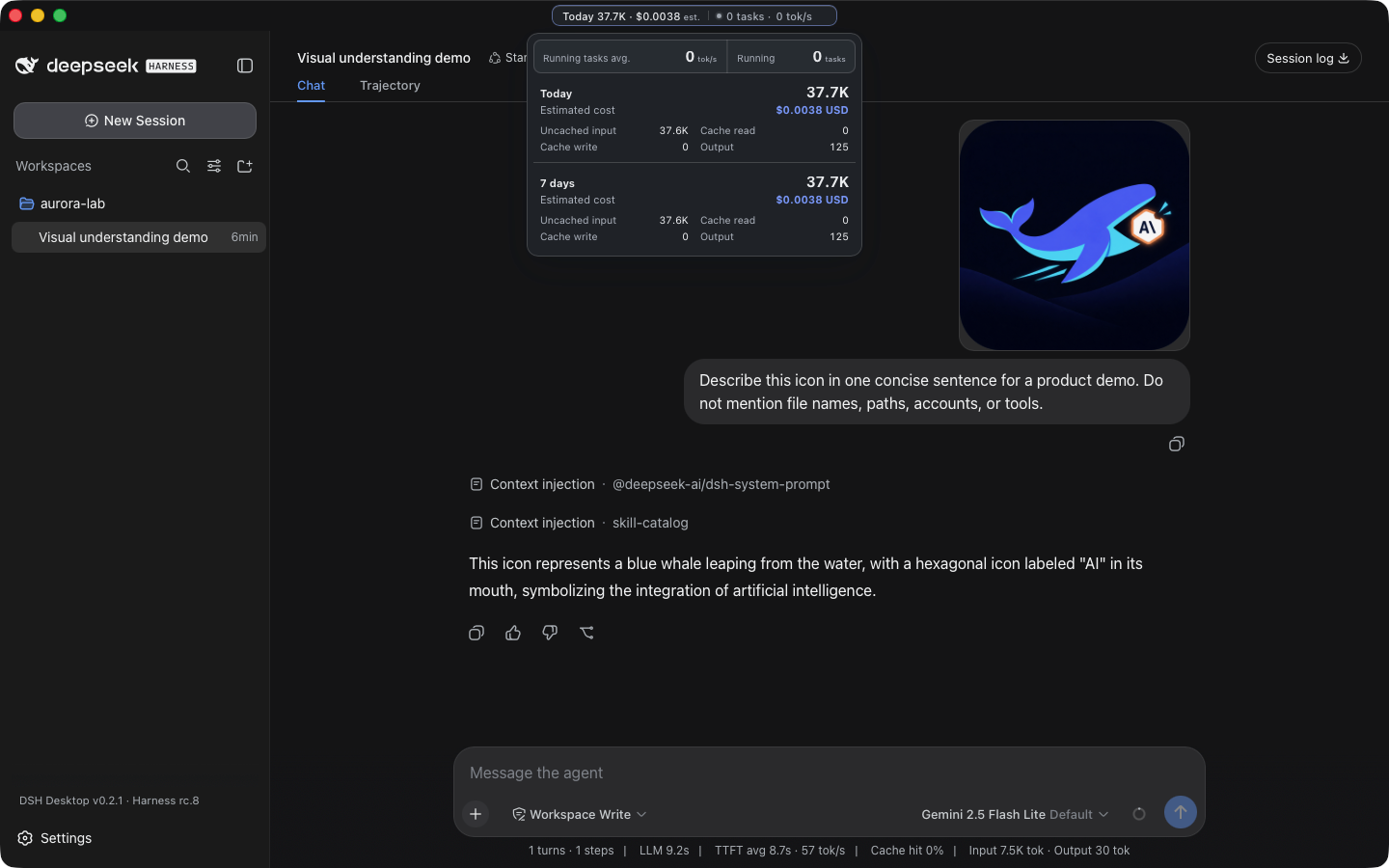
A real Harness rc.8 image-input session with live token and cost insights, using google/gemini-2.5-flash-lite through OpenRouter.
The compact title-bar summary stays visible while you work. Open it for input, output, cache, cost, and live-throughput details. Usage is calculated locally from Harness session history, with estimated costs based on available public model prices.
iPhone Remote (TestFlight beta)
[!IMPORTANT] DSH Remote is available as a public iPhone beta. Join with TestFlight.
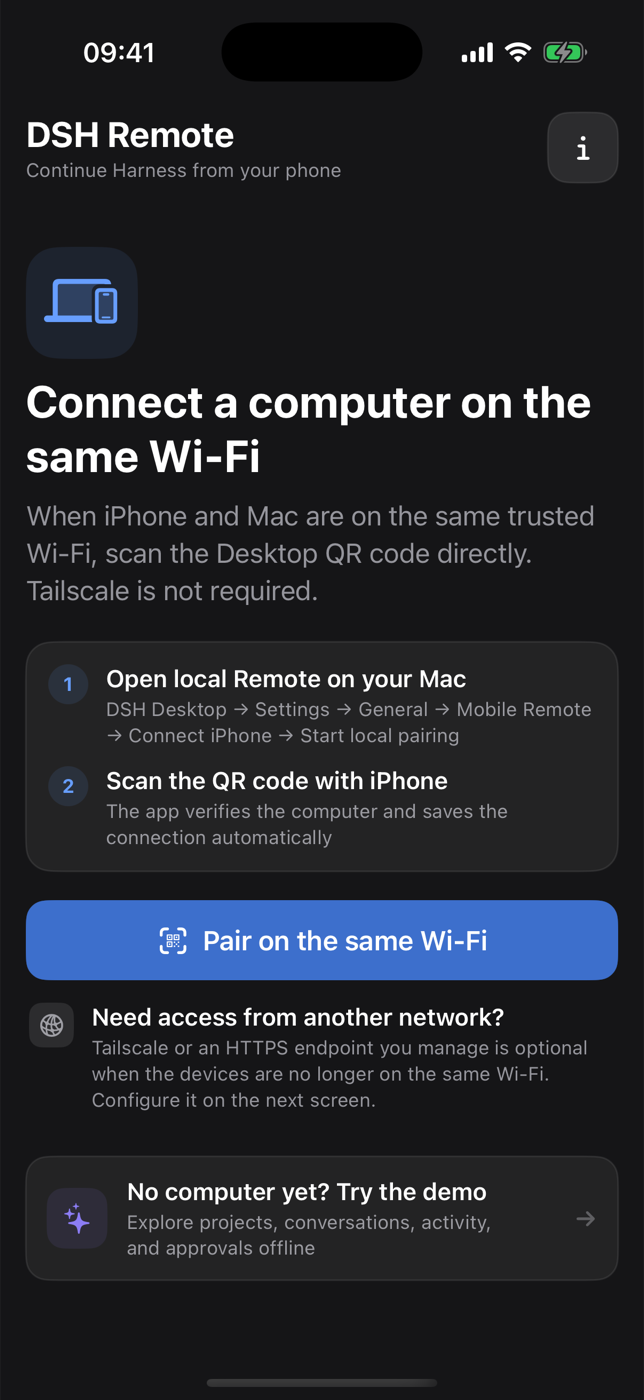
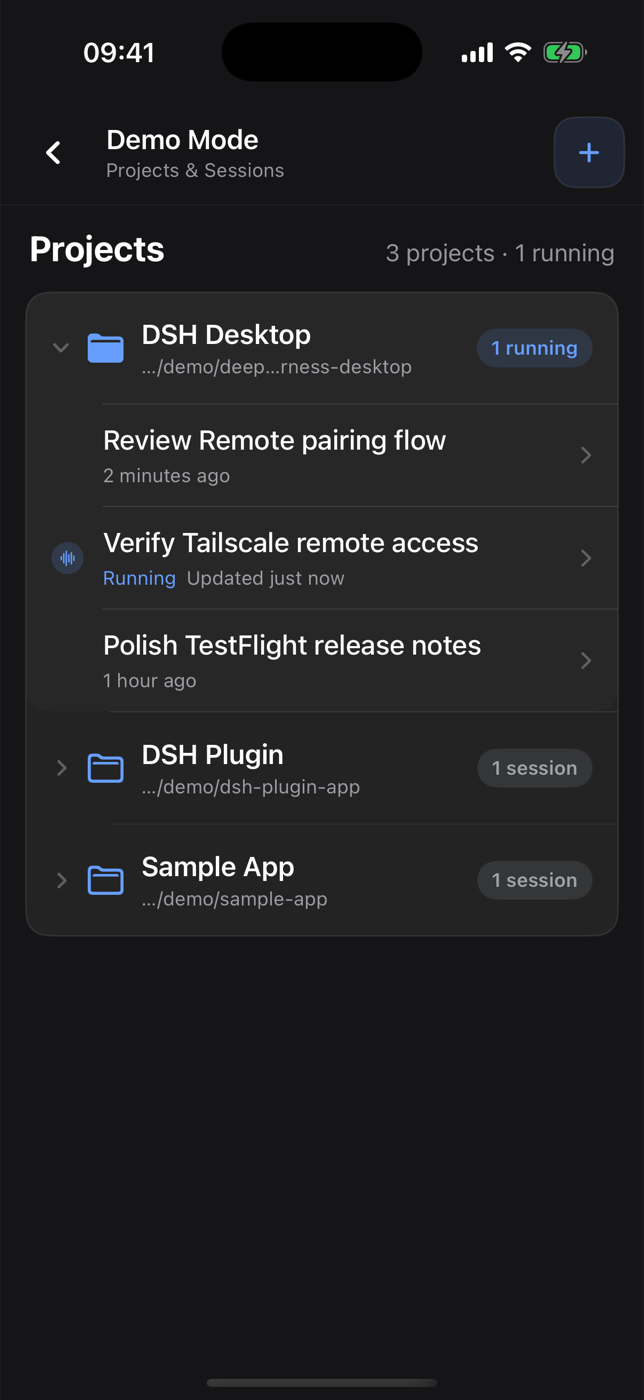
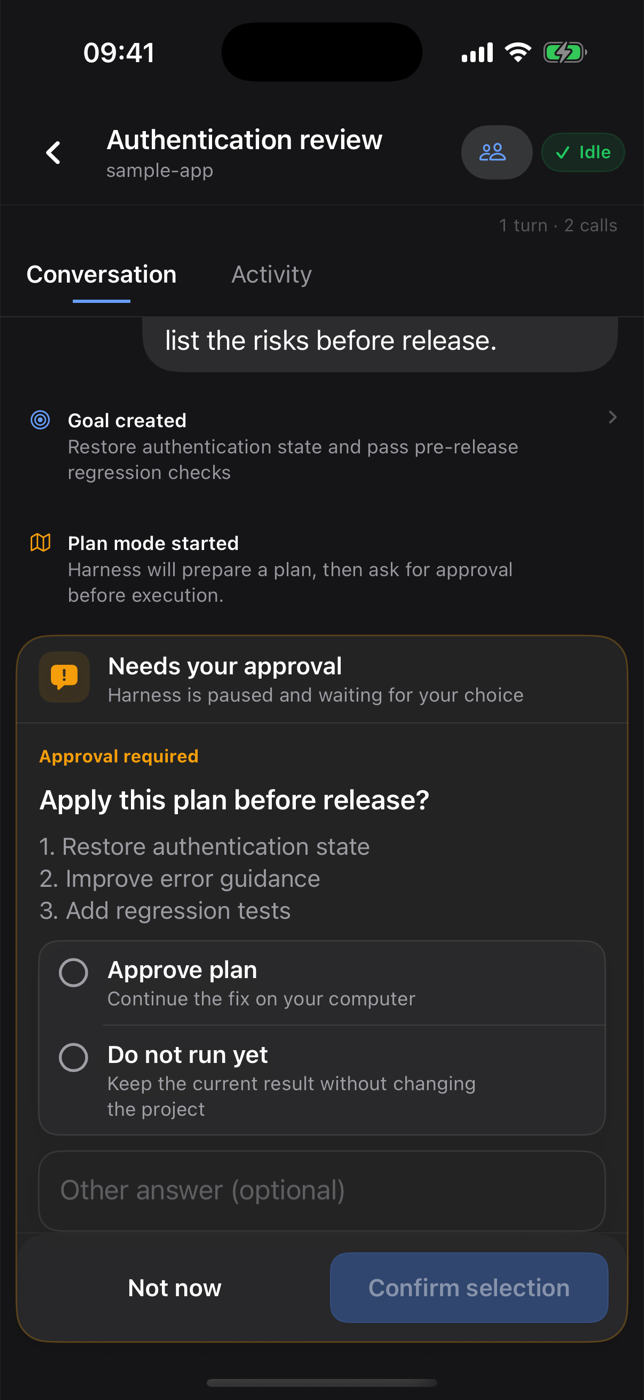
Same-Wi-Fi pairing · Projects and running sessions · Approval handling
DSH Remote is a native SwiftUI companion for a DSH Desktop computer you own or manage. It does not run an agent, repository, terminal, or model provider on the phone. Work continues on the computer; the iPhone is a narrow control surface.
The iOS TestFlight beta follows the device's app-language setting and includes complete English and Simplified Chinese product copy, including setup, errors, notifications, approvals, models, Activity, and subagent flows.
- Same Wi-Fi (recommended): Desktop exposes an opt-in, authenticated LAN endpoint on a trusted private network. No Tailscale account is required.
- Away from the local network: both devices join the user's own tailnet, and Desktop configures a private Tailscale Serve HTTPS entry. Do not use Funnel.
- No project-operated relay: code, prompts, model credentials, tool execution, and session history remain on the user's computer.
Install with TestFlight
- Install Apple's TestFlight app on an iPhone running iOS 17 or later.
- Open the DSH Remote public invitation, choose View in TestFlight, then accept and install the beta.
- Install the current DSH Desktop release on the computer before pairing.
Build from source with Xcode
Developers can also install the source on their own iPhone with Xcode:
- Install Xcode 16 or later on a Mac and sign in under Xcode → Settings → Accounts.
- Clone this repository and open
ios/DSHRemote/DSHRemote.xcodeproj. - Select the
DSHRemotetarget, choose your Team under Signing & Capabilities, and use a unique bundle identifier if automatic signing requests one. - Connect an iPhone running iOS 17 or later, select it as the run destination, and choose Product → Run.
A free Apple Account can use an Xcode Personal Team for personal on-device testing, but the app must be re-provisioned periodically. Downloading an unsigned or unrelated IPA from GitHub will not work.
Pair and use Remote
- Install and open the latest DSH Desktop build.
- In Desktop, open Settings → General → Mobile Remote → Connect phone.
- On the same trusted Wi-Fi, start local pairing and scan the QR code in DSH Remote.
- For cellular or other remote networks, open the built-in Tailscale setup guide on Desktop or iPhone, enable anywhere access, and scan the HTTPS QR code.
- Open a project, create or continue a session, and keep all execution on the computer.
See the iOS TestFlight and source guide, Chinese Tailscale setup guide, privacy policy, support notes, and App Review notes.
Android Remote (GitHub release)
[!IMPORTANT]
v0.4.0is the first stable GitHub release with a signed Android APK. It requires Android 8.0 or later and the matching DSH Desktop build from that release. It is not yet available on Google Play.
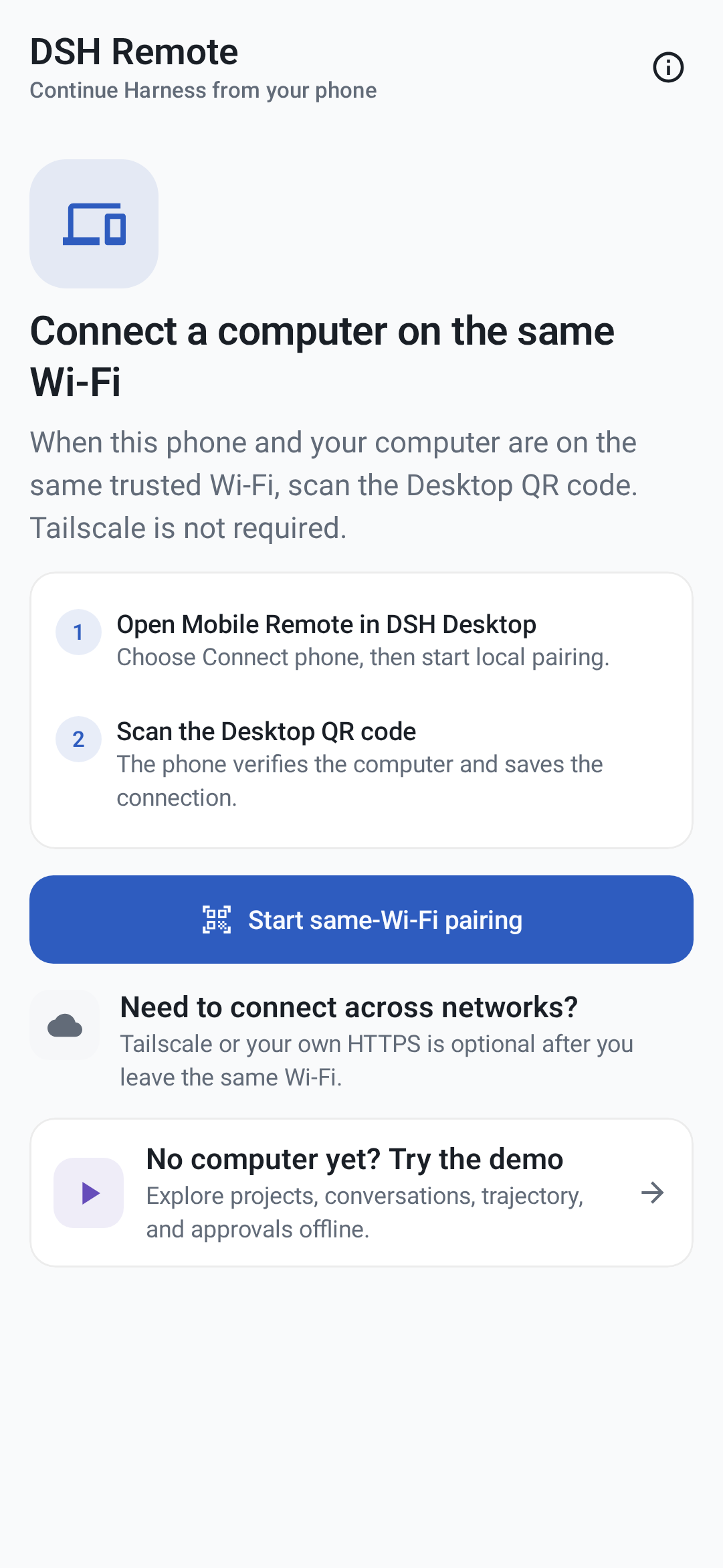
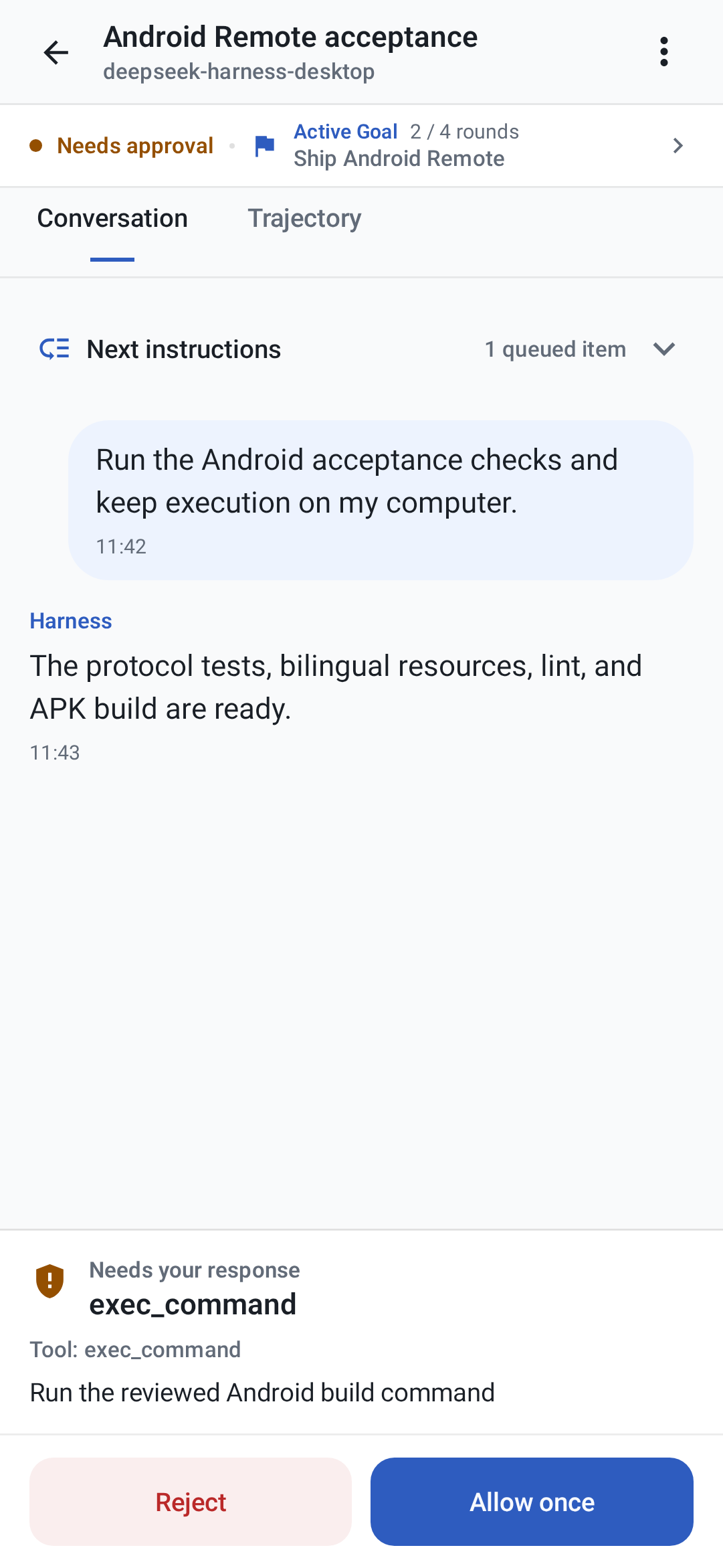
Local-first pairing and offline Demo · Conversation, queue, and approval control
Android uses the same local-first Remote v1 contract, QR format, Desktop LAN proxy, and Tailscale HTTPS flow as iOS. It includes encrypted multi-computer storage, projects and sessions, full conversation and Activity views, queue and steer controls, approvals and structured questions, images and references, models, Goal/Plan, nested subagents, local notifications, offline Demo, English, Simplified Chinese, dark appearance, and TalkBack semantics.
To install it:
- Open the
v0.4.1release and install its Desktop package on the computer. - Download
DSH-Remote-Android-v0.4.1.apkon an Android 8.0+ device. If asked, temporarily allow Install unknown apps for the browser or file manager that opened it. - Compare the APK's SHA-256 with its entry in
SHA256SUMS.txtfrom the same release. - Open the offline Demo, or in Desktop choose Settings → General → Mobile Remote → Connect phone and scan its QR code.
Use direct same-Wi-Fi mode only on a trusted private network: it is authenticated but not encrypted. Use private Tailscale Serve HTTPS for cellular, remote, or untrusted networks, and never use Funnel. Camera and notification permissions are optional. QR images stay on-device, while the bundled Google ML Kit scanner sends Google the diagnostic and usage metrics described in the privacy policy.
The computer must remain online with Desktop and Harness running. Local notifications are best effort, and device-specific behavior remains documented in the Android guide. See the complete Android install and support guide, Simplified Chinese guide, support guide, and platform-neutral Remote contract.
Download
Download Desktop installers and the Android APK from the latest stable GitHub Release. Installable iOS builds are distributed through the public TestFlight beta.
| Current stable release | Architecture | File |
|---|---|---|
| macOS | Apple Silicon | DSH-Desktop-0.4.1-mac-arm64.dmg |
| macOS | Intel | DSH-Desktop-0.4.1-mac-x64.dmg |
| Windows 10/11 | x64 installer | DSH-Desktop-0.4.1-win-x64.exe |
| Windows 10/11 | x64 portable | DSH-Desktop-0.4.1-win-x64.zip |
| Android 8.0+ | universal APK | DSH-Remote-Android-v0.4.1.apk |
| iPhone, iOS 17+ | public beta | TestFlight invitation |
The release also includes macOS ZIP archives and SHA256SUMS.txt for integrity verification. GitHub does not publish a generic iOS IPA.
Desktop quick start
- Install and open DSH Desktop.
- Open Settings → Models and configure a provider and API key.
- Add or select a workspace.
- Start a Harness session.
- Paste or attach an image when the selected model supports image input.
Configuration, workspaces, and sessions live in the same DSH_HOME used by the official CLI (~/.dsh by default).
Plugins and recovery
On macOS, open Settings → Plugins → Install & manage. The installer accepts an npm package, github:owner/repo, a public GitHub HTTPS URL, or a full command such as:
dsh plugin --profile web add github:owner/repo
Desktop parses supported install commands without running pasted text through a shell, then checks that Harness restarts successfully. If startup fails, it restores the previous plugin configuration. Third-party plugins run code on the local machine, so review their source and publisher before installation.
Architecture
 iPhone Remote ── authenticated same-Wi-Fi / Tailnet HTTPS ──┐
Android Remote ── authenticated same-Wi-Fi / Tailnet HTTPS ──┤
                                                             ↓
Desktop shell ─────────────→ loopback-only dsh web → official Harness UI/runtime
       └─────────────────── shared DSH_HOME for settings, sessions, and plugins
The project does not fork or reimplement the Harness agent runtime. The shell owns desktop packaging, process lifecycle, navigation boundaries, recovery, native integration, and release verification.
Development
Node.js 22.19 or newer is required.
git clone https://github.com/chokwinlee/deepseek-harness-desktop.git
cd deepseek-harness-desktop
npm ci
npm test
npm start
Build the macOS Tauri release with npm run build:mac; build the Windows Electron release with npm run dist. Packaging changes should also pass the real packaged-runtime checks in the release workflow.
Open ios/DSHRemote/DSHRemote.xcodeproj in Xcode to build the iOS client. The iOS app has no third-party package dependency and requires iOS 17 or later.
Build the Android client with JDK 17 and Android SDK 37:
cd android
./gradlew testDebugUnitTest compileDebugAndroidTestKotlin lintDebug validateDebugScreenshotTest assembleDebug assembleRelease bundleRelease
Project
- Read CONTRIBUTING.md before opening a pull request.
- Report vulnerabilities through the process in SECURITY.md.
- Product and UI decisions follow PRODUCT.md.
- The desktop host is MIT licensed. Harness and bundled dependencies retain their own licenses; see THIRD_PARTY_NOTICES.md.
相关推荐Related
-
 nexu-io/open-design
🎨 Best DeepSeek Harness Design Plugin. The open-source Claude Design alternative. 🖥️ Local-first desktop app. 🖼️ Your…
nexu-io/open-design
🎨 Best DeepSeek Harness Design Plugin. The open-source Claude Design alternative. 🖥️ Local-first desktop app. 🖼️ Your…
-
 esengine/DeepSeek-Reasonix
DeepSeek-native AI coding agent for your terminal. Engineered around prefix-cache stability — leave it running.
esengine/DeepSeek-Reasonix
DeepSeek-native AI coding agent for your terminal. Engineered around prefix-cache stability — leave it running.
-
 Molunerfinn/PicGo
:rocket: The Ultimate Image Uploader for Efficient Creators. Supports Obsidian, Typora, VS Code etc. and 60+ image hosti…
Molunerfinn/PicGo
:rocket: The Ultimate Image Uploader for Efficient Creators. Supports Obsidian, Typora, VS Code etc. and 60+ image hosti…
-
 titanwings/colleague-skill
将冰冷的离别化为温暖的 Skill,欢迎加入数字生命1.0!Transforming cold farewells into warm skills? It's giving rebirth era. Welcome to Digital …
titanwings/colleague-skill
将冰冷的离别化为温暖的 Skill,欢迎加入数字生命1.0!Transforming cold farewells into warm skills? It's giving rebirth era. Welcome to Digital …
-
 anywhere-labs/deepseek-harness-desktop
为 DeepSeek Harness (DSH) 插件生态打造的现代化桌面端解决方案。万物皆「插件」,桌面本身也是「插件」。
anywhere-labs/deepseek-harness-desktop
为 DeepSeek Harness (DSH) 插件生态打造的现代化桌面端解决方案。万物皆「插件」,桌面本身也是「插件」。
-
 tt-a1i/archify
Agent skill for beautiful, verifiable architecture, workflow, sequence, data-flow, and lifecycle diagrams—self-contained…
tt-a1i/archify
Agent skill for beautiful, verifiable architecture, workflow, sequence, data-flow, and lifecycle diagrams—self-contained…
-
 YaoApp/yao
✨ All your agents and workspaces in one place, on every device you own. Track tasks on a board, accessible from desktop,…
YaoApp/yao
✨ All your agents and workspaces in one place, on every device you own. Track tasks on a board, accessible from desktop,…
-
 zhu1090093659/dsh-web-ui
Plugin and skin collection for DeepSeek Harness (DSH) Web UI - task board, git graph, right-side panel, remote mobile UI…
zhu1090093659/dsh-web-ui
Plugin and skin collection for DeepSeek Harness (DSH) Web UI - task board, git graph, right-side panel, remote mobile UI…