feiyang-dev/dsh-usage-plugin
DeepSeek Harness 用量与消耗插件(dsh-usage-plugin)—— 每次调用的 token 用量/缓存命中统计、峰谷计费、余额查询、CSV/JSON/PNG 导出,可经桌面端一键安装或命令行 dsh plugin add 安装。
项目介绍Project Overview
dsh-usage-plugin 是 DeepSeek Harness 生态中的用量与费用追踪插件,安装后 Web 界面会增加"用量与费用""余额查询"标签页。核心能力:按调用记录 token 消耗与缓存命中,按 DeepSeek 峰谷/基础价计算费用,提供日历热力图、按模型与 API 提供商聚合、明细列表及 CSV/JSON/PNG 导出(最多 2000 条)。适用于需要控制 API 成本、审计调用或核对余额的用户。注意事项:旧 npm 包名 @feiyang666/deepseekharnessdesktop 已停更,请迁移至 @feiyang666/dsh-usage-plugin。
dsh-usage-plugin is a usage and cost tracker for the DeepSeek Harness ecosystem, adding Usage & Cost and Balance Query tabs to the Web UI after installation. Core capability: records per-call token usage and cache hits, computes cost with DeepSeek's peak/off-peak pricing, and provides a calendar heatmap, by-model and by-provider aggregation, a sortable list, and CSV/JSON/PNG export (up to 2000 records). Use it to monitor API spend, audit calls, or check balance. Caveat: the old npm package @feiyang666/deepseekharnessdesktop is no longer maintained—migrate to @feiyang666/dsh-usage-plugin.
请帮我了解并安装插件:【dsh-usage-plugin】【https://github.com/feiyang-dev/dsh-usage-plugin】把上面这条消息直接发给当前会话里的 DSH,让它帮你了解并安装。安装命令不一定准确,发给 DSH 更稳。Send this message to DSH in your current session. CLI install commands may not be accurate across systems — DSH will figure it out for you.
或使用命令行安装(适合开发者)Or use CLI install (for developers)
命令行安装CLI Install
dsh plugin --profile web add @feiyang666/dsh-usage-plugin把 feiyang-dev/dsh-usage-plugin 加入你的 DSH 配置(web profile)即可启用。
READMEREADME
DeepSeek Harness Usage & Cost Tracker (dsh-usage-plugin)
English · 简体中文
A community plugin for DeepSeek Harness — records token usage and cost for every model call, with peak/off-peak billing, balance query, a calendar heatmap, and CSV / JSON / PNG export.



🔔 Important Notice (2026-08-16): npm package renamed
The npm package has been renamed from
@feiyang666/deepseekharnessdesktopto@feiyang666/dsh-usage-plugin(matching the GitHub repofeiyang-dev/dsh-usage-plugin).
- Use the new package name for install / upgrade:
dsh plugin --profile web add @feiyang666/dsh-usage-plugin- The old package
@feiyang666/deepseekharnessdesktopremains published for a while, but it is no longer maintained and will not receive updates — please migrate soon.- The desktop client (
DeepSeek Harness Desktop) supports both package names and will auto-detect old-name installs with a one-click update to the new name.
Overview
dsh-usage-plugin is a usage & cost tracker plugin in the DeepSeek Harness ecosystem (a DSH plugin shipped as a Host + Client two-in-one package). After installation, "Usage & Cost" and "Balance Query" tabs appear in the Web UI, right after "Conversation" and "Trace":
Supports Windows / macOS / Linux: paths are handled per platform (
node:path), and the folder picker / "reveal in file manager" use each OS's native mechanism (macOS:osascript/open; Linux:zenity/xdg-open). Balance query and export do not depend on Windows-only commands.
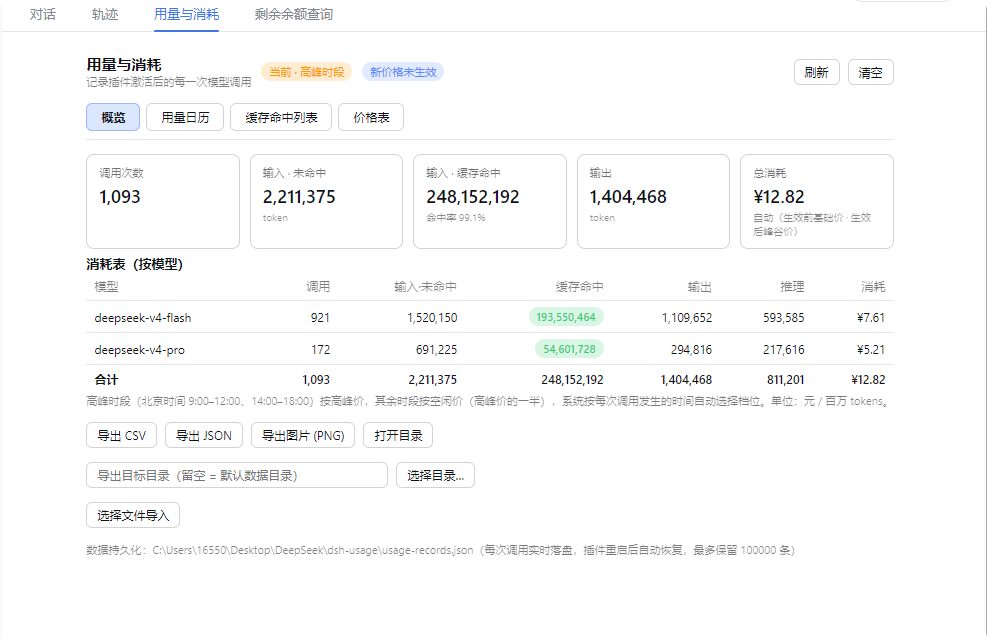
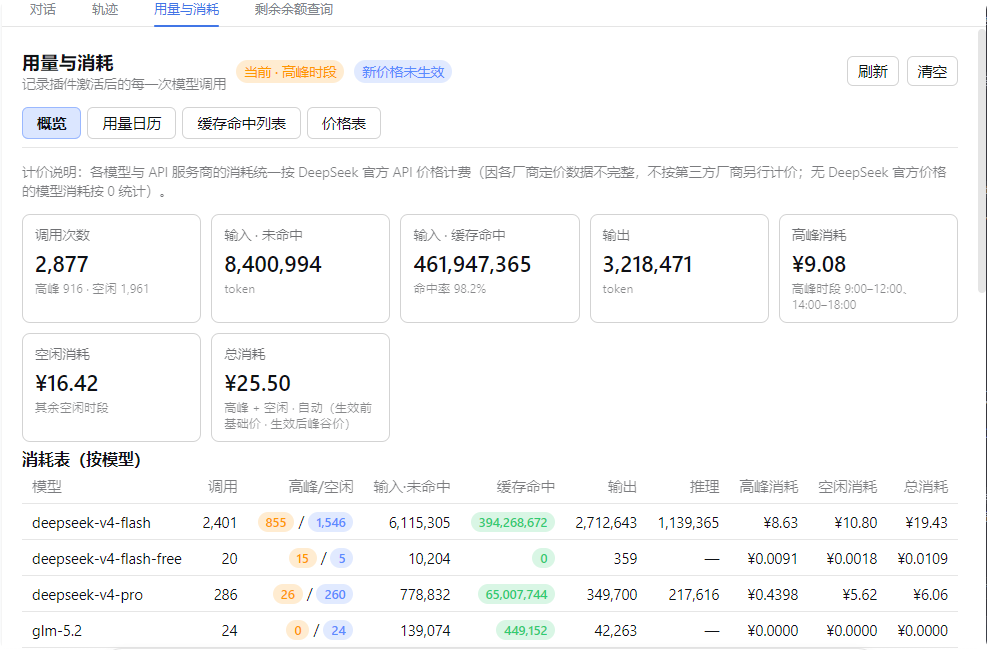
- Usage & Cost: records each model call's token usage and cache hits (input miss / cache hit / cache write / output / reasoning / finish reason), and computes cost using DeepSeek's peak/valley or base pricing (peak hours on weekdays are automatically priced by Beijing time 09:00–12:00 and 14:00–18:00; since 2026-08-23 weekends are billed entirely at the off-peak rate). Model names come from the actual request parameters, so non-DeepSeek models are shown truthfully instead of "unknown model"; models without an official price are counted as 0. The overview shows a by-model table plus a by-API-provider × model drill-down (each provider grouped with every model's calls and peak/off-peak cost split) and a grand total row. The overview also supports date filtering (Today / Last 7 days / Last 30 days / All, plus a custom start–end range), so the aggregate stats can be scoped to any single day or date range.
- Usage Calendar: a monthly daily-usage heatmap (colored by cost or call count), hover for details including the peak/off-peak cost split, click a day for its call list and peak/off-peak totals, plus a per-day statistics table with peak cost / off-peak cost / total columns and monthly rollups.
- Cache Hit List: newest-first, fully scrollable, with quick filters (Today / 7 days / 30 days / All) and custom date ranges; the summary line and footer total split peak vs off-peak consumption with a grand cost total. The list is paginated (100 rows per page), so it stays smooth even with large data volumes.
- Price Table: the official DeepSeek API price table (covering
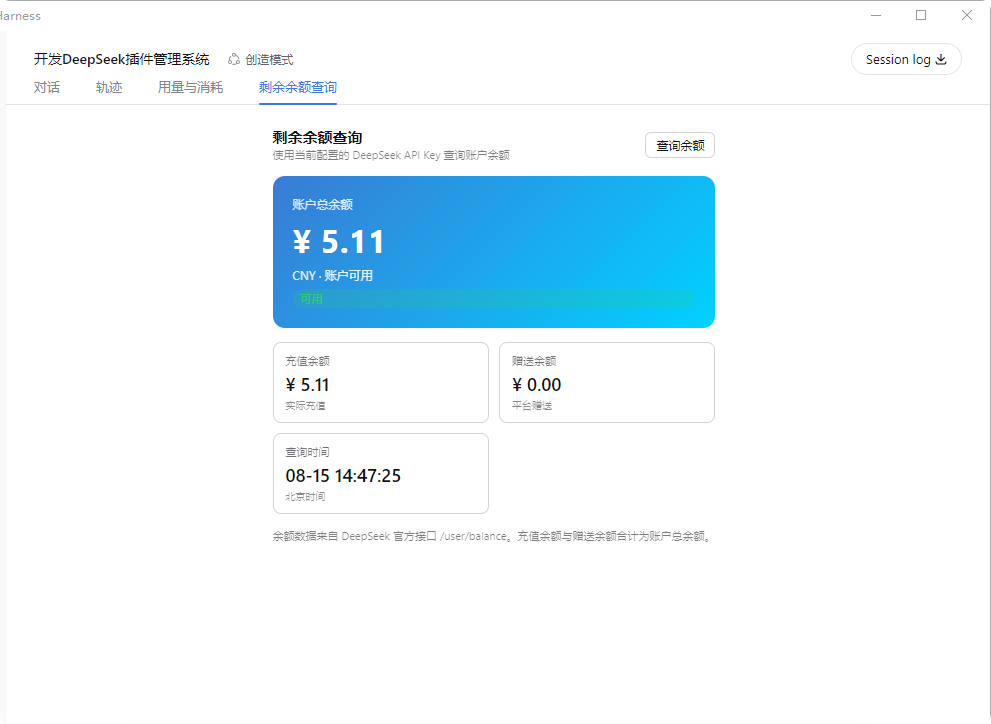
deepseek-v4-flash/deepseek-v4-flash-vision-exp/deepseek-v4-pro) — base and peak/valley unit prices shown side by side (peak vs off-peak), editable in-panel and persisted topricing.json, with a reset-to-default option. - Balance Query: queries your DeepSeek account balance using the configured
DEEPSEEK_API_KEY. - Export: CSV / JSON / PNG long image (newest-first, up to the latest 2000 records, warns if exceeded; the PNG report includes peak/off-peak cost columns), to any directory (native picker), auto-opens the folder after export.
- Import: merge-imports JSON / CSV files, deduplicated by time.
- Persistence: records are written live to
<session workspace>/dsh-usage/usage-records.jsonand restored on restart (cap 100000 records). - UI adaptation: panel typography scales with the app's display-size setting (em-relative fonts); table wrapping and spacing are tuned so large display sizes stay readable.
Screenshots
Usage & Consumption
Balance Query
Recommended Installation
Either method works and is equivalent. We recommend the desktop app — fully graphical, no command line needed.
Option 1 (recommended): One-click via the desktop app
Install DeepSeek Harness Desktop, open it, then go to "Install Plugins" → Recommended → Usage & Cost Tracker → Install and click "Restart Service Now" to activate.
Option 2: Command line
# Prerequisite: install dsh (npm install -g @deepseek-ai/dsh)
dsh plugin --profile web add @feiyang666/dsh-usage-plugin
Or install to another profile:
dsh plugin --profile web add @feiyang666/dsh-usage-plugin
dsh plugin --profile headless add @feiyang666/dsh-usage-plugin
Restart the dsh web service after installation. Detailed manual install / wiring / uninstall / troubleshooting follows below.
What's in the package
One npm package = a host half (Node-side Cordis plugin: recording, billing, balance query, export — see lib/index.js) + a client half (browser-side panel — see lib/client.js, which talks to the host via /usage/api).
The package integrates with DSH through two declarations:
| Declaration | Purpose |
|---|---|
dsh.bundle.patch (cordis.patch.yml) |
Lets DSH recognize it as a standard bundle plugin package: dsh plugin --profile <name> add <package> installs and wires it in one command, no manual config editing |
dsh.client + exports["./client"] |
Lets the web client auto-load the browser panel at /plugins/<package>/client.js |
So for users, installation is one command — no YAML editing, no manual file copying.
Installation (for users)
0. Prerequisites
- DeepSeek Harness installed (
npm install -g @deepseek-ai/dsh, or a desktop app built on it, ornpx @deepseek-ai/dsh web). - Option A (recommended) needs pnpm:
npm install -g pnpm(orcorepack enable). - Make sure
dshis on PATH (for the desktop app, run in its bundled terminal).
1. Method A (recommended): one command
dsh plugin --profile web add @feiyang666/dsh-usage-plugin
This does three things (all automatic):
- Installs the package via pnpm into
~/.dsh/profiles/web(auto-initializes the profile on first use); - Detects the package's
dsh.bundledeclaration and writes the package name into the profile'sdsh.profile.bundleslayer list; - After restart, DSH reads the package's
cordis.patch.ymland mounts the plugin row into the app tree — no manual config editing.
Same for other profiles (replace web with your profile name, e.g. dsh plugin --profile headless add ...; dsh web equals dsh --profile web).
Test a local tarball:
dsh plugin --profile web add C:\path\to\feiyang666-dsh-usage-plugin-1.9.0.tgz
2. Method B: manual install (no pnpm / no dsh plugin)
Only for when you have no pnpm or want full manual control. Do not npm install directly at ~/.dsh/profiles (that dir has no package.json; npm would treat the whole node_modules as residue and wipe it).
B1. Use pnpm but not dsh plugin:
cd ~/.dsh/profiles/web
pnpm add @feiyang666/dsh-usage-plugin
# then manually append the plugin row to web/cordis.patch.yml (see B3) and restart
B2. Or use npm: add a minimal package.json to the profile first, then install:
cd ~/.dsh/profiles/web
# if no package.json exists there yet (only after `dsh plugin` init):
# echo '{"name":"dsh-profile-web","private":true,"dependencies":{}}' > package.json
npm install @feiyang666/dsh-usage-plugin
B3. Wire it up (once, idempotent): append to ~/.dsh/profiles/web/cordis.patch.yml:
- insert:
    - id: usage-plugin
      name: '@feiyang666/dsh-usage-plugin'
      inject:
        - fs
        - webServer
        - subprocess
        - credentials
        - sandboxPolicy
        - agents
Or just run the package's built-in wiring script (auto-finds the profile and appends, idempotent):
node node_modules/@feiyang666/dsh-usage-plugin/scripts/wire.js
⚠️ The
injectlist is required: it makes Cordis wait untilfs/webServer/subprocess/credentials/sandboxPolicy/agentsare ready before activating the plugin. Without it the/usage/apiroute never registers and the panel fails withUnexpected end of JSON input.
3. Method C: desktop app
The desktop app (e.g. DeepSeek Harness Desktop) uses the same ~/.dsh/profiles underneath. Run Method A's command in any terminal, restart the app, and the plugin activates automatically (the app starts the same dsh web).
4. Restart and verify
Restart the DeepSeek Harness web app (command line: kill the old process and re-run dsh web; desktop: fully quit and reopen). Then:
- Refresh http://127.0.0.1:3080 — after "Conversation" and "Trace", you should see "Usage & Cost" and "Balance Query" tabs; there are entries in Settings too.
- The "Usage & Cost" panel contains Overview / Usage Calendar / Cache Hit List / Price Table subtabs.
- Send a message and the "Usage & Cost" panel should show this call's token / cost record.
5. Configuration (for balance query)
"Balance Query" uses the configured DEEPSEEK_API_KEY: set the API Key in Settings → Models (same key used for chats), then open the "Balance Query" tab and click "Query Balance".
Uninstall
dsh plugin --profile web remove @feiyang666/dsh-usage-plugin
(Equivalent to pnpm remove; dsh plugin auto-removes the package name from the dsh.profile.bundles layer list.) Restart the app afterward.
For manual installs (Method B), do it in reverse: remove the usage-plugin row from cordis.patch.yml, then pnpm remove / npm uninstall the package, and restart.
Upgrading from a 1.0.x manual-wiring install to 1.1.x: first remove the old
usage-pluginrow fromcordis.patch.yml(or follow the uninstall flow), then reinstall via Method A to avoid mounting the plugin twice.
How to update
Releasing happens on npm, so updating just means pulling the latest published package. Your usage history is safe — since v1.9.2 it lives in a fixed dedicated directory (not in any profile / workspace), so an update never wipes it.
Desktop app
Open "Install Plugins" → find Usage & Cost Tracker → click Update (or Re-install) → "Restart Service Now". If there is no Update button, just remove then re-add it.
Command line (Method A)
Re-running add is idempotent and pulls the newest version:
dsh plugin --profile web add @feiyang666/dsh-usage-plugin
dsh web   # restart
Pin a specific version:
dsh plugin --profile web add @feiyang666/dsh-usage-plugin@1.9.3
Manual install (Method B)
In the profile dir:
cd ~/.dsh/profiles/web
pnpm update @feiyang666/dsh-usage-plugin   # or: npm update @feiyang666/dsh-usage-plugin
Verify the installed version
npm ls @feiyang666/dsh-usage-plugin --prefix ~/.dsh/profiles/web
⚠️ Do not hand-edit files under
~/.dsh/profiles/web/node_modules/@feiyang666/dsh-usage-plugin/(e.g.lib/index.js/lib/client.js). Every update re-extracts the package from npm and overwrites those files, so local edits are silently lost. To change behavior, fork the repo and publish your own version, or contribute upstream.
Data & locations
Since v1.9.2, records are stored in a fixed, dedicated data directory (fixes #4). The path no longer follows the session workspace /
~/.dsh/ desktop-app install dir, so your history never "disappears" (counted as 0) when the workspace changes, and the path shown in the UI equals the on-disk path.
- Records:
<data root>/dsh-usage/usage-records.json- Resolution order for the data root (data always lands in the first writable dir of this list, never in the workspace unless all of the below are unwritable):
- env var
DSH_USAGE_DATA_DIR(if set) — overrides everything; - Windows:
%LOCALAPPDATA%\dsh-usage-plugin(falls back to%APPDATA%ifLOCALAPPDATAis unset); - user home dir:
~/dsh-usage-data(Windows%USERPROFILE%\dsh-usage-data, macOS/Linux~/dsh-usage-data); - fallback (rare): current workspace
<workspace>/dsh-usage— only used when all system/user dirs above are unwritable, and the panel will show a "persistence disabled" warning.
- env var
- Writes bypass the model sandbox: persistence is done by the host plugin process's own filesystem, not subject to the
workspace-writesandbox, so the fixed directory is always writable and data is not lost when switching workspaces. - Default on Windows:
%LOCALAPPDATA%\dsh-usage-plugin\dsh-usage\usage-records.json
- Resolution order for the data root (data always lands in the first writable dir of this list, never in the workspace unless all of the below are unwritable):
- Legacy data auto-merge: on first start, records previously scattered in
%USERPROFILE%\dsh-usage,~/.dsh/dsh-usage, and each workspace'sdsh-usage(or.dsh-usage-records.json) are merged into the fixed root, deduplicated bytime— no manual migration needed. - Price config (edited & saved in the panel):
<data root>/dsh-usage/pricing.json - Default export dir:
<data root>/dsh-usage/{csv,json,images}/ - Custom export dir: set in the panel's "Export target directory" or click "Choose directory…"
- Startup diagnostics (if the plugin fails to activate):
dsh-usage-boot.lognext to the data root
FAQ
| Symptom | Cause / Fix |
|---|---|
Panel reports Unexpected end of JSON input |
The plugin row is missing the inject list, so the route isn't registered. Add the inject list per Method B3 and restart |
| Panel blank / no top tab | Plugin not activated. Check dsh-usage-boot.log; confirm the cordis.patch.yml row exists with the correct name |
| Balance query fails with "DEEPSEEK_API_KEY not configured" | Set the API Key in Settings → Models |
| Balance query network error | Ensure api.deepseek.com is reachable (configure a proxy if needed) |
dsh plugin reports pnpm not found |
Install pnpm: npm install -g pnpm |
| Install can't reach the npm registry | Set a mirror: npm config set registry https://registry.npmmirror.com (or pnpm config set registry ...) and retry |
After uninstall, still reports Cannot find package '@feiyang666/...' |
A package reference remains in the profile. Remove the corresponding row from cordis.patch.yml and the package name from dsh.profile.bundles, then restart |
Related Projects
| Project | Description | Installation |
|---|---|---|
| DeepSeek Harness Desktop | Windows desktop console: install/start/stop/restart the dsh web service with one click, built-in plugin management — install this plugin from its Recommended section | Download the desktop app and click a few buttons |
| Data Vault (dsh-vault) | Auto backup / wipe detection / one-click restore — protects chat history and workspace data | One-click from the desktop app, or dsh plugin add @feiyang666/dsh-vault |
| DeepSeek-Harness | Official CLI / Web service | Quick start below |
Running DeepSeek Harness
Quick start (via npm)
Install Node.js, then run:
npx @deepseek-ai/dsh web
This command starts the Web UI at the default address http://127.0.0.1:3080. See the Web UI Guide for details.
Run from source
To run from the repository source:
git clone https://github.com/deepseek-ai/deepseek-harness.git
cd deepseek-harness
pnpm install
pnpm run build
pnpm dsh web
Acknowledgements
- @Martin-soaring-dev: prepared the plugin for public contribution (packaging, plugin-contract checks, docs & CI) and submitted the contribution branch that became the basis for the open-source releases (#6).
- @mumuer1024: reported and diagnosed the persistence-path drift across workspaces (history "disappearing" / counted as 0) and proposed storing data in a fixed, dedicated directory (#4).
- @liu3734: reported and diagnosed the Windows-only path handling / spawn issues on macOS (POSIX) and proposed the cross-platform fix (#1).
License
MIT © dsh-usage-plugin
相关推荐Related
-
 nexu-io/open-design
🎨 Best DeepSeek Harness Design Plugin. The open-source Claude Design alternative. 🖥️ Local-first desktop app. 🖼️ Your…
nexu-io/open-design
🎨 Best DeepSeek Harness Design Plugin. The open-source Claude Design alternative. 🖥️ Local-first desktop app. 🖼️ Your…
-
 ruvnet/ruflo
🌊 The original agent meta-harness. Deploy intelligent multi-player swarms, coordinate autonomous workflows, and build c…
ruvnet/ruflo
🌊 The original agent meta-harness. Deploy intelligent multi-player swarms, coordinate autonomous workflows, and build c…
-
 amruthpillai/reactive-resume
A one-of-a-kind resume builder that keeps your privacy in mind. Completely secure, customizable, portable, open-source a…
amruthpillai/reactive-resume
A one-of-a-kind resume builder that keeps your privacy in mind. Completely secure, customizable, portable, open-source a…
-
 esengine/DeepSeek-Reasonix
DeepSeek-native AI coding agent for your terminal. Engineered around prefix-cache stability — leave it running.
esengine/DeepSeek-Reasonix
DeepSeek-native AI coding agent for your terminal. Engineered around prefix-cache stability — leave it running.
-
 volcengine/OpenViking
Self-evolving Context Database for AI Agents. Unify Agent Memory, Knowledge RAG and Skills.
volcengine/OpenViking
Self-evolving Context Database for AI Agents. Unify Agent Memory, Knowledge RAG and Skills.
-
 Molunerfinn/PicGo
:rocket: The Ultimate Image Uploader for Efficient Creators. Supports Obsidian, Typora, VS Code etc. and 60+ image hosti…
Molunerfinn/PicGo
:rocket: The Ultimate Image Uploader for Efficient Creators. Supports Obsidian, Typora, VS Code etc. and 60+ image hosti…
-
 titanwings/distilly
Distilly — Distill how they think into reusable Skills for any Agent or Bot. Formerly Colleague Skill(原同事 Skill).
titanwings/distilly
Distilly — Distill how they think into reusable Skills for any Agent or Bot. Formerly Colleague Skill(原同事 Skill).
-
 titanwings/colleague-skill