liangwythu/deepseek-harness-vscode
Native VS Code client for DeepSeek Harness. Same workspace, same session, same agent runtime — VS Code and the browser share one Harness session.
Project Overview项目介绍
This is a native VS Code client plugin for DeepSeek Harness. It connects to your running local DSH instance, lets you continue existing workspaces and sessions directly in VS Code, with diff review, approval workflow and file context support. It only supports localhost connections, high-risk operations still require web UI approval, and it is not a full coding agent.
这是DeepSeek Harness的VS Code原生客户端插件,可连接本地已运行的DSH实例,在VS Code内延续原有会话,支持代码变更审核、操作审批、快速添加上下文文件。注意它仅支持本地回环连接,高风险操作仍需网页端授权,本身不是完整的编码代理。
请帮我了解并安装插件:【deepseek-harness-vscode】【https://github.com/liangwythu/deepseek-harness-vscode】Send this message to DSH in your current session. CLI install commands may not be accurate across systems — DSH will figure it out for you.把上面这条消息直接发给当前会话里的 DSH,让它帮你了解并安装。安装命令不一定准确,发给 DSH 更稳。
Or use CLI install (for developers)或使用命令行安装(适合开发者)
CLI Install命令行安装
dsh plugin --profile web add github:liangwythu/deepseek-harness-vscode把 liangwythu/deepseek-harness-vscode 加入你的 DSH 配置(web profile)即可启用。
READMEREADME
DeepSeek Harness Connector for VS Code (v0.0.3)


Native VS Code client for DeepSeek Harness.
Connect to your existing local Harness instance and continue the same workspaces and sessions directly inside VS Code.
Same Harness. Same Workspace. Same Session. VS Code Client.
This is not a Cursor replacement, a Claude Code replacement, or a full coding agent. It connects VS Code to your already-running local dsh web instance:
Browser ─────┐
             │
             ▼
       DeepSeek Harness
             ▲
             │
VS Code ─────┘
VS Code reads the workspaces and sessions the browser already has, and continues the same session — so a browser refresh of that session sees exactly what VS Code sent.
What's new in v0.0.3
Diff Review, Approval Workflow & File Context Inlining — closes the biggest experience gap with Cursor/Cline: code changes can now be reviewed and approved entirely inside VS Code.
- Diff Review & Inline Code Application — When the agent writes or edits files, a review card appears in the sidebar showing each changed file with
+added/-removedline counts. Click Diff to open VS Code's native diff editor. Accept (keep) or Reject (safe revert viagit checkout) per-file or all at once. - Approval Workflow Integration —
approval/requestedevents now render inline as cards with Allow once / Deny buttons. No more switching to the browser to approve. A security allowlist restricts which tools can be approved from VS Code; high-risk operations still require the Web UI. - @file Content Inlining — File references (
@file:pathor@file:path:L10-L20) now have their content read and inlined directly into the user message, guaranteeing the agent can see file content. Context metadata (active file, selection) is only sent on the first prompt of a session. - Context Menu Integration — Right-click a file in the explorer → Add to Harness Chat. Select text in the editor → right-click → Send Selection to Harness. Both use workspace-relative paths.
See CHANGELOG.md for the full diff.
Previous releases
- v0.0.2 — Conversation UX & Architecture Baseline: Assistant Markdown rendering, tool card merging, system message collapsing, lazy workspace/session creation, streaming render fix, architecture hardening.
- v0.0.1 — First public release: prove VS Code and the browser share the same Harness session.
What v0.0.3 does
- Connect to a local
dsh web(loopback only —127.0.0.1/localhost). - Match the active VS Code folder to a Harness workspace. If none exists, the workspace is created lazily on first prompt — no modal.
- List the workspace's existing sessions.
- Open a session and render its history.
- Send a plain-text prompt to that session. If no session exists, one is created automatically.
- Stream the assistant's reply with Markdown rendering (code blocks, lists, tables, links).
- Show tool calls as collapsed cards with name-aware titles (
Read src/foo.ts,Search "pattern",Run npm test). - Review agent code changes — diff cards with per-file Accept/Reject, native VS Code diff editor, bulk Accept All / Reject All.
- Approve or deny agent actions — inline approval cards with Allow once / Deny buttons (security allowlist enforced).
- Attach file context — use
@file:pathor@file:path:L10-L20in your prompt; file content is read and inlined automatically. Right-click in explorer or editor for quick insertion. - Hide plugin-injected system messages by default; toggle with the
SYSbutton. - Stop the active turn.
- Reopen the stream and refetch history on disconnect.
- "Open in Harness Web UI" command.
- Dock the view in the right side bar (like Chat) via the ⇲ button.
What v0.0.3 deliberately does NOT do
For your safety, the following remain out of scope:
- No
commands/execute, nocredentialsorsettingsAPI. - No model switching.
- No inline completion, terminal/LSP integration.
- High-risk approvals (e.g.
bashwith untrusted input) cannot be allowed from VS Code — the card shows "Review in Web UI". - No second session database — the Harness Session is the only source of truth.
- No auto-install / auto-start / auto-upgrade of
dsh. - Does not fork or modify the Harness source.
Requirements
- VS Code ≥ 1.85
- A running local
dsh web(default port3080). This extension does not start it for you.
Quick start
Start Harness locally:
dsh web
# → http://127.0.0.1:3080
Install from the VS Code Marketplace or via command line:
code --install-extension lucasliang.harness-connector-deepseekOr install the VSIX from GitHub Releases:
code --install-extension harness-connector-deepseek-0.0.3.vsixOpen a folder in VS Code that you want to bind to a Harness workspace.
The DeepSeek Harness activity-bar icon appears; the extension auto-connects. If your folder matches an existing Harness workspace, its sessions appear in the dropdown. Pick one and continue the conversation.
No matching workspace? Just type a prompt and hit Send — the workspace and session are created automatically.
Attach file context — type
@file:src/main.tsor right-click a file in the explorer and choose Add to Harness Chat. Select text in the editor, right-click, and choose Send Selection to Harness for line-range references.Open the same session in your browser at
http://127.0.0.1:3080/— both surfaces see the same turn.
Configuration
| Setting | Default | Notes |
|---|---|---|
deepseekHarness.host |
127.0.0.1 |
v0.0.x only allows 127.0.0.1 or localhost. Any other value is refused. |
deepseekHarness.port |
3080 |
The default dsh web port. Override if you started dsh web --port <n>. |
deepseekHarness.showSystemMessages |
false |
Show plugin-injected system messages (runtime context, approval notices). Hidden by default; toggle live with the SYS button in the webview header. |
Commands
DeepSeek Harness: Connect/DisconnectDeepSeek Harness: New Session(in the active workspace)DeepSeek Harness: Refresh SessionsDeepSeek Harness: Move to Right Side Bar— dock the view in the secondary side bar (like Chat) so it stops competing with the file explorer. Also available via the ⇲ button in the webview header.DeepSeek Harness: Open Web UIDeepSeek Harness: Show Logs(theDeepSeek Harnessoutput channel)
Context menu actions
- Add to Harness Chat (explorer right-click) — inserts
@file:<relative-path>into the chat input. - Send Selection to Harness (editor right-click, requires selection) — inserts
@file:<relative-path>:L<start>-L<end>into the chat input.
Architecture
See ARCHITECTURE.md for the one-page design and the protocol contract. (中文版: ARCHITECTURE.zh-CN.md)
Protocol fixtures
test/fixtures/ holds sanitized captures of the live wire format, useful for detecting upstream Harness protocol drift:
host-describe.json,workspace-list.json,session-list.json,session-history.json,session-prompt.json,session-event.json
No credentials, API keys, or real prompt content are stored — only the JSON shapes (text fields are redacted).
Protocol spike
A standalone Node script validates the full loop against your running dsh web:
npm run spike            # read-only validation (connect / list / history / mux open)
npm run spike -- --prompt  # also exercises prompt + live events + cancel
Development
npm install
npm run build        # esbuild → dist/extension.js
npm run watch        # rebuild on change
npm run typecheck
npm run package      # → harness-connector-deepseek-0.0.3.vsix
Press F5 in VS Code to launch an Extension Development Host with the extension loaded.
Verified against
- DeepSeek Harness host
v0.0.1(@deepseek-ai/dsh-root), defaultdsh webport3080. - Wire contract:
packages/host/apiproxy/src/api/(authoritative).
Limitations
- Loopback only — no remote / LAN / WSL-bridged hosts.
- Text prompts only (no image attachments).
- History loads the last ~50 messages; "load older" is a future feature.
- Session deep-links in "Open Web UI" are intentionally not guessed — only the Harness home opens.
- Unknown harness event types are ignored (the protocol is merge-extensible); they do not crash the client but also do not render.
- Diff review revert uses
git checkout— uncommitted changes to the target file will be lost on Reject.
Roadmap (v0.0.4+)
- Inline Completion
- VS Code filesystem provider
- Terminal integration
- LSP / ACP integration
- Image attachments
License
MIT
Related相关推荐
-
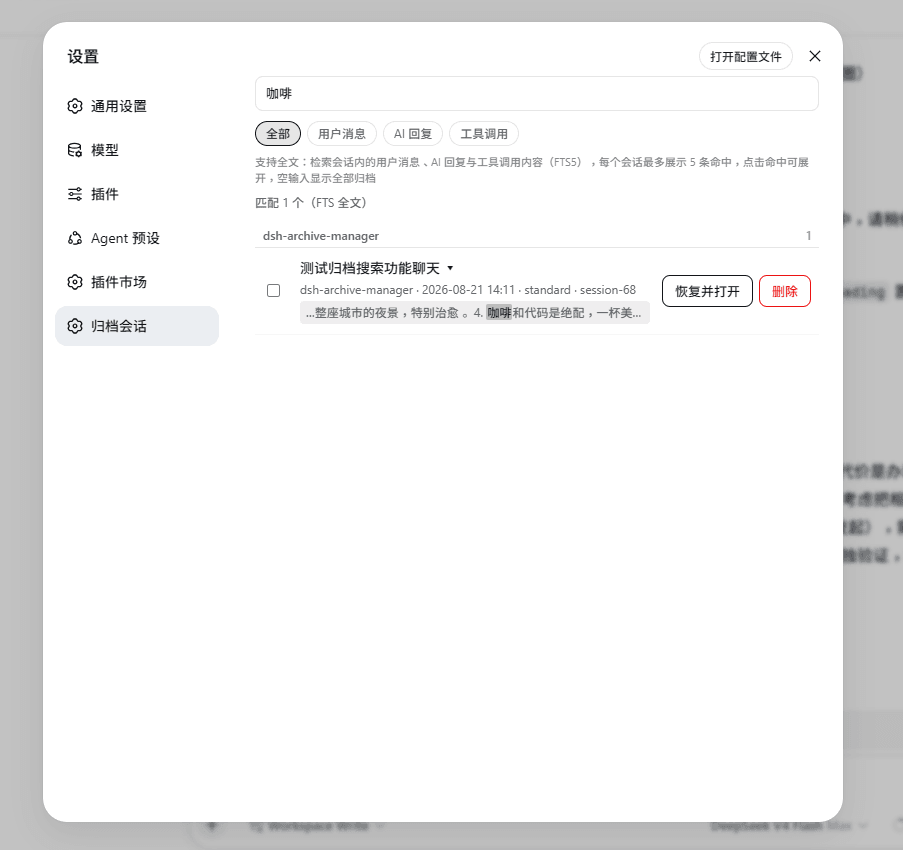 ChuShiZ/dsh-archive-manager
DSH profile-bundle: 归档会话浏览/恢复/物理删除(FTS 全文搜索)
ChuShiZ/dsh-archive-manager
DSH profile-bundle: 归档会话浏览/恢复/物理删除(FTS 全文搜索)
-
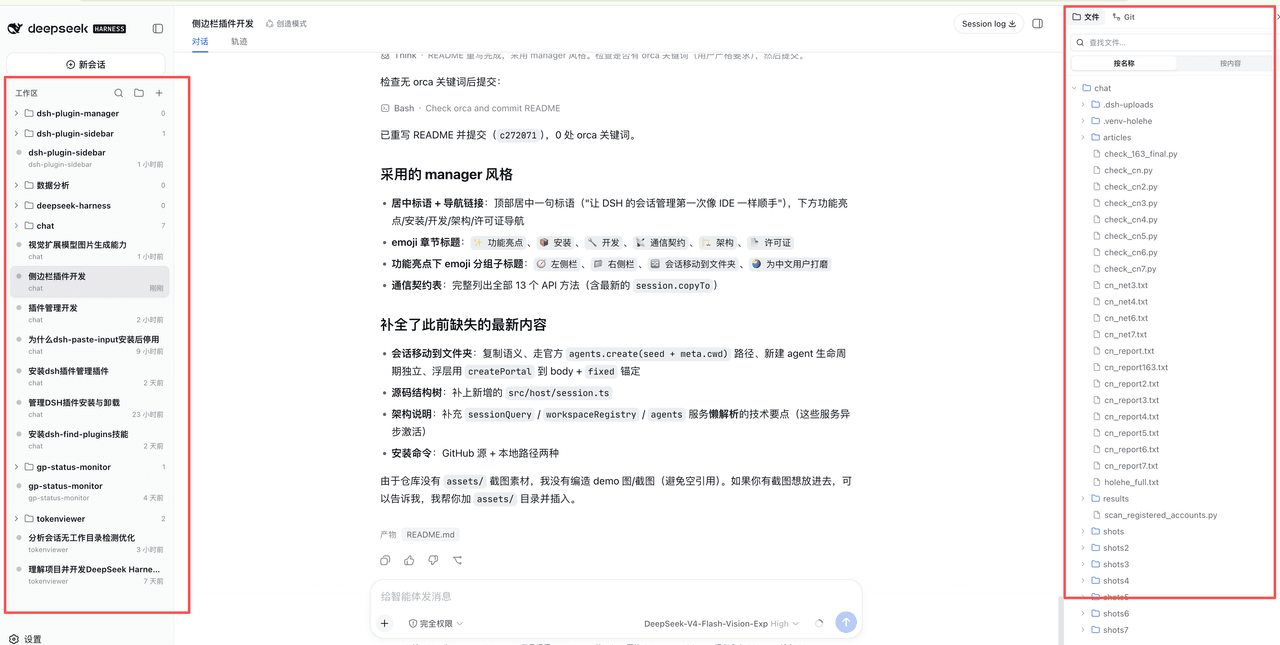 webkong/dsh-plugin-sidebar
🚀 为 DeepSeek Harness 而生的左右侧栏:左侧按工作区浏览会话(状态点/分组/搜索/移动到文件夹),右侧就地浏览文件 + Git 面板(状态/暂存/diff/提交/历史/分支)—— 会话管理像 IDE 一样顺手。
webkong/dsh-plugin-sidebar
🚀 为 DeepSeek Harness 而生的左右侧栏:左侧按工作区浏览会话(状态点/分组/搜索/移动到文件夹),右侧就地浏览文件 + Git 面板(状态/暂存/diff/提交/历史/分支)—— 会话管理像 IDE 一样顺手。
-
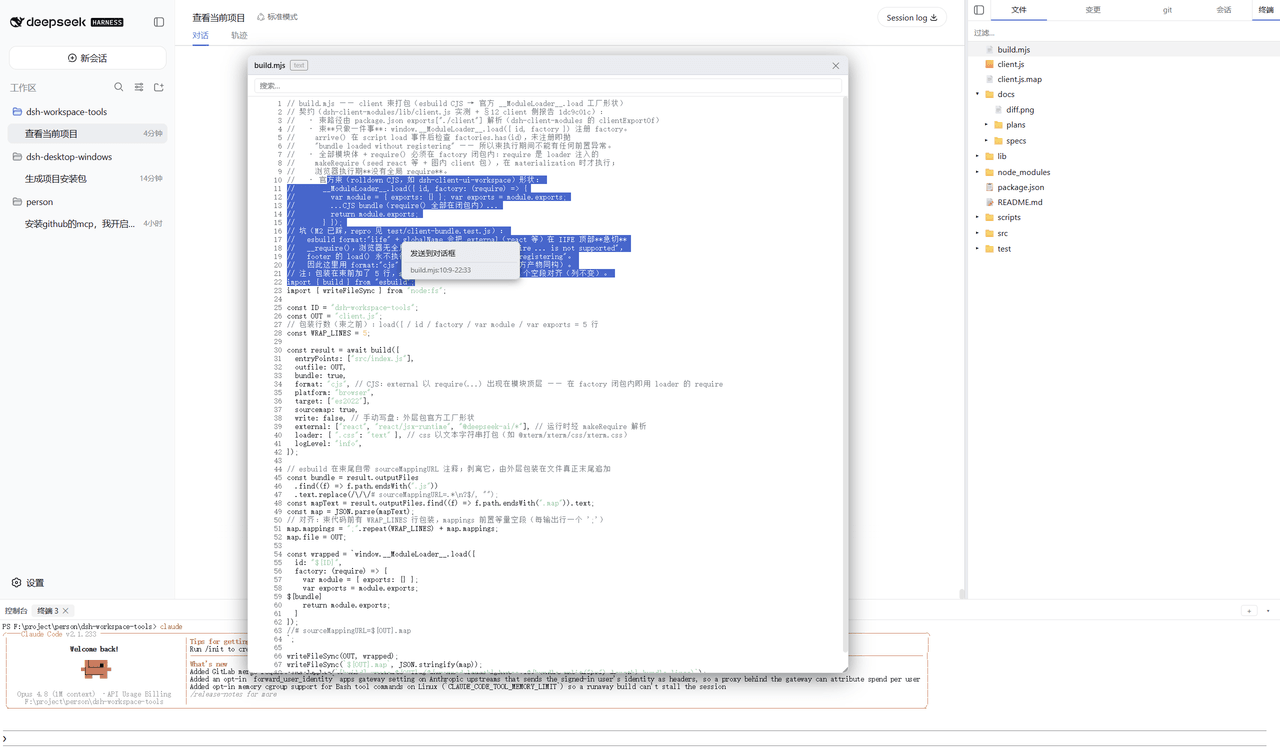 g1998815/dsh-workspace-tools
DSH(DeepSeek Harness) 右侧原生工具侧边栏插件:文件系统浏览器 / Git 变更与 diff / 会话变更 采用·撤回 / PTY 控制台。Windows 直连 node-pty,跟随 DSH 主题,RPC fail-c…
g1998815/dsh-workspace-tools
DSH(DeepSeek Harness) 右侧原生工具侧边栏插件:文件系统浏览器 / Git 变更与 diff / 会话变更 采用·撤回 / PTY 控制台。Windows 直连 node-pty,跟随 DSH 主题,RPC fail-c…
-
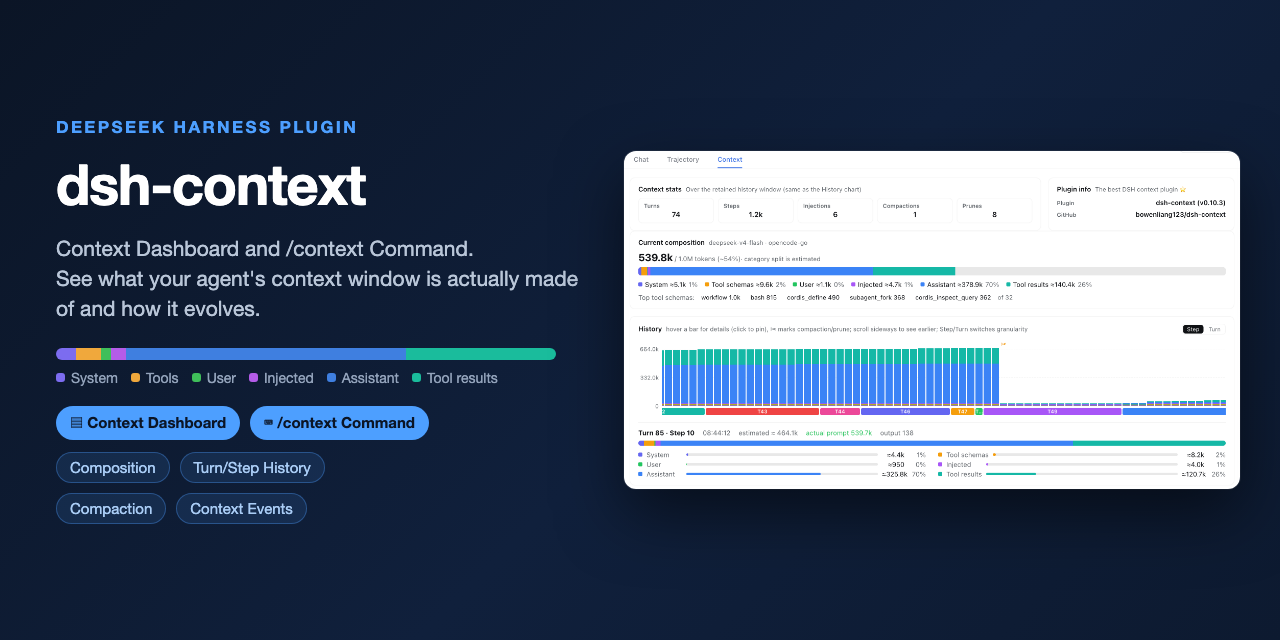 bowenliang123/dsh-context
The best DeepSeek Harness plugin for context insight and management, with context dashboard / browser / sidebar and cont…
bowenliang123/dsh-context
The best DeepSeek Harness plugin for context insight and management, with context dashboard / browser / sidebar and cont…
- antibrow/dsh-antibrow DeepSeek Harness plugin: give your agent a browser with a persistent identity - engine-level fingerprint spoofing, unlim…
-
 csyangwen/dsh-memory-evolve
为 DeepSeek Harness 带来「跨会话长期记忆 + 后台自我进化」能力的纯插件实现:五轨记忆 · git 分支感知 · 回合内自我审查 · 技能自我进化与技能管理器 · 四轨待办 · COI 调度 · 会话广播 · 会话搜索 ·…
csyangwen/dsh-memory-evolve
为 DeepSeek Harness 带来「跨会话长期记忆 + 后台自我进化」能力的纯插件实现:五轨记忆 · git 分支感知 · 回合内自我审查 · 技能自我进化与技能管理器 · 四轨待办 · COI 调度 · 会话广播 · 会话搜索 ·…
-
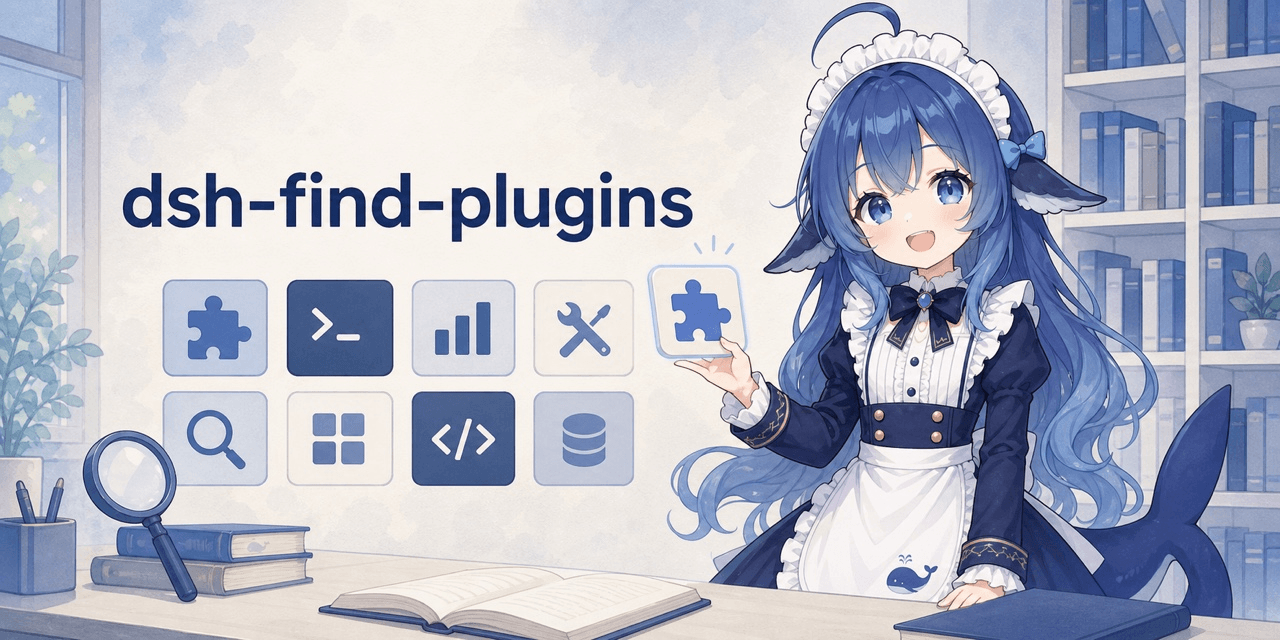 Nagi-ovo/dsh-find-plugins
帮 DSH 搜索、安装并验证插件的 Skill|A DSH skill that finds, installs, and verifies GitHub plugins
Nagi-ovo/dsh-find-plugins
帮 DSH 搜索、安装并验证插件的 Skill|A DSH skill that finds, installs, and verifies GitHub plugins
-
 cocofhu/anime-find
DeepSeek Harness 搜番插件:对话内多源搜索番剧,卡片展示 Bangumi 评分与详情,支持复制磁力。
cocofhu/anime-find
DeepSeek Harness 搜番插件:对话内多源搜索番剧,卡片展示 Bangumi 评分与详情,支持复制磁力。