limuyang2/agent-team
Multi-agent team collaboration for DeepSeek Harness, with independent models, skills, MCP tools, contexts, and a shared workspace.
编辑导读Editor's Brief
## 核心特性
- Agent Team 可在 DeepSeek Harness 内构建由独立 root agents 组成的团队,每个成员保留自己的模型、会话、上下文、权限、推理模式和工具活动。
- 指定的 Leader 负责创建任务、分配成员、跟踪进度、接收状态更新并验证结果,成员则在各自独立的会话中工作。
- 团队成员共享同一个 Workspace,用于文件和 Git diff 预览,但不共享会话历史。
- 助手可以手动创建,也可以通过内置的 Team Agent Assistant 创建,然后从可复用库中一次性或多次添加到团队。
- 工作台可并排显示成员会话,包含流式输出、Markdown、Think 块、工具调用、已加载 Skills、上下文用量、token 统计和缓存命中率。
## 使用场景
- 软件团队可以将规划与验证交给一个 Leader 模型,而负责编码的成员可使用不同的 providers、Skills 和 MCP servers。
- 文档或评审工作流可以将较窄的任务路由给更小或更专用的模型,而不是每个步骤都使用同一个模型。
- 面向 Git 的助手可以以只读权限读取仓库状态和 diff,并在实现工作完成后生成提交信息。
## 技术细节
- 该插件与 DeepSeek Harness 0.1.0-rc.7 集成,并从当前激活的 Profile 读取模型目录,不会存储 provider API keys。
- 它使用通过标准 Harness 接口暴露的 Skills 和 MCP Servers,而安装、更新和生命周期管理仍由其他 Harness 插件处理。
- 安装通过 Harness 插件命令使用 npm 包 @limuyang2/dsh-agent-team,适用于 web Profiles 或 Desktop Profiles。
- 团队数据包含成员加入时的助手快照,运行时权限或推理模式变更会应用于所选成员会话。
## 注意事项
- 该插件需要 Node.js 22.19.0+ 或 24.0.0+、DeepSeek Harness 0.1.0-rc.7,并且 PATH 中可用 pnpm。
- Changes 视图要求所选 Workspace 是 Git 仓库,普通文件夹仍支持文件浏览。
- 编辑助手不会热更新现有团队成员,已移除或已解散的会话可能会在 Harness 存储中保留旧日志。
## Core Features
- Agent Team builds teams of independent root agents inside DeepSeek Harness, with each member keeping its own model, session, context, permissions, reasoning mode, and tool activity.
- A designated Leader creates tasks, assigns members, tracks progress, receives status updates, and verifies results while members work in separate conversations.
- Team members share the same Workspace for files and Git diff preview, but they do not share conversation history.
- Assistants can be created manually or through the built-in Team Agent Assistant, then added to teams once or multiple times from a reusable library.
- The workbench shows member conversations side by side with streaming output, Markdown, Think blocks, tool calls, loaded Skills, context usage, token statistics, and cache hit rate.
## Use Cases
- A software team can assign planning and verification to one Leader model while coding members use different providers, Skills, and MCP servers.
- A documentation or review workflow can route narrow tasks to smaller or specialized models instead of using the same model for every step.
- A Git-focused assistant can read repository status and diffs with read-only permissions and produce commit messages after implementation work completes.
## Technical Details
- The plugin integrates with DeepSeek Harness 0.1.0-rc.7 and reads the model catalog from the active Profile without storing provider API keys.
- It uses Skills and MCP Servers exposed through standard Harness interfaces, while installation, updates, and lifecycle management remain handled by other Harness plugins.
- Installation uses npm package @limuyang2/dsh-agent-team through the Harness plugin command for web Profiles or Desktop Profiles.
- Team data includes assistant snapshots when members join, and runtime permission or reasoning changes apply to the selected member session.
## Notes
- The plugin requires Node.js 22.19.0+ or 24.0.0+, DeepSeek Harness 0.1.0-rc.7, and pnpm available on PATH.
- The Changes view requires the selected Workspace to be a Git repository, while normal folders still support file browsing.
- Editing an assistant does not hot-update existing team members, and removed or dissolved sessions may leave old logs in Harness storage.
安装Install
npx @deepseek-ai/dsh plugin --profile web add @limuyang2/dsh-agent-team把 limuyang2/agent-team 加入你的 DSH 配置(web profile)即可启用。
READMEREADME
Agent Team for DeepSeek Harness
English | 简体中文


Current release: 0.1.3
Build teams of independent AI agents inside DeepSeek Harness. Mix models and providers, assign one Leader, and let every member work in its own conversation while sharing the same Workspace.
Agent Team does not turn members into subagents. Every member is an independent root agent with its own model, session, context, permissions, reasoning mode, and tool activity. Team tasks, messages, and the shared Workspace provide the collaboration layer.
Why Independent Agents Instead of One Overloaded Agent?
Agent Team is designed around a simple idea: give specialized work to a specialized agent.
A common parent/subagent workflow reuses or inherits much of the parent runtime configuration. That is convenient, but it can make every task carry the same expensive model, broad tool catalog, and growing context. A small commit-message task, for example, may still run through the same high-capability model used for architecture and implementation.
Agent Team lets every member have an explicit, focused configuration:
| Concern | Common parent/subagent setup | Agent Team |
|---|---|---|
| Model | Often reuses the parent model or one shared model policy | Choose a different provider and model for every member |
| Skills and MCP | A broad catalog may be inherited or exposed everywhere | Give each role only the Skills and MCP Servers it needs |
| Context | Planning, execution, tool output, and results accumulate together | Every member has an isolated Session and context window |
| Cost | Simple work may still consume an expensive general model | Route routine work to smaller or specialized models |
| Permissions | One broad permission policy can spread across the workflow | Set least-privilege defaults and runtime permissions per member |
This separation keeps the Leader focused on planning and verification, keeps specialists focused on execution, reduces irrelevant tool choices, and prevents one agent's context from growing with every detail produced by the whole team. Members send tasks, progress, and results explicitly instead of sharing an ever-expanding conversation.
Subagent behavior varies by framework. The comparison above describes the common parent-inherited pattern; Agent Team's advantage is that model, tools, permissions, and context isolation are explicit product-level choices for every member.
Example: Use the Right Model for Each Job
Consider a software development team with three specialized members:
| Role | Model | Focused configuration |
|---|---|---|
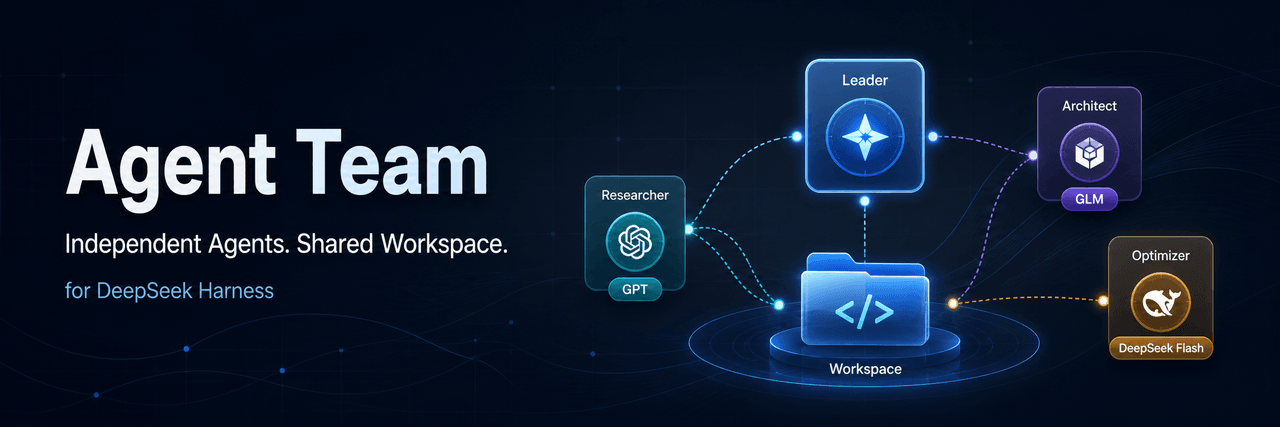
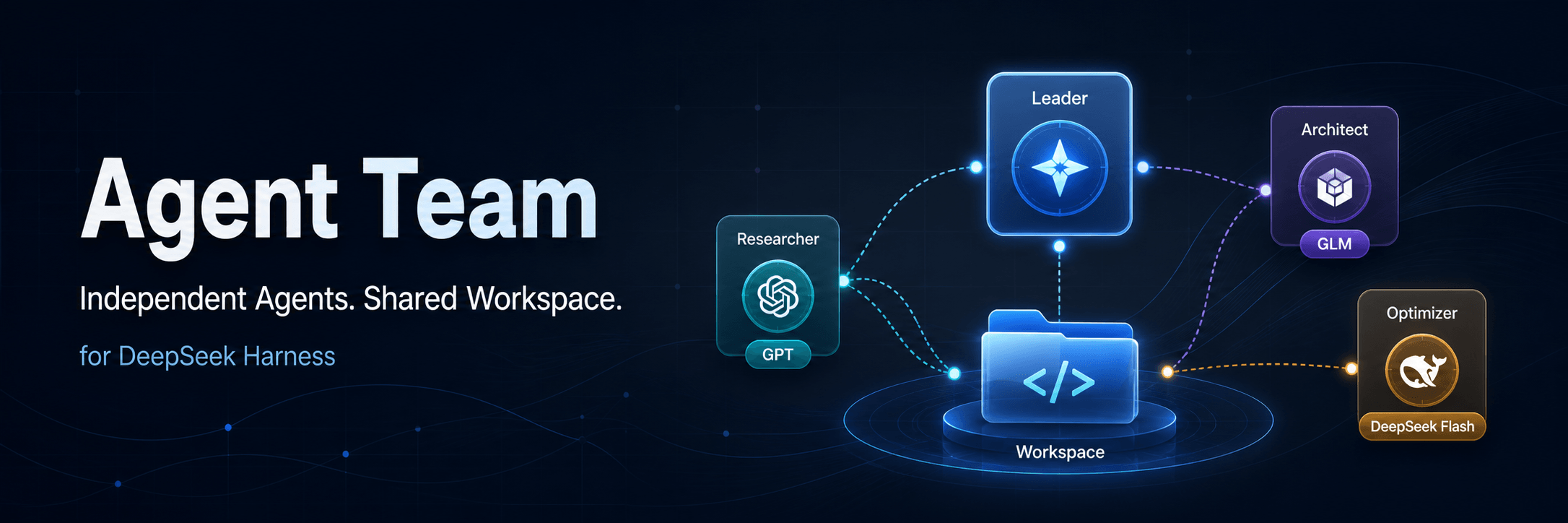
| Architecture Leader | GPT | Understand the requirement, design the solution, split work, coordinate members, and verify results |
| Coding Agent | GLM | Load coding Skills and development MCP tools, modify the Workspace, and run tests |
| Commit Assistant | DeepSeek Flash | Read Git status and diffs, then generate a Conventional Commit message with read-only permission |
The GPT Leader spends its context on decisions and verification instead of every implementation detail. GLM receives the codebase context and tools required for execution. DeepSeek Flash handles the narrow commit task quickly without paying for the Leader's higher-capability model or loading the coding agent's large tool catalog.
The collaboration flow is explicit:
User goal → GPT Leader plans and assigns work
          → GLM Coding Agent implements and reports test results
          → GPT Leader verifies the result
          → DeepSeek Flash Commit Assistant summarizes the Git diff
What You Can Do
- Create reusable assistants for planning, coding, testing, review, documentation, or any other role.
- Mix providers and models in one team—for example, a Codex Leader with GLM coding members.
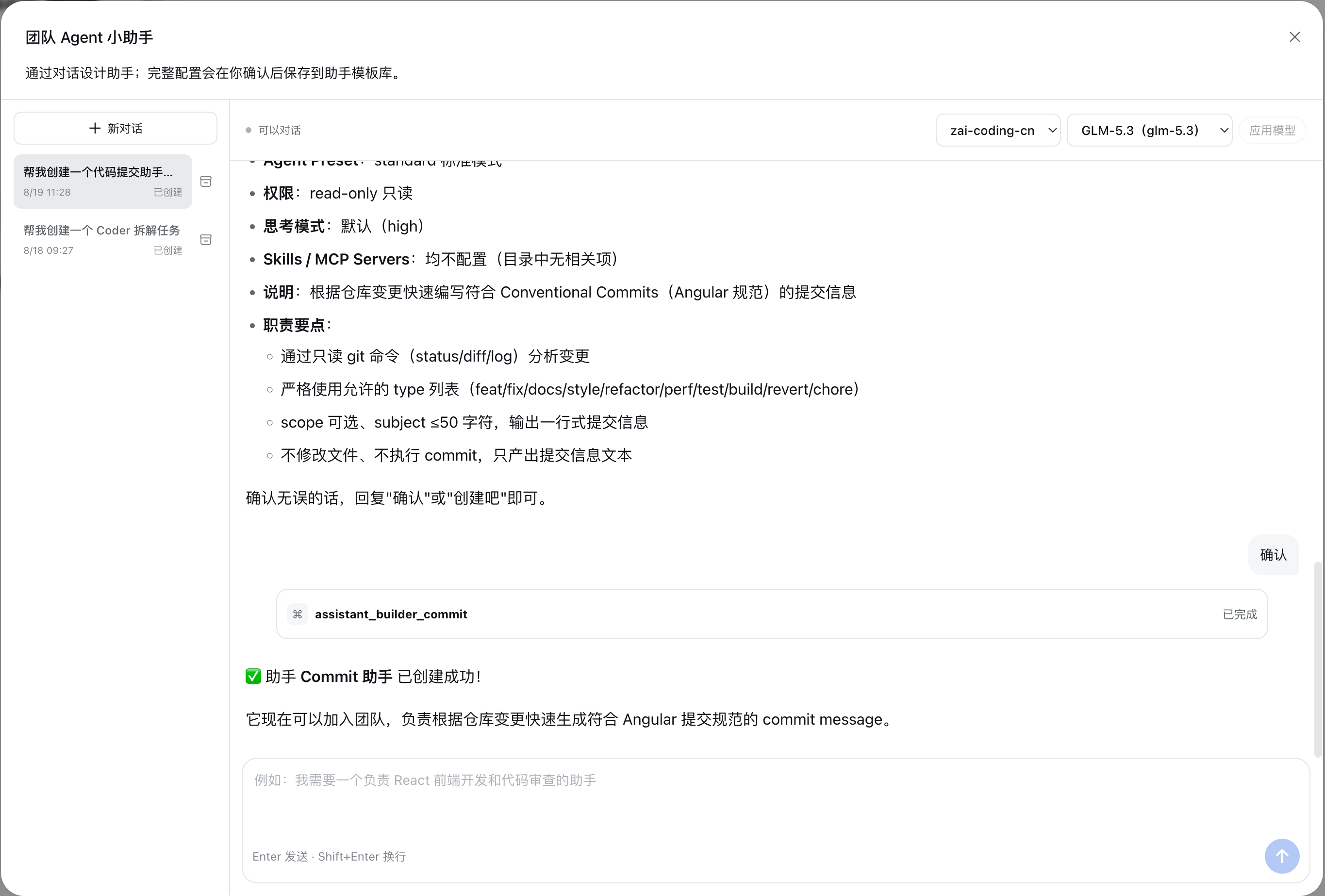
- Create assistants manually or describe a role to the built-in Team Agent Assistant.
- Add the same assistant more than once; every selection becomes an independent team member.
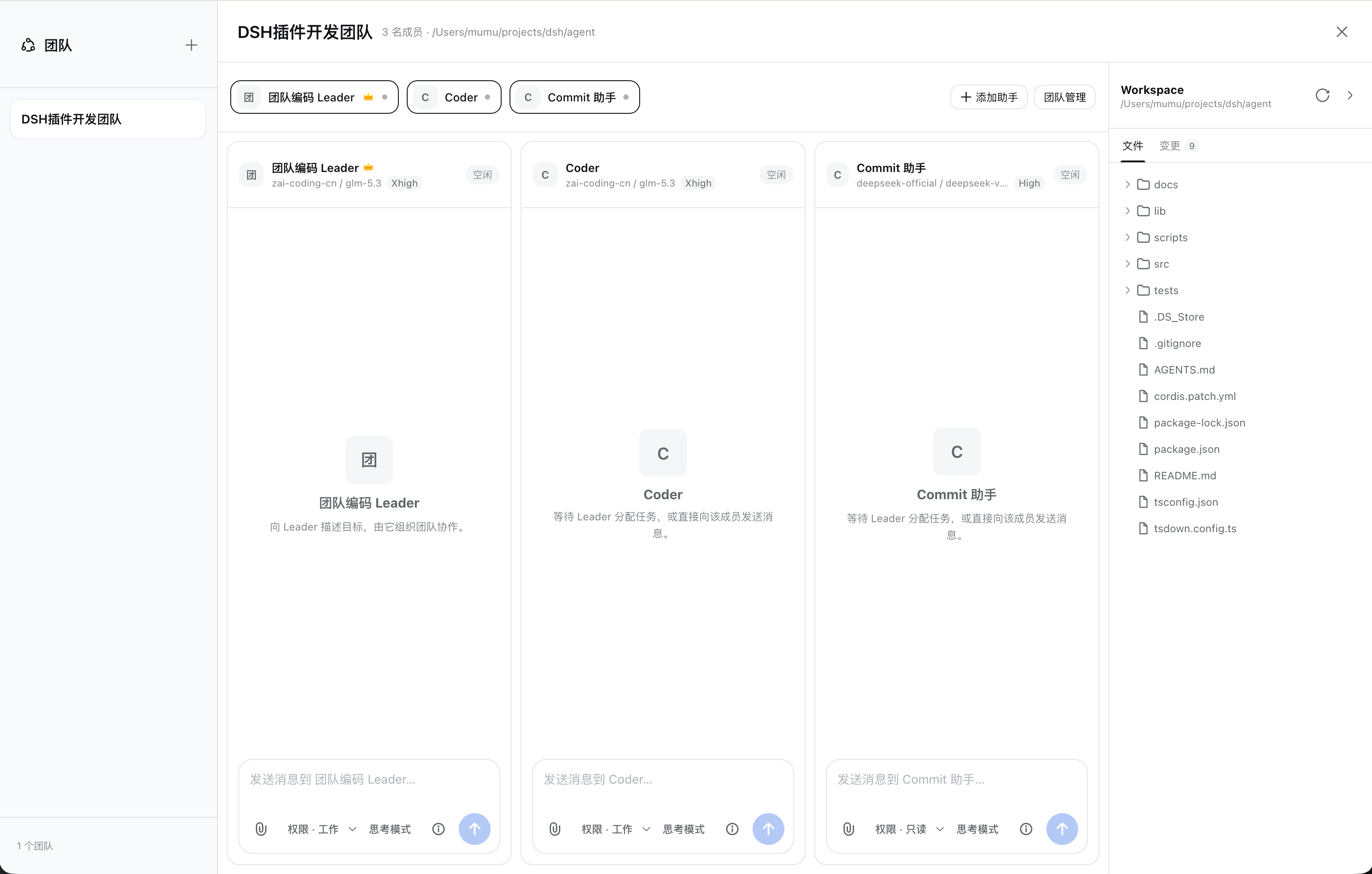
- Watch all members side by side with streaming output, Markdown, Think blocks, and tool calls.
- Let the Leader create tasks, assign members, track progress, and collect results.
- Send messages directly to the Leader or, when enabled, to regular members.
- Change a member's permission preset and reasoning mode for the current session.
- Inspect loaded Skills, context usage, token statistics, and cache hit rate.
- Browse shared Workspace files and preview Git changes and diffs.
- Add or remove members, change the Leader, reset all contexts, or dissolve a team.
Screenshots
Create an Assistant by Conversation
Describe the role you need. The built-in assistant collects missing settings, prepares the long-term instructions, and creates the assistant only after your confirmation.
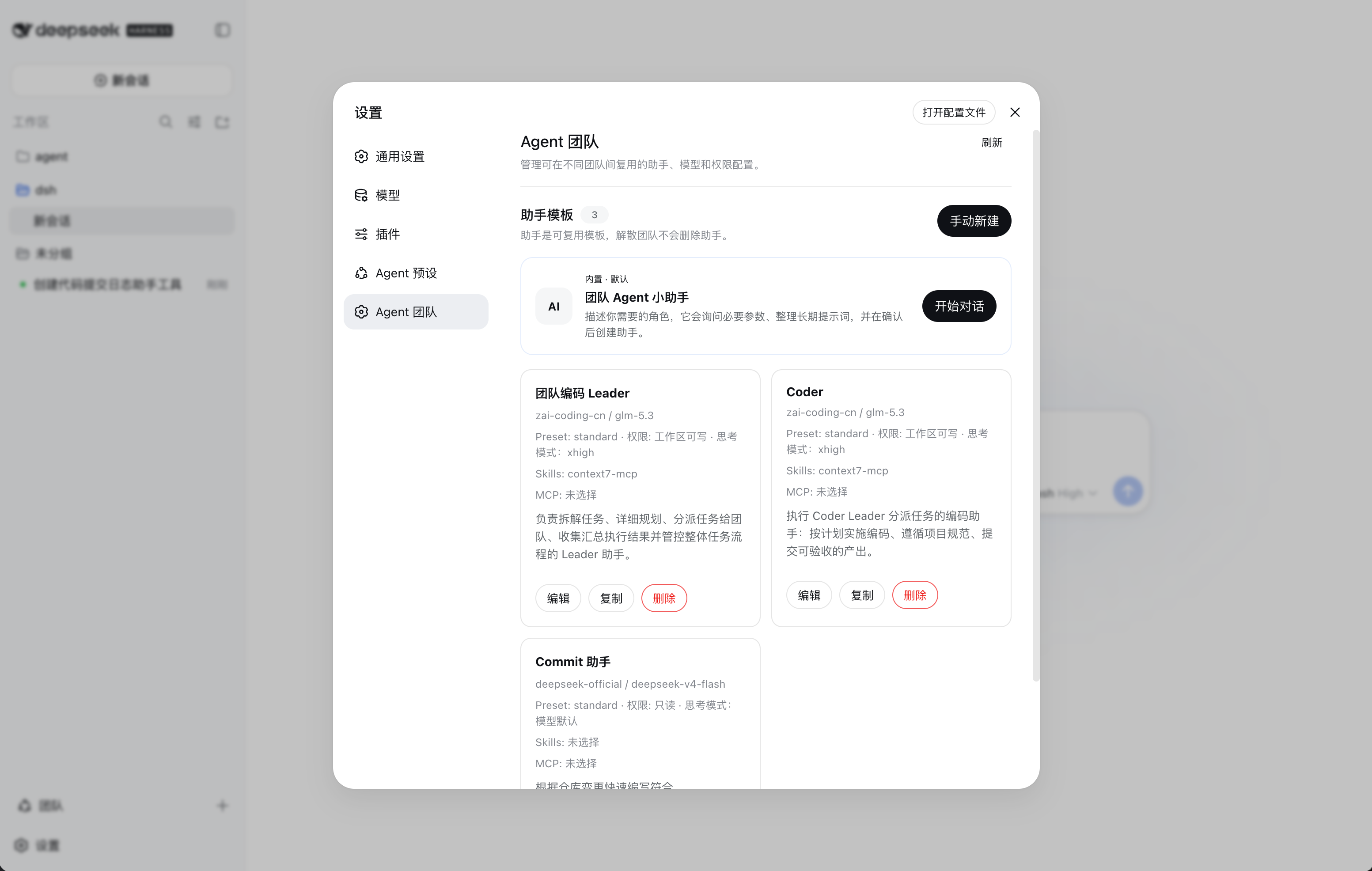
Reusable Assistant Library
Manage assistants under Settings → Agent Team. Each assistant can use a different provider, model, preset, default permission, reasoning mode, Skills, MCP Servers, and role instructions.
Skills and MCP scope: Agent Team uses Skills and MCP Servers exposed through the standard DeepSeek Harness interfaces. This plugin does not provide installation, updates, or lifecycle management for Skills or MCP Servers. Install the appropriate Harness plugins to manage those resources first; Agent Team only lets an assistant select and use the resources already available in the active Profile.
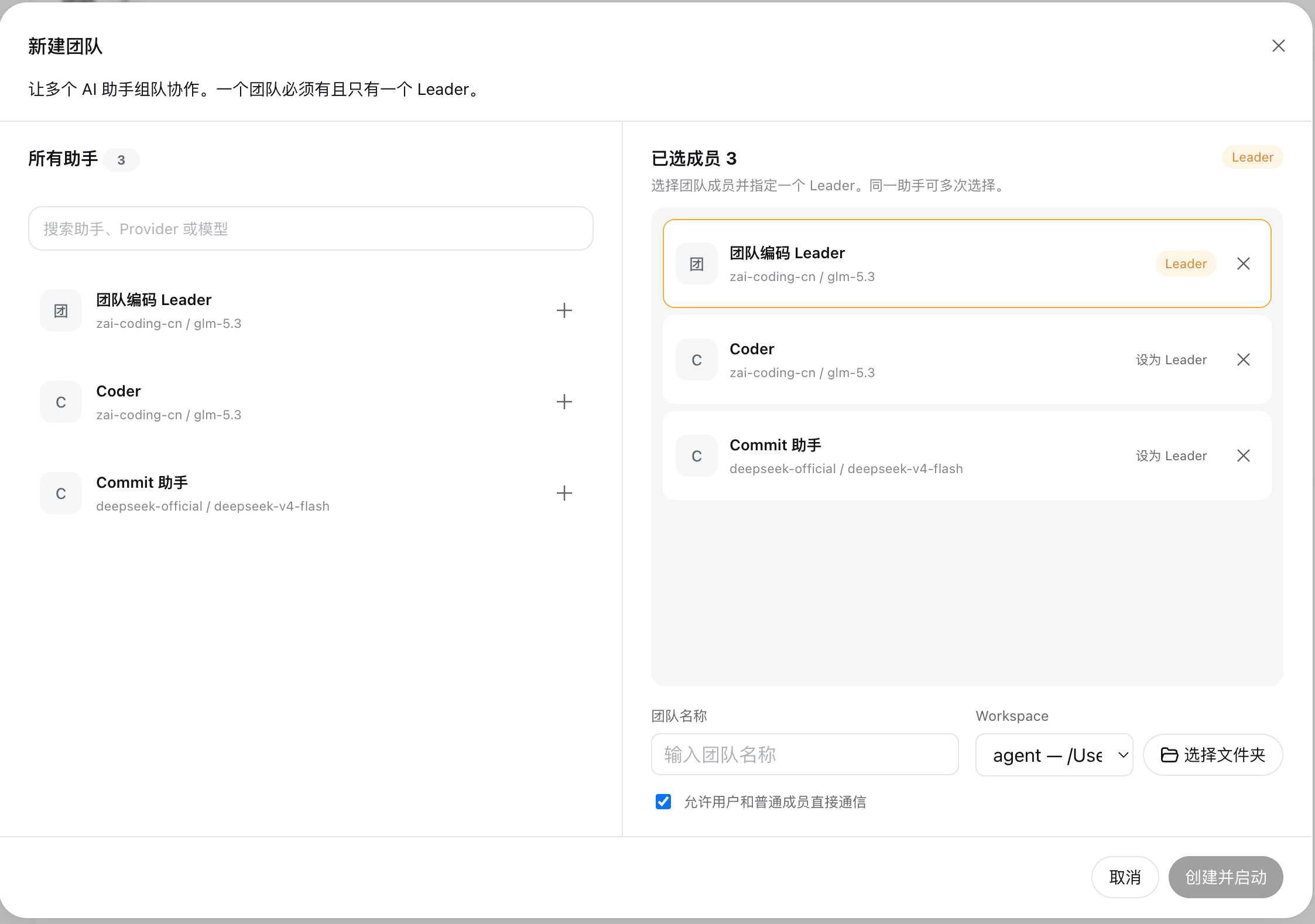
Build a Team
Select members, assign exactly one Leader, choose a Workspace, and decide whether direct communication with regular members is allowed.
Floating Team Launcher
A compact floating button opens the full-screen Team workbench without competing with sidebar extensions from other Harness clients. Hover over it or drag it to reveal the label. Drop it at either screen edge to collapse it toward that edge; the last position is remembered locally. Create teams and switch between them from the workbench navigator.

Requirements
- Node.js
22.19.0+or24.0.0+ - DeepSeek Harness
0.1.0-rc.7 pnpmavailable onPATH(Harness uses it to manage Profile plugins)
Install pnpm if necessary:
npm install -g pnpm
Installation
DeepSeek Harness Web
Install Agent Team into the Harness web Profile:
npx @deepseek-ai/dsh plugin --profile web add @limuyang2/dsh-agent-team
Start Harness:
npx @deepseek-ai/dsh web
Open the URL printed by Harness, normally http://127.0.0.1:3080/. Restart Harness after installing or replacing the plugin.
DeepSeek Harness Desktop
Install the exact Agent Team release into the Profile managed by DeepSeek Harness Desktop:
dsh plugin add --save-exact @limuyang2/dsh-agent-team@0.1.3
Quit and reopen DeepSeek Harness Desktop after the command completes. --save-exact keeps the Desktop Profile pinned to the tested plugin version instead of automatically moving to a newer release.
Uninstallation
Stop Harness with Ctrl+C, then remove Agent Team from the web Profile:
npx @deepseek-ai/dsh plugin --profile web remove @limuyang2/dsh-agent-team
Restart Harness after the command completes. Removing the plugin does not modify DeepSeek Harness source code or delete files from your team Workspaces.
Quick Start
1. Configure Models in Harness
Configure the providers, models, and credentials you want to use in Harness first. Agent Team reads the model catalog from the active Profile and never stores provider API keys.
Tip: enable Thinking Mode for GLM-5.3
Add the following configuration to
~/.dsh/settings.yaml. It exposes the available reasoning levels for GLM-5.3 and setshighas the Provider default:llm-pi-ai: providers: zai-coding-cn: reasoning: high modelOverrides: glm-5.3: reasoningEfforts: off: minimal: minimal low: low medium: medium high: high xhigh: xhigh max: max compat: thinkingFormat: zai supportsReasoningEffort: trueMerge this block into an existing
llm-pi-aisection instead of adding a second one. If your ZAI Provider uses a different ID, replacezai-coding-cn. Restart Harness, then select the desired Thinking Mode from the assistant conversation toolbar; that runtime selection overrides the Provider default for the conversation.
2. Create Assistants
Open Settings → Agent Team and choose one of the following:
- Start Conversation to design an assistant through chat.
- Create Manually to configure all fields directly.
A practical first team usually contains:
- A Leader that understands goals, plans work, delegates tasks, and verifies results.
- One or more members focused on implementation, testing, review, or documentation.
3. Create a Team
Click the floating Team button, then click + in the workbench navigator:
- Add assistants from the list. You may add the same assistant multiple times.
- Select exactly one member as the Leader.
- Enter a team name and choose a Workspace.
- Choose whether users may chat directly with regular members.
- Click Create and Start.
The team starts automatically and opens in the full-screen workbench.
4. Give the Leader a Goal
Send the complete objective to the Leader. The Leader can split it into tasks, assign members, receive progress updates, and verify the final output. You can also talk to an individual member directly when the team policy allows it.
Workbench Guide
Each visible column is a real, independent Harness session.
- Member tabs: show or hide conversations. Hover a non-Leader tab to remove that member.
- Conversation header: shows role, provider, model, reasoning mode, and live status. Double-click it to enlarge the conversation.
- Composer: send messages, attach local files, mention Workspace files, stop generation, and change runtime settings.
- Permission: applies to the selected member's current session. The assistant template only supplies the initial default.
- Reasoning mode: applies from the next turn and only shows options supported by the selected model.
- Info: displays the Skills loaded for the member.
- Context ring: displays context usage, input/output tokens, and cache hit rate.
- Workspace: browse files, refresh manually, watch file changes, and preview Git diffs.
Team Collaboration
The Leader and members communicate through explicit team tools and messages:
- The Leader creates tasks and assigns them to member instances.
- Assigned members receive the task in their own session.
- Members report running, completed, or failed status with a result.
- Status and result updates automatically reach the Leader.
- Members can send direct team messages when clarification is needed.
- Membership changes are delivered to the Leader with stable member IDs.
Members share a Workspace, but they do not share conversation history. This keeps roles and model contexts isolated while allowing them to work on the same files.
Team Management
- Add member: starts a new independent member from an assistant snapshot and notifies the Leader.
- Remove member: stops and archives that member's session, removes it from the team, and notifies the Leader.
- Change Leader: changes the role without replacing the member's current session.
- Clear tasks and context: stops all members, clears team tasks and queued messages, and gives every remaining member a new session. Team settings and Workspace files stay unchanged.
- Dissolve team: permanently removes the team, its tasks, and team messages. Assistant templates and Workspace files are not deleted.
Assistant settings are snapshotted when a member joins a team. Editing an assistant later does not hot-update existing members; remove and add the member again to apply the new configuration.
Important Behavior
- The assistant's permission setting is only the member's initial default.
- Reasoning options come from Harness model capabilities; unsupported options are not invented by the plugin.
- MCP credentials remain in the Harness Profile. Assistant templates only store allowed server names.
- Files selected from outside the Workspace are copied to
.agent-team/uploads/so agents can access them reliably. - The Changes view requires a Git Workspace. Normal folders still support file browsing.
- Harness currently has no public API for physically deleting one session log. Reset or dissolved sessions are no longer restored or used by Agent Team, but old logs may remain in Harness storage.
Troubleshooting
pnpm not found on PATH
Run npm install -g pnpm, verify pnpm --version, and install the plugin again.
Port 3080 is already in use
Another Harness process is already running. Stop the old process with Ctrl+C, then run npx @deepseek-ai/dsh web again.
A model or reasoning option is missing
Refresh the assistant catalog and verify the model configuration in Harness. Reasoning modes only appear when the provider reports that capability.
An assistant cannot be deleted
The assistant is still referenced by a team member. Remove those members or dissolve the related teams first.
No Git changes are displayed
Confirm that the selected Workspace itself is a Git repository. A repository nested inside a non-Git Workspace is not treated as the Workspace repository.
User Documentation
The detailed user guide is available in Chinese:
- Documentation index
- Installation and startup
- Assistant library
- Creating teams
- Workbench and collaboration
- Workspace and Git changes
- Team management
- Troubleshooting
Links
License
MIT
相关推荐Related
- deepseek-ai/deepseek-harness DeepSeek Harness (dsh) — 由 DeepSeek AI 开发的开源 agent harness(智能体框架)。一切皆插件:核心 + 插件 + 技能 = 可热插拔的 AI 编程工作台。DeepSeek Harness: …
-
 amruthpillai/reactive-resume
A one-of-a-kind resume builder that keeps your privacy in mind. Completely secure, customizable, portable, open-source a…
amruthpillai/reactive-resume
A one-of-a-kind resume builder that keeps your privacy in mind. Completely secure, customizable, portable, open-source a…
-
 tt-a1i/archify
Agent skill for beautiful, verifiable architecture, workflow, sequence, data-flow, and lifecycle diagrams—self-contained…
tt-a1i/archify
Agent skill for beautiful, verifiable architecture, workflow, sequence, data-flow, and lifecycle diagrams—self-contained…
-
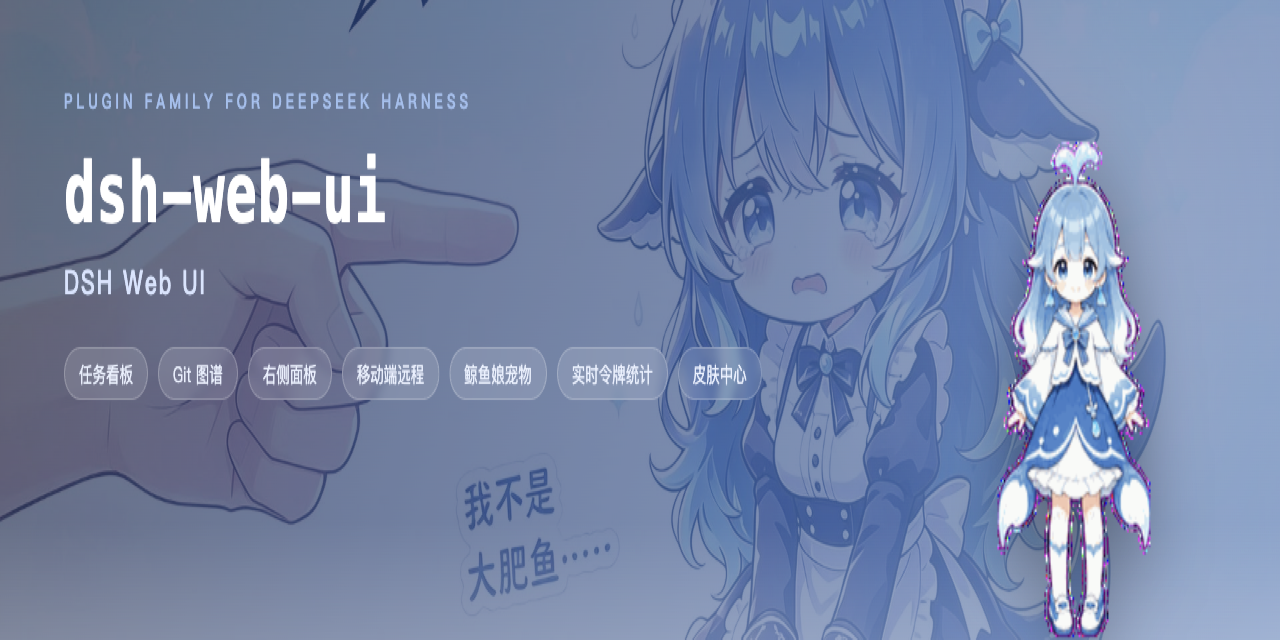 zhu1090093659/dsh-web-ui
Plugin and skin collection for DeepSeek Harness (DSH) Web UI - task board, git graph, right-side panel, remote mobile UI…
zhu1090093659/dsh-web-ui
Plugin and skin collection for DeepSeek Harness (DSH) Web UI - task board, git graph, right-side panel, remote mobile UI…
-
 strukto-ai/mirage
The World's First Unified Virtual Filesystem For AI Agents
strukto-ai/mirage
The World's First Unified Virtual Filesystem For AI Agents
-
 liustack/modlens
The first vision plugin for DeepSeek Harness, and the vision bridge for every text-only coding agent. Paste an image, ge…
liustack/modlens
The first vision plugin for DeepSeek Harness, and the vision bridge for every text-only coding agent. Paste an image, ge…
-
 omdsh-dev/DSH-better-sidebar
开放的侧边栏底座,支持三方拓展注册新侧边栏页面。内置文件渲染编辑/终端/Git/子代理页面 | Open sidebar foundation, supports third-party extensions to register new…
omdsh-dev/DSH-better-sidebar
开放的侧边栏底座,支持三方拓展注册新侧边栏页面。内置文件渲染编辑/终端/Git/子代理页面 | Open sidebar foundation, supports third-party extensions to register new…
-
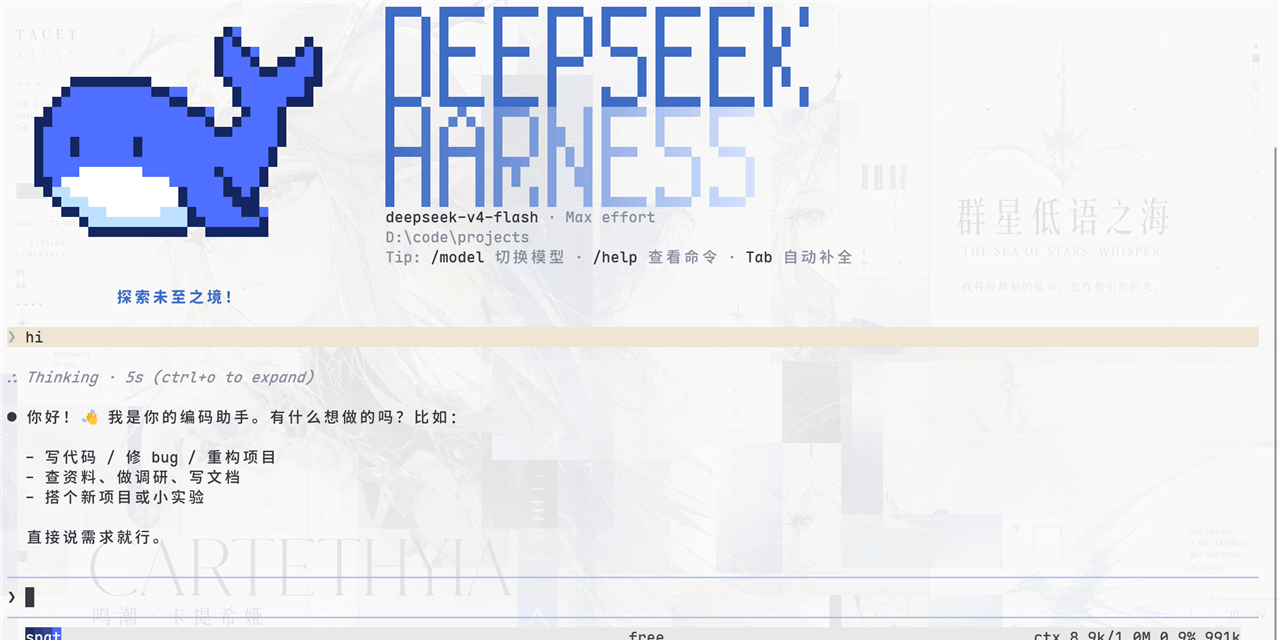 ccch1mneyyy/dsh-TUI
DSH 官方公众号收录的 TUI 补位插件:Claude Code 风,鲸鱼顶栏/实时状态/流式思考/双击 Esc 回滚/上下文进度+TPS。npm 一键装。 DSH official WeChat featured TUI plugin…
ccch1mneyyy/dsh-TUI
DSH 官方公众号收录的 TUI 补位插件:Claude Code 风,鲸鱼顶栏/实时状态/流式思考/双击 Esc 回滚/上下文进度+TPS。npm 一键装。 DSH official WeChat featured TUI plugin…