HarcoChen/dsh-intellij-integration
DeepSeek Harness (DSH) for JetBrains IDEs — AI coding with native diffs, tool approvals, sessions, Trace analysis, and balance tracking. | IntelliJ IDEA / PyCharm AI 编程助手:原生 Diff、工具审批、会话与 Trace 分析。
Project Overview项目介绍
This is a community third-party plugin that brings DeepSeek Harness to JetBrains IntelliJ Platform IDEs. It lets you chat with code, review agent-proposed changes natively, and track tasks. Use it for code explanation, debugging, and code review. Requires IntelliJ Platform 2024.3+ with JCEF support.
这是适用于JetBrains系列IDE的DeepSeek Harness社区第三方插件,支持在IDE内与代码对话、原生预览AI代理修改差异、追踪任务运行,适合在编码同时完成代码解释、错误排查、变更审查,需要2024.3+版本的IntelliJ平台并支持JCEF。
请帮我了解并安装插件:【dsh-intellij-integration】【https://github.com/HarcoChen/dsh-intellij-integration】Send this message to DSH in your current session. CLI install commands may not be accurate across systems — DSH will figure it out for you.把上面这条消息直接发给当前会话里的 DSH,让它帮你了解并安装。安装命令不一定准确,发给 DSH 更稳。
Or use CLI install (for developers)或使用命令行安装(适合开发者)
CLI Install命令行安装
dsh plugin --profile web add github:HarcoChen/dsh-intellij-integration把 HarcoChen/dsh-intellij-integration 加入你的 DSH 配置(web profile)即可启用。
READMEREADME

DeepSeek Harness for JetBrains IDEs
Bring DeepSeek Harness into JetBrains IDEs — chat with your code, review native diffs, and inspect every run.
English | 简体中文




Install plugin · Releases · Feedback · VS Code edition
An independent community plugin for IntelliJ IDEA, PyCharm, and other IntelliJ Platform IDEs. Explain unfamiliar code, investigate a bug, or review a change from the same place you write it.
Quick start
- Install — in Settings → Plugins → Marketplace, search for DeepSeek Harness Integration, or open the Marketplace page. Restart the IDE if prompted.
- Connect — open a project and the DSH tool window. For local startup, have Node.js and
pnpmornpm/npxavailable. The plugin starts the Runtime automatically by default. Configure the launch command or an existing Runtime's Server URL in Settings → Tools → DeepSeek Harness. - Configure credentials — find DSH: Configure API Key via Find Action. Restart the local Runtime after changing the key so it receives the new value. An existing external Runtime uses its own credentials.
- Try it — select a function, right-click DSH → Explain Selection, or ask a question in the chat. Inspect tool cards and proposed diffs when an approval is requested.
Requires: IntelliJ Platform 2024.3+ with JCEF (the embedded browser). The build targets IntelliJ IDEA Community and PyCharm Community 2024.3.6 for compatibility verification. Other IntelliJ Platform IDEs need the same platform APIs and JCEF support.
From question to reviewed change
| What you want to do | What DSH brings into your IDE |
|---|---|
| Understand or improve code | Explain, fix, review, and document selected code from the editor's context menu. |
| Inspect an agent's edits | Open supported tool diff cards in JetBrains' native side-by-side viewer, including proposed changes awaiting approval. |
| Keep track of a task | Chat history, session switching, tool cards, and runtime status in the DSH tool window. |
| Understand a run | Built-in Trace analysis for inspecting session events and tool activity. |
| Watch usage | A status-bar balance indicator with DeepSeek pricing information when available. |
| Resume across editors | Reuse a compatible local Harness Runtime across IDE windows and the companion VS Code extension. |
Native diffs, even without Git
Review file edits in the IDE's own diff viewer. For supported tool diff cards, DSH reconstructs before/after content from session history, so the preview does not depend on a Git repository. Proposed edits can be previewed before approval. If later file changes make reconstruction unreliable, the plugin reports that instead of showing a misleading comparison.
Put the right context into the conversation
Use DSH: Ask About Selection for an open-ended question, or the DSH context menu for explain / fix / review / documentation tasks. The context picker also supports attaching the current unstaged Git diff. Editor context is bounded by the configurable byte limit.
Plan before implementing
Use the composer's Plan toggle or /plan to enter plan mode; /plan off leaves it.
The toggle changes the session mode without sending a task or consuming attached IDE context.
When the agent submits a plan for review, approve it or provide feedback with Continue planning.
The subagent tree and preview show active and completed execution time when the Runtime supplies it.
Keep the Runtime close to your tools
The plugin manages local Runtime startup, shutdown, and restart, with pnpm, an installed dsh, and npx launch options. Package-manager launches use the configured Runtime version. You can also connect to an existing Runtime or open its Web UI in a browser.
API keys are stored in IntelliJ Password Safe and passed to a newly started local Runtime. The UI includes English and Simplified Chinese resources.
Configuration
Open Settings | Tools | DeepSeek Harness.
| Setting | Default | What it does |
|---|---|---|
| Command / Args | pnpm dlx @deepseek-ai/dsh@0.1.2-rc.1 web --no-open |
How the Runtime is launched; point it at an installed dsh or a local checkout instead. |
| Server URL / Port | "" / 0 |
Prefer an already running DSH Runtime; port 0 selects an available port for local startup. |
| Auto start | true |
Start or connect to the Runtime when the project opens. |
| Runtime version | 0.1.2-rc.1 |
Locked version of the managed Remote protocol. |
| npm registry | https://registry.npmmirror.com |
Registry mirror used as a download fallback. |
| Timeouts | 30s startup, 600s request |
How long to wait for startup and individual RPC calls. |
| Context bytes | 120000 |
Maximum UTF-8 bytes of <ide_context> included per prompt. |
| API key env | DEEPSEEK_API_KEY |
Environment variable the stored key is injected as. |
Troubleshooting
| Symptom | Where to start |
|---|---|
| Runtime does not start | Run DSH: Diagnose Environment and DSH: Open Runtime Logs via Find Action; check the command and package manager in settings. |
| Chat reports JCEF is unavailable | Use an IDE runtime with JCEF. The fallback panel provides a browser entry point. |
| A changed API key is not taking effect | Restart the local Runtime. For an external Runtime, update its credentials directly. |
Install from a release or build locally
Download the plugin .zip from GitHub Releases, then choose Settings → Plugins → ⚙ → Install Plugin from Disk…. Select the archive without unpacking it.
To build from source, use JDK 21 and the included Gradle wrapper:
./gradlew format         # apply the repository's Java formatting rules
./gradlew lint           # verify formatting and run Checkstyle
./gradlew verifyPlugin   # structure and compatibility checks
./gradlew buildPlugin    # produce the installable zip
On Windows, use gradlew.bat. The first build downloads Gradle and the IntelliJ Platform dependencies.
Data use and privacy
The plugin does not collect telemetry. Prompts and attached context are sent through the DSH Runtime to your configured model provider; that provider's terms and privacy policy apply. API keys stored by the plugin remain in IntelliJ Password Safe and are passed to newly started local Runtime processes.
Feedback and contributing
Report a bug or suggest a feature. For bugs, include your IDE and plugin versions, OS, Runtime version, and reproduction steps. Remove API keys and private code from any logs you share. Documentation improvements and focused pull requests are welcome; see repository rules before contributing.
If DSH helps your workflow, a GitHub star helps others discover it. For release history and attribution, see Releases and Third-party notices.
This community project is not endorsed or maintained by DeepSeek or JetBrains. Licensed under MIT.
Related相关推荐
-
 slywalker2006/dsh-passwords
Server-grade gateway that turns DeepSeek Harness into a multi-tenant platform: remote access + auto HTTPS, subuser permi…
slywalker2006/dsh-passwords
Server-grade gateway that turns DeepSeek Harness into a multi-tenant platform: remote access + auto HTTPS, subuser permi…
-
 Rianico/dsh-better-edit
Hash-anchored read/edit/undo_last_edit tools for DeepSeek Harness (dsh), fewer token consumption, lower cost.
Rianico/dsh-better-edit
Hash-anchored read/edit/undo_last_edit tools for DeepSeek Harness (dsh), fewer token consumption, lower cost.
-
 Make0209/dsh-usage-stats
DeepSeek Harness 插件:GitHub 风格用量热力图 + Token / 缓存命中 / 账户余额看板 + 工作区别名管理。
Make0209/dsh-usage-stats
DeepSeek Harness 插件:GitHub 风格用量热力图 + Token / 缓存命中 / 账户余额看板 + 工作区别名管理。
-
 ai-shushu/dsh-quota-meter
Per-session quota meter for DSH: real-token billing, live progress bar, budget blocking, configurable multi-model pricin…
ai-shushu/dsh-quota-meter
Per-session quota meter for DSH: real-token billing, live progress bar, budget blocking, configurable multi-model pricin…
-
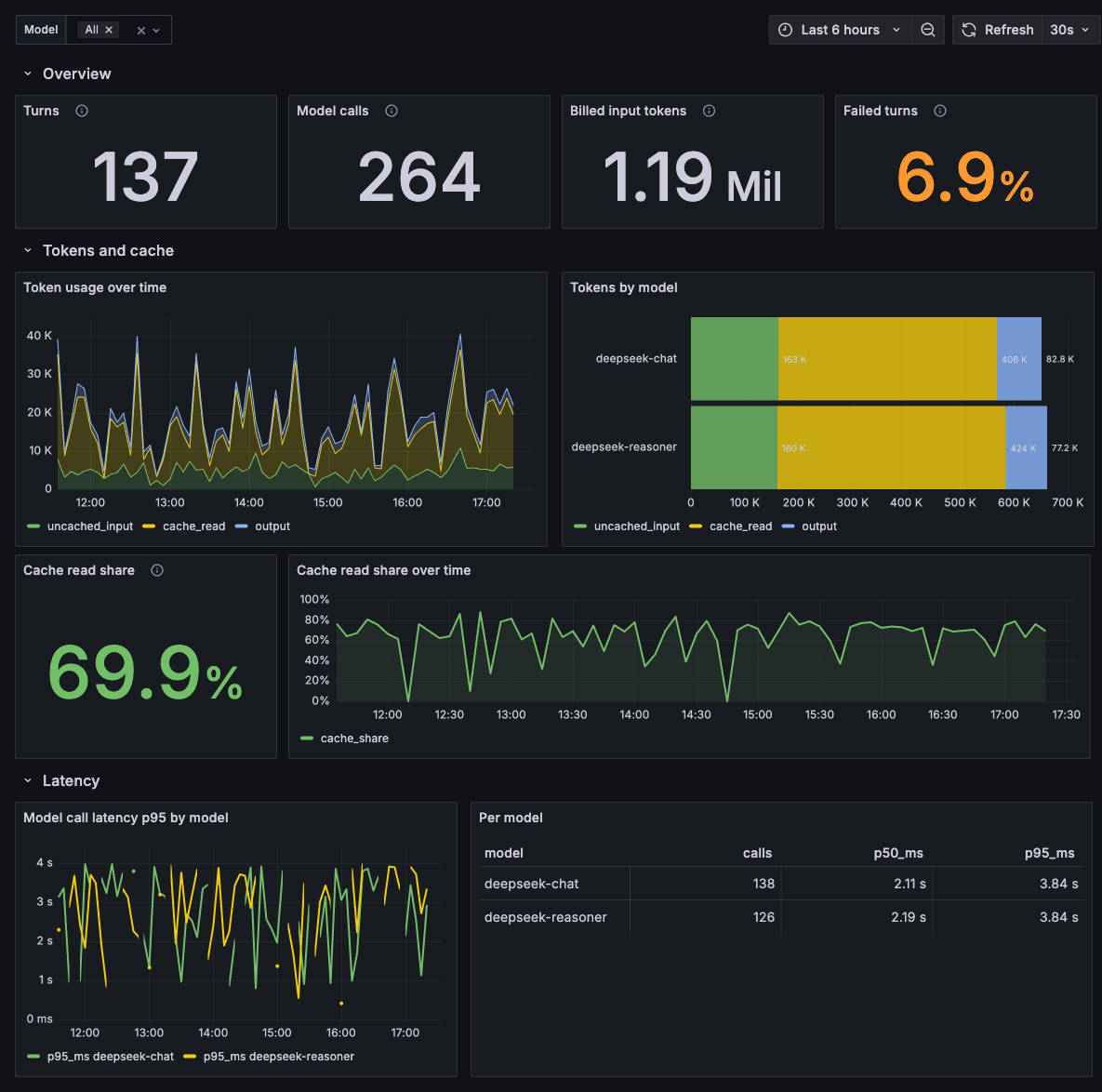 tma1-ai/dsh-otel
What a DeepSeek Harness run costs in tokens, money, and time. OpenTelemetry traces, metrics, and logs in GreptimeDB, wit…
tma1-ai/dsh-otel
What a DeepSeek Harness run costs in tokens, money, and time. OpenTelemetry traces, metrics, and logs in GreptimeDB, wit…
-
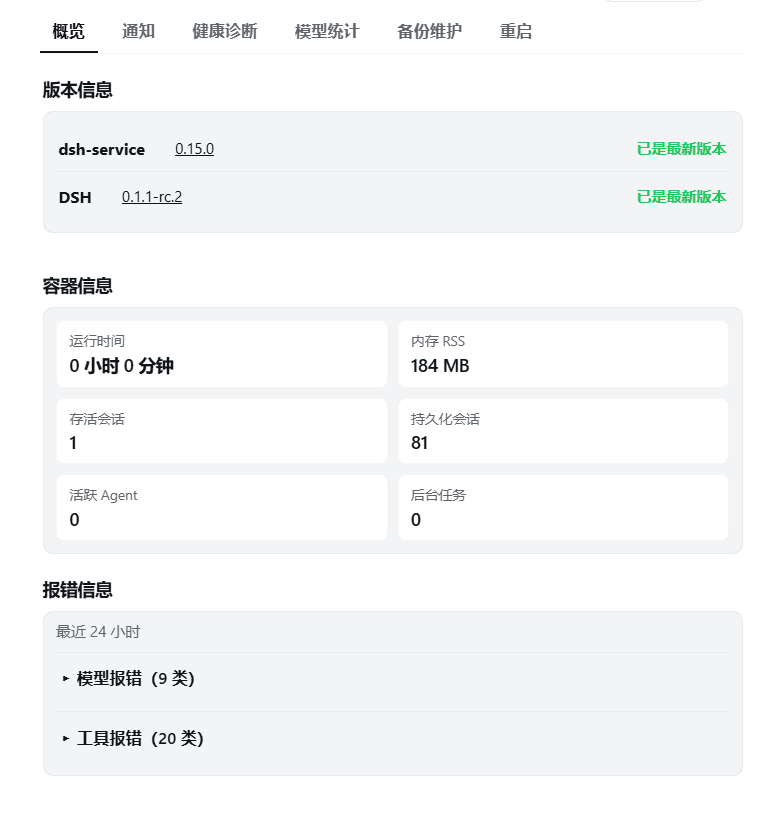 gehennawu/dsh-service
DSH Web 一站式运维面板:安全重启、健康诊断、模型用量与额度查询、会话管理、备份与权限维护、任务通知、技能与子代理模型路由。|All-in-one operations panel for DSH Web: safe restart …
gehennawu/dsh-service
DSH Web 一站式运维面板:安全重启、健康诊断、模型用量与额度查询、会话管理、备份与权限维护、任务通知、技能与子代理模型路由。|All-in-one operations panel for DSH Web: safe restart …
-
 zhangzheng25/dsh-token-monitor
DeepSeek Harness plugin: token usage & conversation stats as a native settings page - today / 7d / 30d totals, GitHub-st…
zhangzheng25/dsh-token-monitor
DeepSeek Harness plugin: token usage & conversation stats as a native settings page - today / 7d / 30d totals, GitHub-st…
-
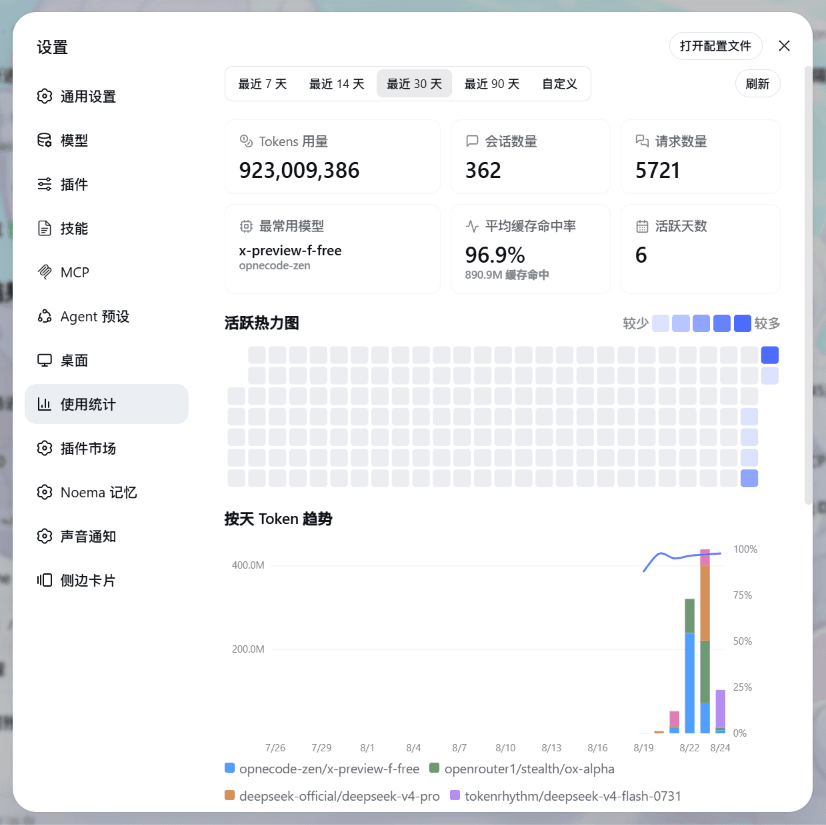 HaoyueQin/dsh-usage-statistics-panel
DSH web plugin: per-day token usage statistics with a GitHub-style activity heatmap, cache hit-rate curve and per-model …
HaoyueQin/dsh-usage-statistics-panel
DSH web plugin: per-day token usage statistics with a GitHub-style activity heatmap, cache hit-rate curve and per-model …