vTRKA/voice-stt-dsh
This plugin adds a local microphone button to the DeepSeek Harness composer. Audio stays on the user's computer. The plugin never sends a message by itself.
catalog description:Local, offline voice input for DeepSeek Harness -Parakeet and NeMo-Speech.cpp
Install
.\install.ps1
   ```

4. Install the model using [Install the model](#install-the-model).
5. Restart DSH Desktop.
6. The microphone button appears in the composer. You can click it, or press
   `Ctrl+E` once, to start recording. Press the same shortcut once more to stop.
7. Review the transcript in the draft and press **Send**.

You do not need to click the button before using the shortcut, and you do not
need to hold either control. The shortcut calls the same local recording action
as the button.

The installer uses the official `dsh plugin` command when it is available. DSH
Desktop users normally do not have that command on `PATH`, so the same script
falls back to the Desktop profile at `$DSH_HOME/profiles/desktop`, registers the
bundle layer, and removes the conflicting built-in voice-input row. It does not
write to the DSH application directory.

## Shortcut

The default two-key shortcut is `Ctrl+E` on Windows/Linux and `Command+E` on
macOS. Press it once to start recording and once again to finish.

Right-click the microphone to choose another shortcut. The new shortcut must
include `Ctrl`, `Alt`, `Shift`, or `Command`, and is saved in the browser.
You can also open **Settings → Plugins → Parakeet Voice Input** and change the
shortcut there. That settings page is the recommended way to configure it;
clicking the microphone is only for starting or stopping a recording.

## Install the model

The Parakeet model runs offline. Audio stays on the computer. For safe
installation, provide a trusted download URL and the model publisher's SHA-256
checksum:
Add vTRKA/voice-stt-dsh to your DSH config (web profile) to enable.
README
Expand full README Collapse
README is empty.
Related Plugins
-
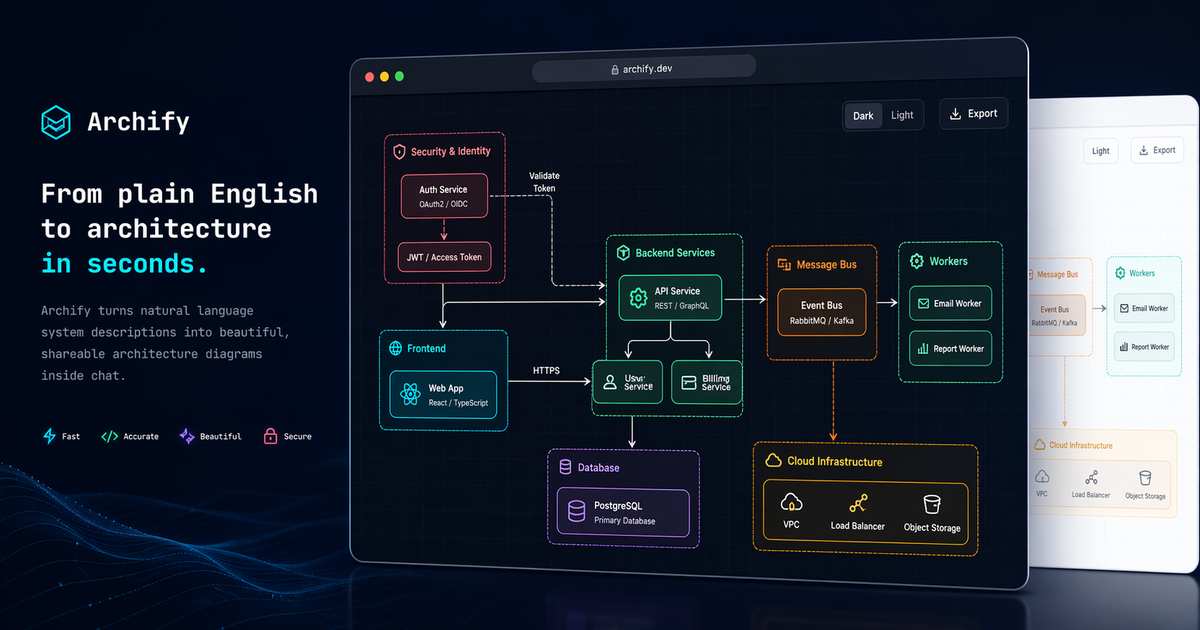 tt-a1i/archify
Agent skill for beautiful, verifiable architecture, workflow, sequence, data-flow, and lifecycle diagrams—self-contained…
tt-a1i/archify
Agent skill for beautiful, verifiable architecture, workflow, sequence, data-flow, and lifecycle diagrams—self-contained…
-
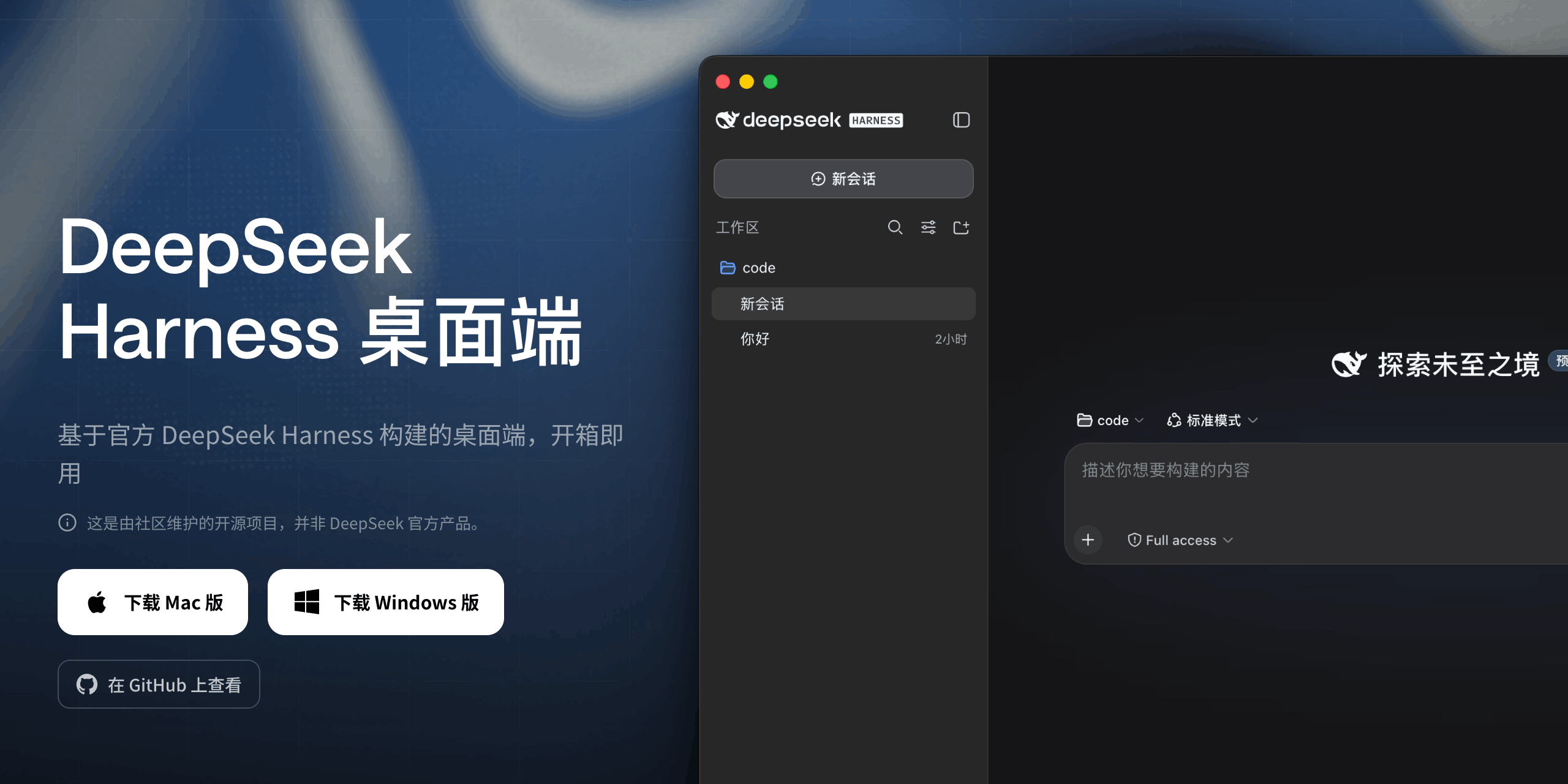 anywhere-labs/deepseek-harness-desktop
为 DeepSeek Harness (DSH) 插件生态打造的现代化桌面端解决方案。万物皆「插件」,桌面本身也是「插件」。
anywhere-labs/deepseek-harness-desktop
为 DeepSeek Harness (DSH) 插件生态打造的现代化桌面端解决方案。万物皆「插件」,桌面本身也是「插件」。
-
 strukto-ai/mirage
The World's First Unified Virtual Filesystem For AI Agents
strukto-ai/mirage
The World's First Unified Virtual Filesystem For AI Agents
-
 liustack/modlens
The first vision plugin for DeepSeek Harness, and the vision bridge for every text-only coding agent. Paste an image, ge…
liustack/modlens
The first vision plugin for DeepSeek Harness, and the vision bridge for every text-only coding agent. Paste an image, ge…
-
 omdsh-dev/DSH-better-sidebar
开放的侧边栏底座,支持三方拓展注册新侧边栏页面。内置文件渲染编辑/终端/Git/子代理页面 | Open sidebar foundation, supports third-party extensions to register new…
omdsh-dev/DSH-better-sidebar
开放的侧边栏底座,支持三方拓展注册新侧边栏页面。内置文件渲染编辑/终端/Git/子代理页面 | Open sidebar foundation, supports third-party extensions to register new…
-
 GanyuanRan/Aegis
Make AI coding agents architecture-aware: baseline-first, evidence-verified, drift-checked, and safe across long tasks.
GanyuanRan/Aegis
Make AI coding agents architecture-aware: baseline-first, evidence-verified, drift-checked, and safe across long tasks.
-
 dsh-market/dsh-market
The plugin market inside DeepSeek Harness — browse, search, one-click install · DSH 可视化插件市场
dsh-market/dsh-market
The plugin market inside DeepSeek Harness — browse, search, one-click install · DSH 可视化插件市场
-
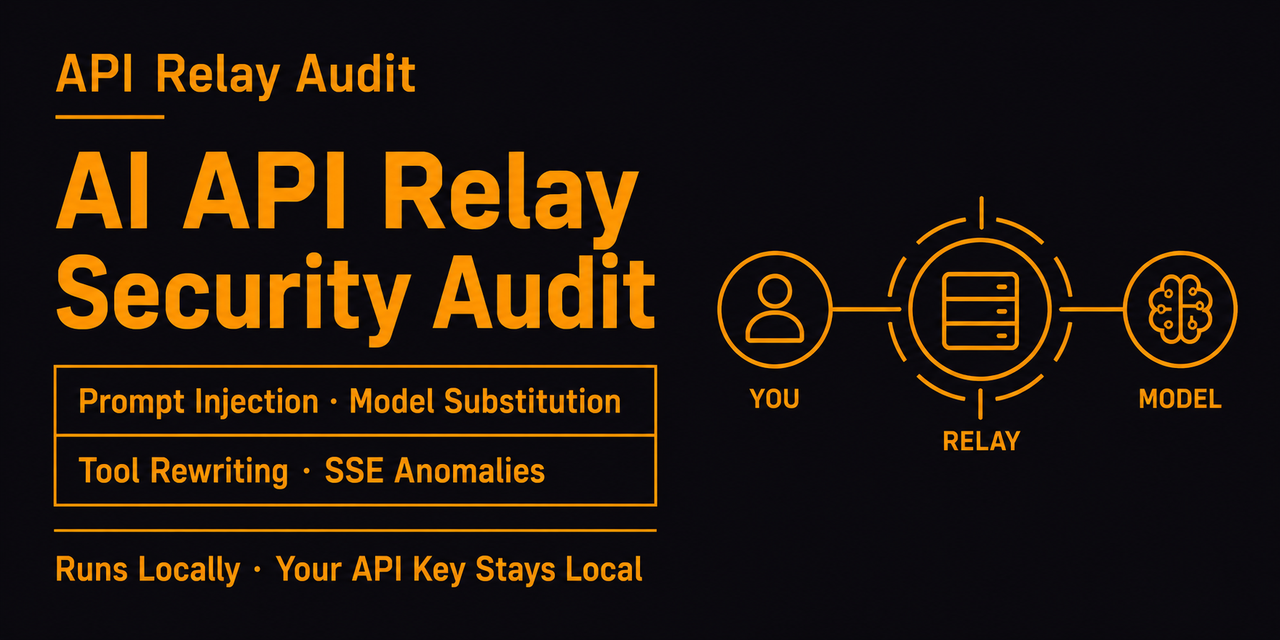 toby-bridges/api-relay-audit
Local security audit for AI API relays and LLM proxies: detects prompt injection, model substitution, tool-call rewritin…
toby-bridges/api-relay-audit
Local security audit for AI API relays and LLM proxies: detects prompt injection, model substitution, tool-call rewritin…